
September 5, 2026
How I Roll Out Notion-to-Webflow Auto-Sync Without Publishing Surprises
A staged, reversible workflow for syncing Notion content to Webflow CMS without unexpected changes going live.
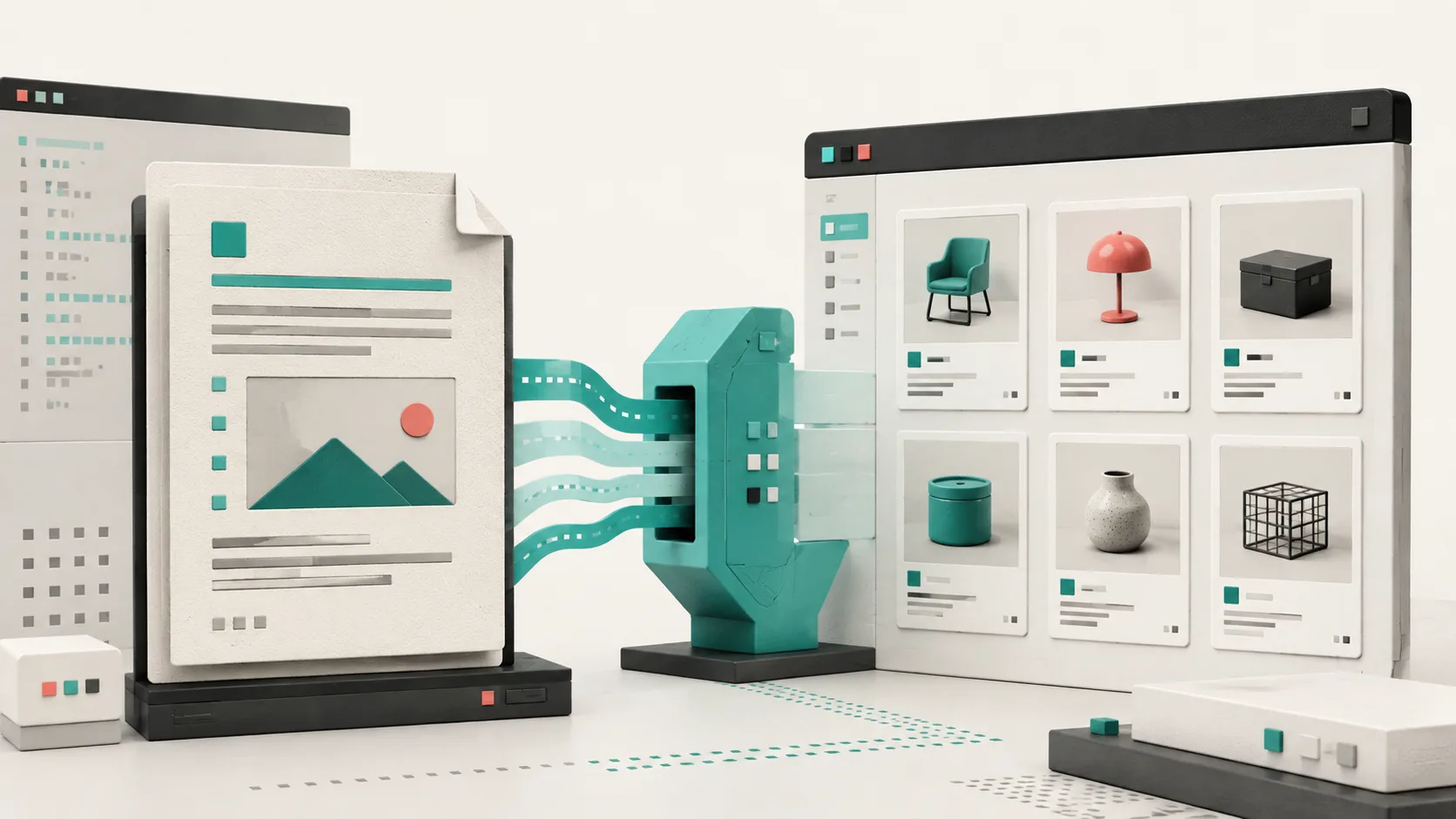
Most Notion-to-Webflow sync failures are not really sync failures. They are publishing-process failures: a writer changes a page, a field maps a little differently than expected, and a production CMS record suddenly looks different in public.
That is why I do not start by enabling auto-sync everywhere. I start with one safe record, define what may change, and give myself an easy way back. Syncflow is useful here because it connects a Notion database to a Webflow CMS Collection, maps fields, and can be run manually or with auto-sync. The important part is treating those controls as a rollout system—not a magic publish button.

Start With a Record That Cannot Hurt You
Pick one draft, evergreen post, or low-traffic collection item. Do not use a seasonal launch page, the homepage feature, or the one product page your ads point at. Your first record needs enough real structure to expose mapping mistakes: a title, slug, summary, cover image, body, date, and whatever reference fields your collection actually uses.
Before I connect anything, I write down the expected result for each field. A tiny table is enough:
Notion title       -> Webflow Name
Notion summary     -> Webflow Description
Notion cover       -> Webflow Image
Notion publish date-> Webflow Date
Notion URL/slugs   -> Webflow Slug
This sounds boring, but it catches the expensive class of error: a perfectly successful sync that overwrites the wrong field. I covered the deeper version of this idea in my content-model contract before auto-sync. The contract is not paperwork; it tells you what a change is allowed to touch.
Map the Minimum Useful Fields First
Syncflow supports text, images, checkboxes, dates, URLs, and other field types. Resist mapping every interesting field on day one. Map only the fields required for a complete, reviewable CMS record. Then run a manual sync and compare the source page with Webflow side by side.
I specifically check four things:
- Slugs stay intentional. A changed title should not casually create an unwanted URL change.
- Images survive the trip. Look at the rendered CMS item, not just the asset selector.
- Dates behave as dates. Confirm your collection sorting and any scheduled-display logic still make sense.
- Body styling is predictable. Syncflow can import Notion elements with inline styles or classes. I choose classes when I want the Webflow design system to own the presentation; inline styling is useful when preserving a narrow bit of source formatting matters more.
That same manual comparison is a good reason to keep a static Webflow mirror before a redesign or another known-good reference around. It gives you a concrete baseline instead of relying on memory.

Put a Review Gate Before Auto-Sync
Manual sync is not just setup friction. It is the dry run for your editorial process. I use it to answer a simple question: if this same writer changes this same record next week, who notices before it becomes public?
For a small team, the answer can be a Notion status property such as Ready for sync, a named reviewer, and a quick Webflow preview check. The status itself does not have to be mapped. What matters is that the team has one explicit transition from drafting to publishable content.
Once that works, turn on auto-sync for the narrowest sensible scope. Syncflow can update a Webflow collection when the Notion page is created or modified, and it also offers auto-publish. I do not enable both assumptions at once. First prove that the CMS record updates cleanly; then decide whether Webflow publication should remain a separate human action. For a high-risk launch, I prefer the separation. My Webflow-in-Git launch checklist follows the same principle: make the change visible and recoverable before you trust it.
Make Rollback a Normal Step
Auto-sync becomes much less scary when a rollback is not an improvised rescue. Before enabling it, keep a small record of:
- the source Notion page URL and last approved revision;
- the matching Webflow CMS item URL;
- the field mapping screenshot or written map;
- who can pause the sync; and
- the last known-good published version.
If a sync produces an odd image, missing body block, or unintended field update, pause the automation, restore the source or CMS item deliberately, and rerun the manual comparison. Do not patch the production record repeatedly while auto-sync is still active—you will only make it unclear which system owns the final value.
Expand by Content Type, Not by Confidence
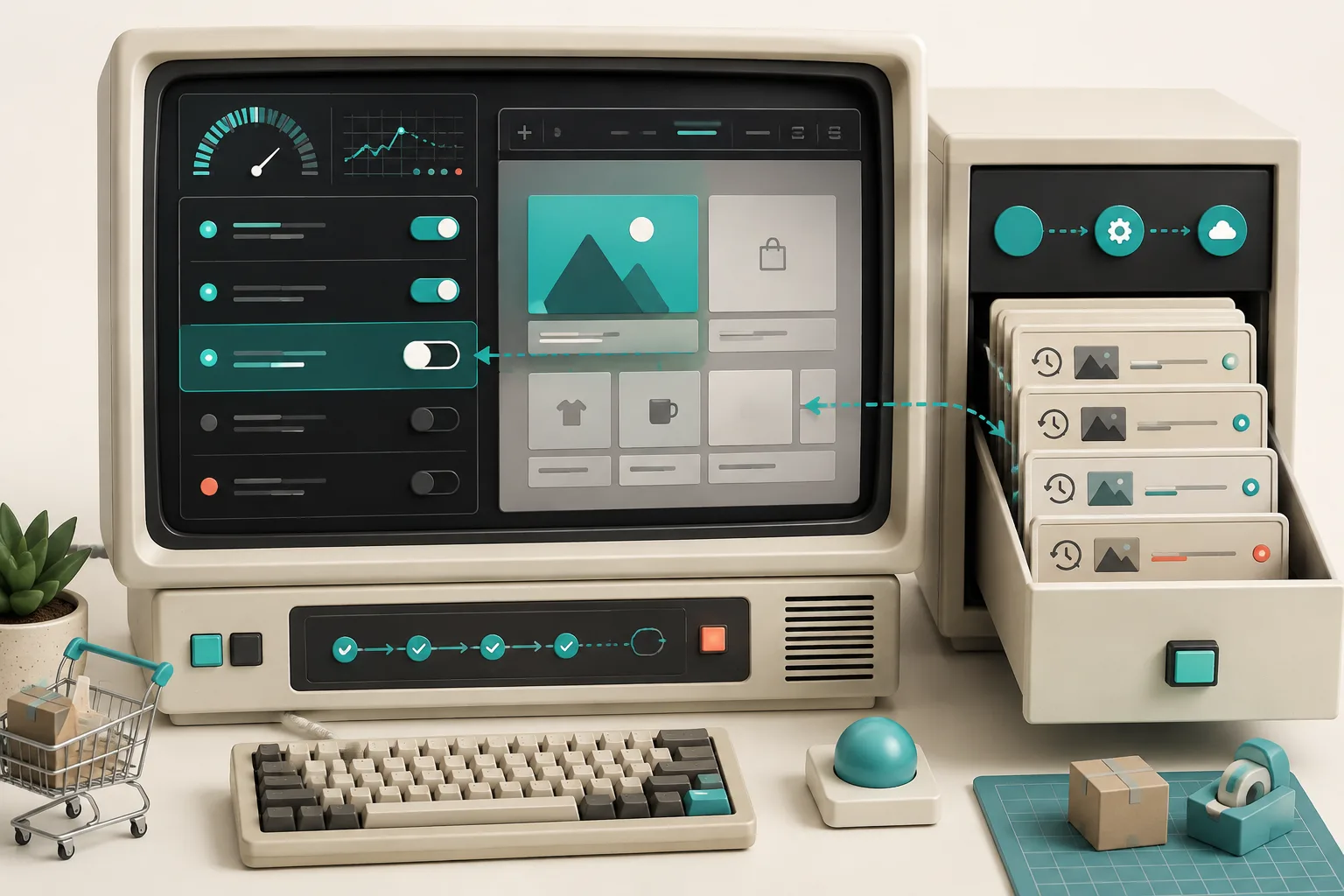
After one record works, add another record of the same type. Only then introduce a more complicated pattern: a new rich-text layout, a page with internal links, or a collection with several images. Syncflow’s page linking can convert links between Notion pages into links between Webflow posts, which is worth testing with real related content before you rely on it for navigation.
I also test special cases individually. Code highlighting and TeX support are valuable when the publication needs them, but they are not reasons to expand a rollout prematurely. A successful text-only sync tells you nothing about how your long-form, image-heavy guide will render.
If a bigger structural change is coming, export a copy before you start. This Webflow export-before-redesign workflow is a useful companion habit: preserve a reference, change one layer, then verify the output.
The payoff is not merely fewer broken posts. You get a publishing system where Notion stays pleasant for writing and Webflow stays intentional for presentation. Start today with one non-critical record: map only the fields it needs, run a manual sync, preview it in Webflow, and write down the rollback move before you enable auto-sync.