
July 26, 2026
How I Build a Reviewable Notion-to-Webflow Publishing Pipeline
A practical SyncFlow setup for mapping Notion fields, protecting formatting, and keeping Webflow updates reviewable before they publish.

I still write the first draft in Notion. It is faster to outline there, and the database gives me a clean place to track status, publish date, and cover art. The part that usually gets messy is the handoff to Webflow: field names drift, formatting breaks, and a post that looked fine in Notion turns into cleanup work in the CMS.
SyncFlow is the bridge I use when I want Notion to stay the writing surface and Webflow to stay the published surface. It maps a Notion database to a Webflow CMS collection, supports automatic sync, and handles rich content like images, page links, code blocks, and TeX without forcing me to rebuild the page by hand.
If you want the product details, start at SyncFlow. The site also links to a full tutorial and a short trailer.
Start With the Smallest Useful Field Map
The first mistake I made was trying to map everything. That creates the illusion of completeness, but it usually makes the sync harder to trust. I get better results when I start with the fields that actually control the page.
For a blog collection, I usually want:
- title
- summary
- cover image
- publish date
- slug
That is enough to prove the pipeline works. Once those fields are stable, the rest is mostly editorial preference.
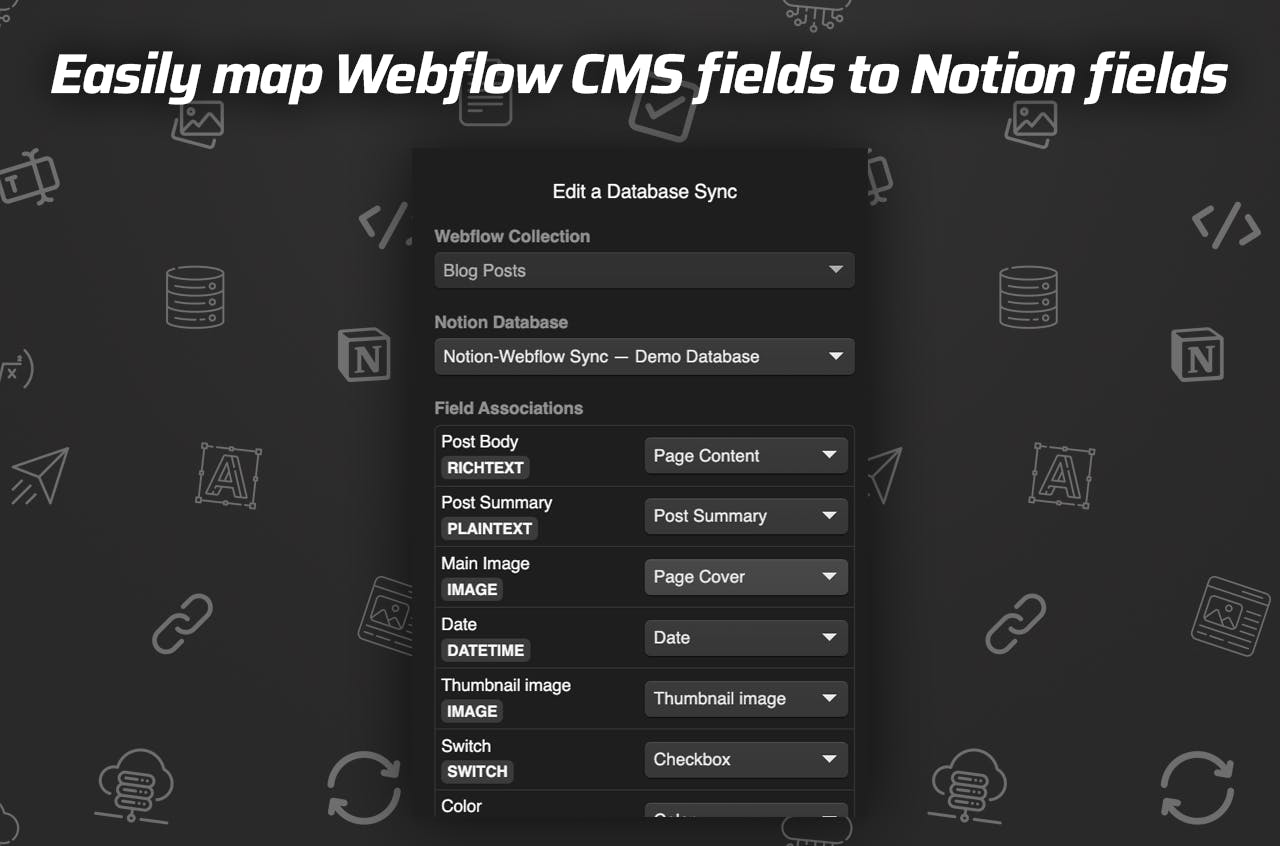
The field mapper is the part I want to get boring before I trust a collection. Each Notion property needs one obvious Webflow target, and nothing should depend on a hidden manual step.
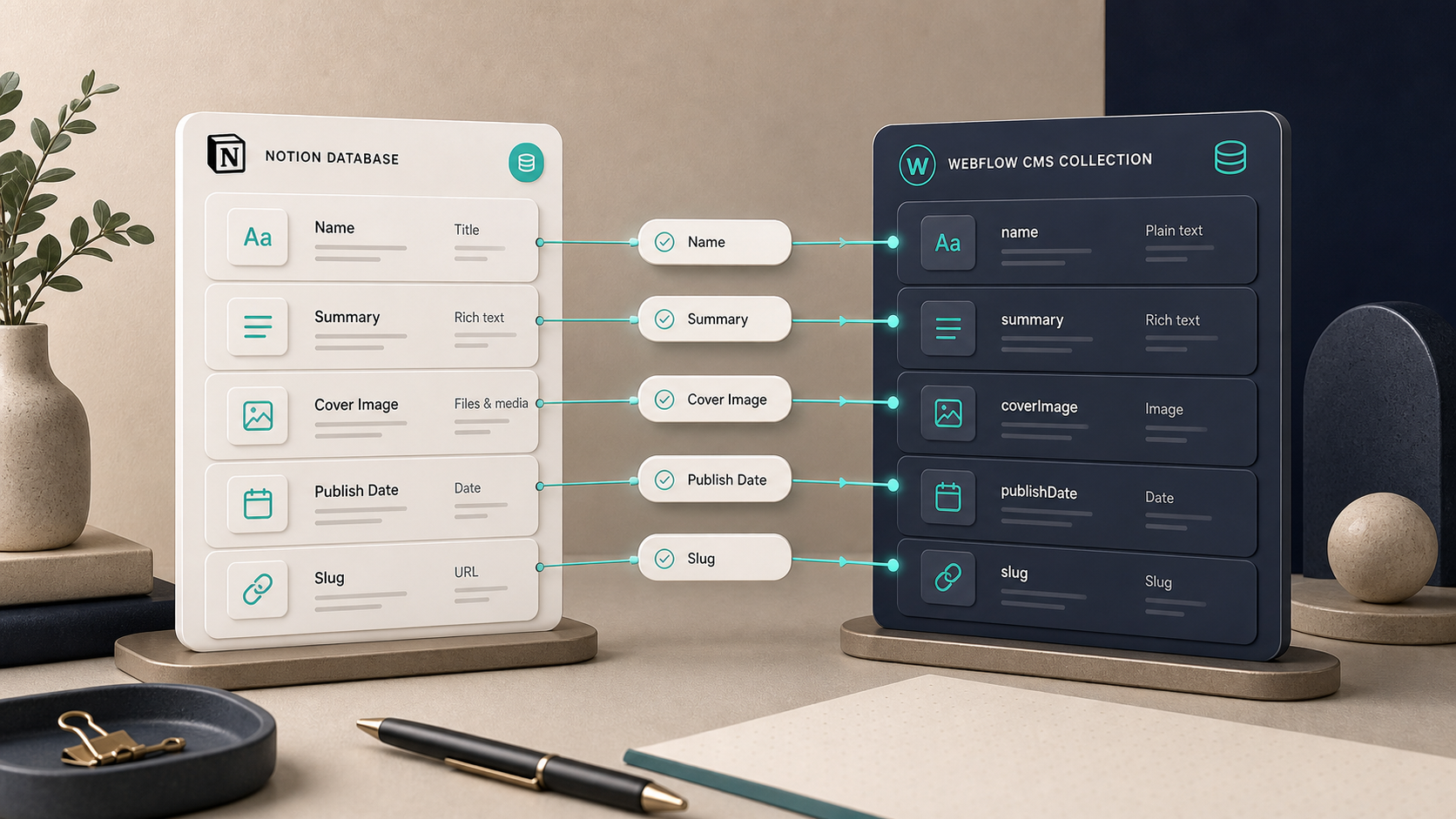
SyncFlow supports text, images, checkboxes, dates, and URLs, so the mapping does not have to flatten the article into one plain text field.
If you want the version of this decision process that focuses on what should and should not move, I covered that in How I Decide What Should Sync From Notion Into Webflow.
Decide What Can Sync Automatically
Auto-sync is useful, but only after the field map is boring. I want automation to handle repeatable edits, not to guess at structure changes.
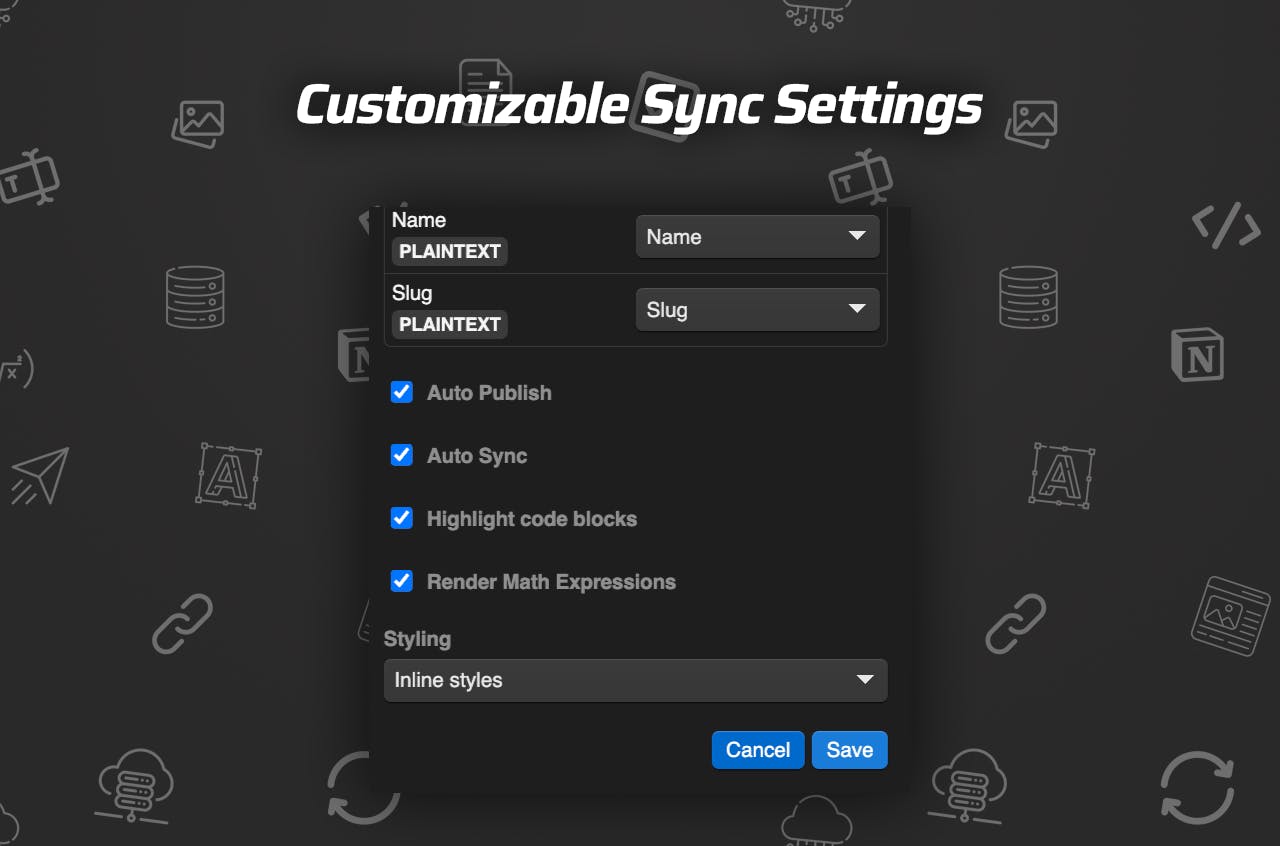
The settings screen is where I decide how much trust this collection gets. I keep the sync conservative until the Webflow template proves that it can absorb changes without surprise.
My default rule set looks like this:
- Safe to auto-sync: typo fixes, summary rewrites, image swaps, and date changes.
- Review first: title changes, slug changes, and anything that affects the page template.
- Pause the pipeline: schema changes, new linked-page patterns, or a post with odd formatting.
That is the difference between helpful automation and a surprise publish.
Keep Formatting and Links Intact
This is the part that matters if you write technical posts. SyncFlow can import Notion elements with inline styling or classes, which is the difference between “it showed up” and “it matches the site.” When the theme is already tuned, I prefer classes. When I need fidelity to the source, inline styles are fine.
It also converts links between Notion pages into links between Webflow posts, which saves me from rebuilding the internal structure later. For technical content, code highlighting and TeX support are the two features that keep the imported draft from feeling stripped down.
If you are comparing this approach to a more manual workflow, How I Keep Notion and Webflow in Sync Without Copy-Pasting is the cleaner version of the same idea.
Add a Human Review Gate
Even with auto-sync on, I still want one checkpoint before I treat a post as done. The review step is where I catch the boring failures: a slug that looks right but resolves badly, a cover image that cropped badly, or a block that rendered differently than it looked in Notion.

My quick check is simple:
- Open the imported Webflow page once.
- Check the title, summary, cover, and publish date.
- Verify links between pages still resolve.
- Scan one code block and one TeX block if the post has them.
- Confirm the CMS entry is ready for auto-publish or manual approval.
That is also where I think about long-term drift, which I covered in How to Prevent Notion-to-Webflow CMS Drift After Launch.
What I Would Ship First
If I were setting this up from scratch, I would keep the first version small:
- One Notion database and one Webflow collection.
- The minimum field map first.
- Auto-sync only after the page template is stable.
- Add page linking, code blocks, and TeX after the basic page renders cleanly.
- Use the review step until the collection has earned your trust.
If you want a tighter checklist version, My Checklist for Syncing Notion Articles Into Webflow CMS is the one I would open next.
The product page also has the setup videos if you want to see the flow end to end: the full tutorial and the trailer.
My rule is simple: Notion is where I write, Webflow is where I publish, and SyncFlow is what keeps the handoff boring. Start with one collection, map the fields that matter, and only turn on full automation once the page shape is stable.