
May 25, 2026
How I Keep Notion and Webflow in Sync Without Copy-Pasting
A practical Notion-to-Webflow workflow for mapping fields, keeping content in sync, and avoiding manual copy-paste publishing.
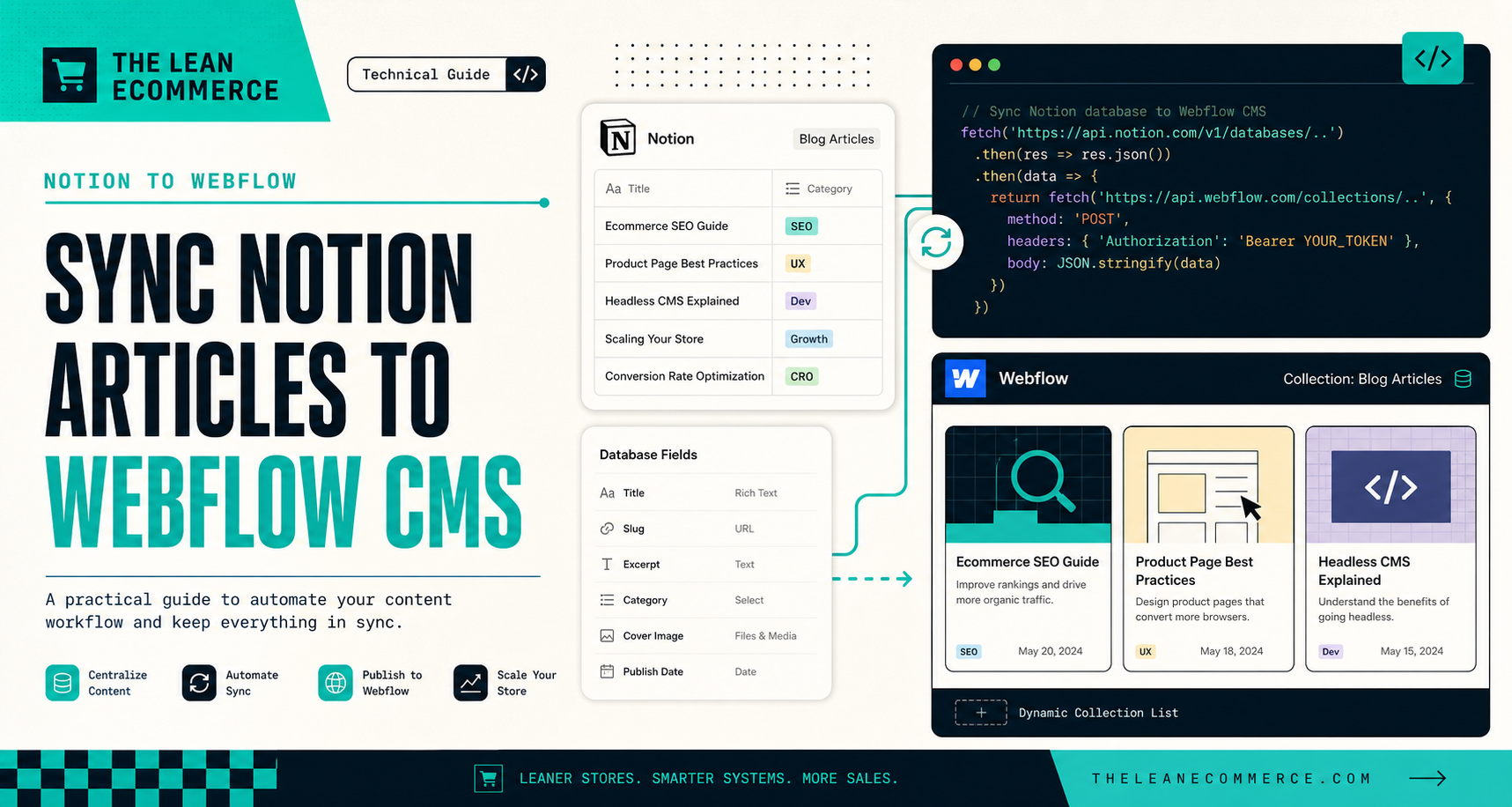
How I Keep Notion and Webflow in Sync Without Copy-Pasting
I kept doing the same dumb work: write a post in Notion, open Webflow, rebuild the CMS entry, copy the same fields into three places, then fix the slug because I missed one character. That is fine once. It is not fine if publishing is supposed to scale.
Syncflow is the Webflow app I would use to stop that loop. It syncs Notion articles directly with a Webflow CMS database, which means I can keep writing where I like, map the fields once, and let the content move instead of hand-rebuilding each post. If you want the product page, it lives at Syncflow.
I had already written How to Sync Notion Articles to Webflow CMS Automatically and How to Sync Notion Pages to Webflow CMS Step by Step. This version is the one I would keep on a real site: boring, repeatable, and hard to break.
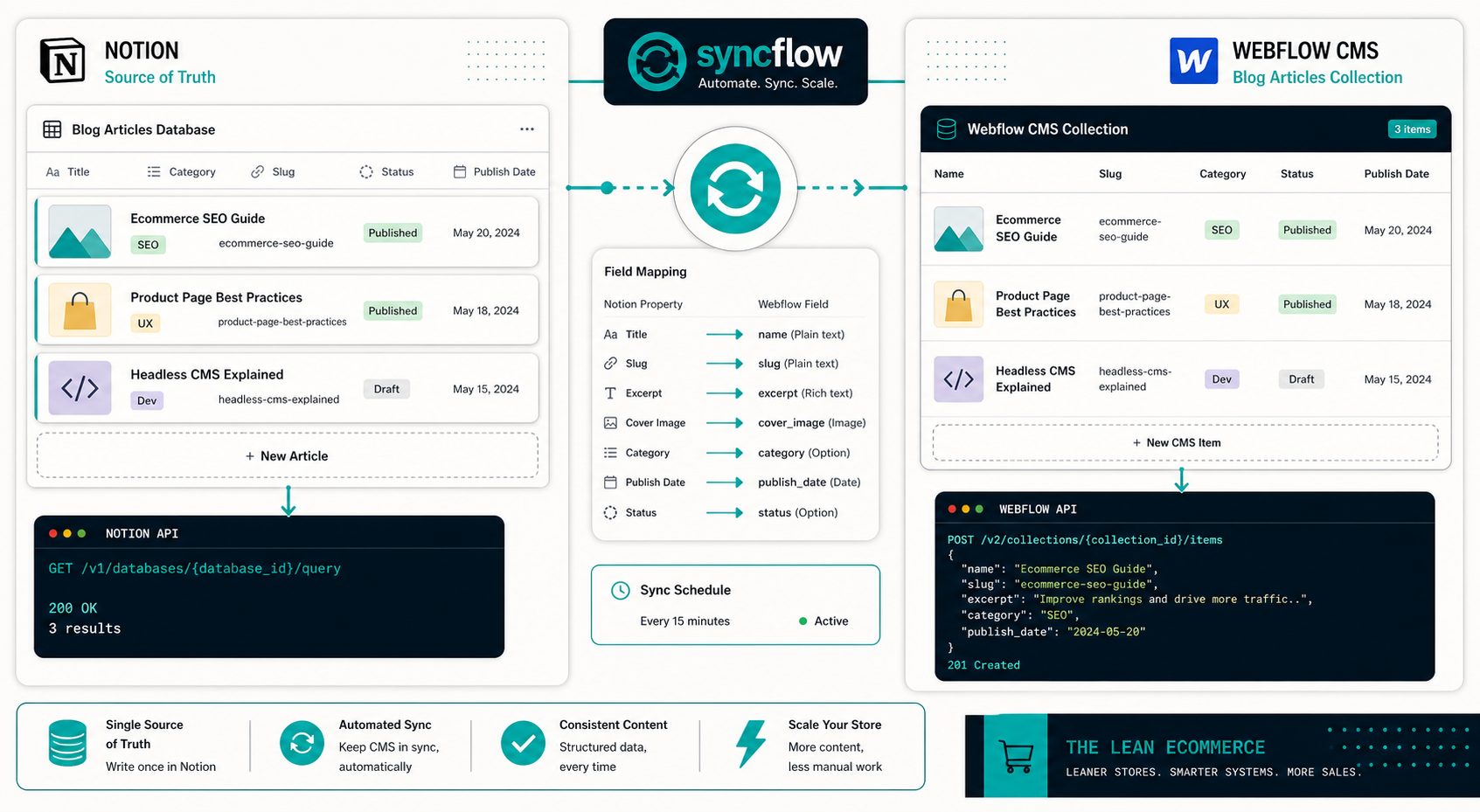
What I want the pipeline to do
I do not need a magic content robot. I need a system that does three things well:
- keep Notion as the writing surface;
- keep Webflow as the presentation layer;
- move the right fields across without flattening the article.
That is why Syncflow makes sense to me. The product supports auto-sync, manual sync, field mapping between Notion and Webflow, and a publish-now-or-save-as-draft workflow. It also supports a wider set of field types, which matters once your blog posts are more than just title-and-body entries.
For a technical blog, the minimum map usually looks something like this:
Notion title        -> Webflow name
Notion slug         -> Webflow slug
Notion excerpt      -> Webflow excerpt
Notion cover image  -> Webflow cover_image
Notion publish date -> Webflow publish_date
Notion category     -> Webflow category
That is not fancy. It is the point. A good sync setup is just a reliable translation layer.
Map the fields once, then stop touching them
This is the step where most of the manual pain disappears.
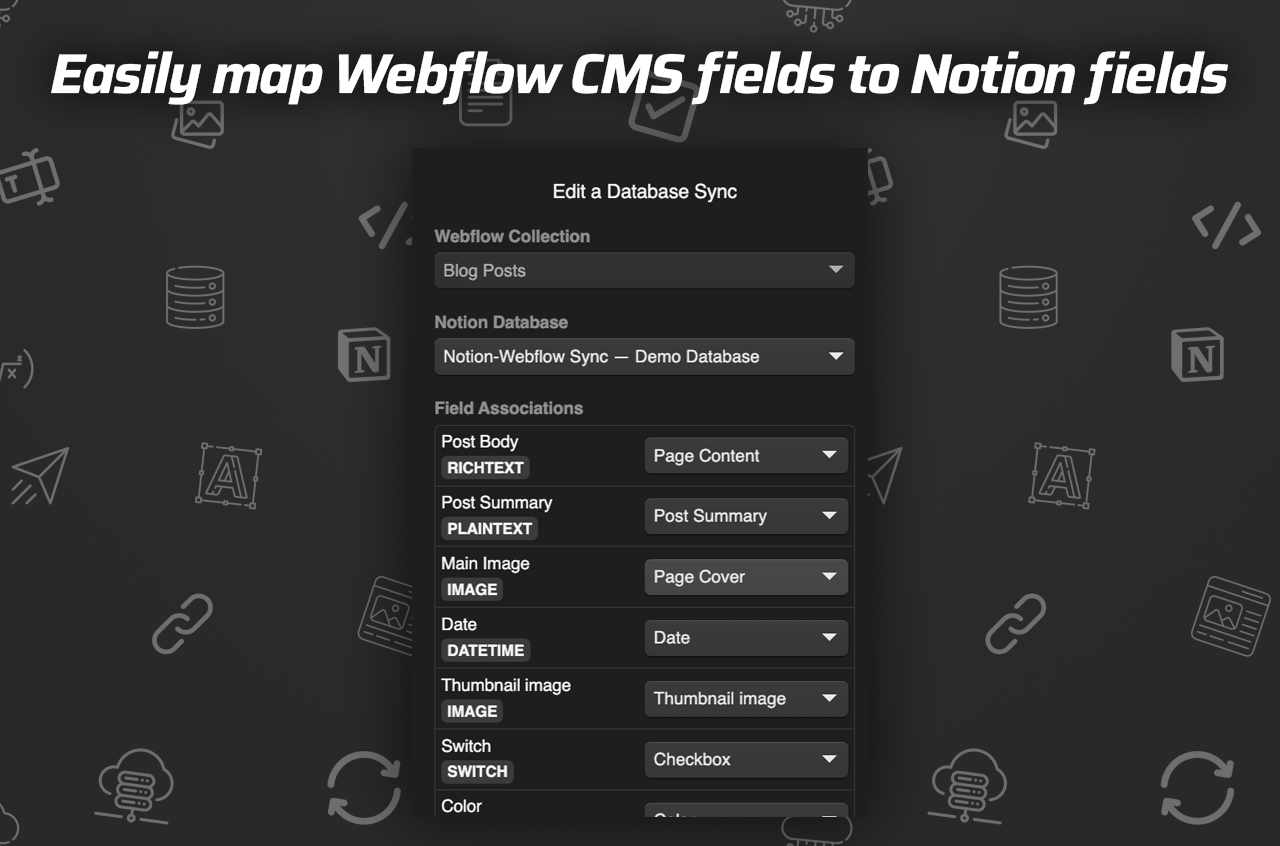
The part I like here is that the mapping is explicit. I am not guessing which Notion property ends up where. I can see the relationship between the database and the CMS fields before I ever push a post live.
When I wire this up, I usually decide the following up front:
- Which Notion database is the source of truth.
- Which Webflow collection receives the content.
- Which fields are required for every post.
- Which fields are optional and can stay blank until I need them.
- Whether the first sync should publish immediately or land as a draft.
That last decision matters more than it sounds like it does. If the site has a fragile editorial process, I would rather start with drafts and prove the mapping first.
Keep the article structure intact
The best part of using Notion as the source is that I do not have to dumb the post down just to move it into Webflow.
Syncflow says it can bring over more than plain text:
- images;
- checkboxes;
- dates;
- URLs;
- inline styling or classes;
- page links between Notion pages;
- code blocks with highlighting;
- TeX when the post needs it.
That matters if you write technical posts, product tutorials, or anything that uses nested structure instead of flat marketing copy. I want the post to arrive in Webflow looking like the post I wrote, not like a markdown export with the personality sanded off.
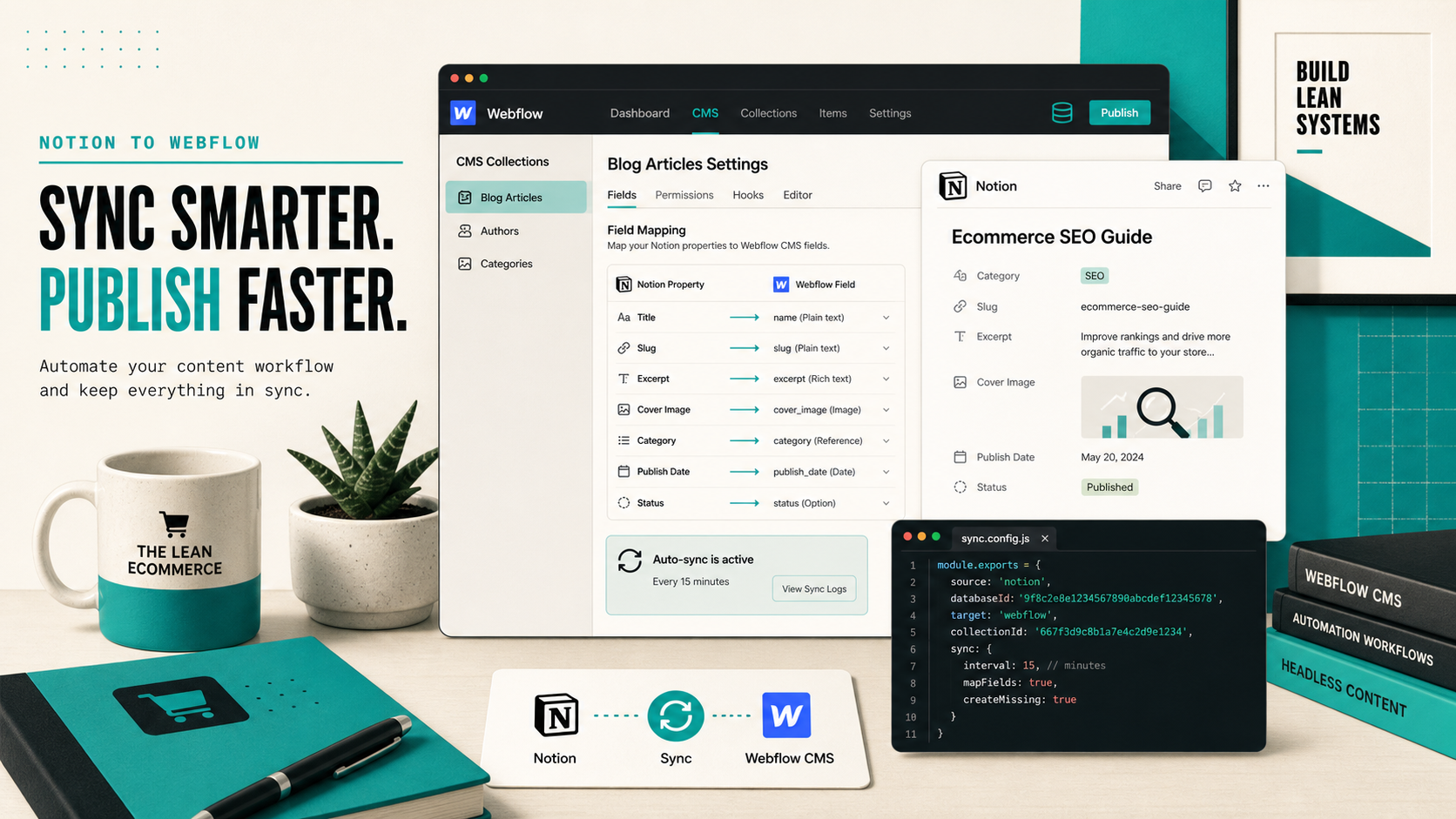
In practice, this is where I think about the editorial surface, not just the sync mechanics. If a post links to another Notion page, I want that link to become a usable Webflow post link. If I use code in the body, I want the code block to still read like code. If I need TeX, I want the math to survive the trip.
That is the difference between a content pipe and a content system.
Use auto-sync for the boring cases
I would not turn on automatic publishing for everything.
I would use auto-sync when the post is:
- low risk;
- repetitive;
- structurally predictable;
- already reviewed for product facts.
I would save a draft when the post contains:
- pricing or plan references;
- product claims;
- policy details;
- brand-sensitive wording;
- anything I have not checked yet.
That is the trade-off I want. The system should move content fast, but it should not decide for me when a post is safe to publish. Human review still matters when the stakes are high.
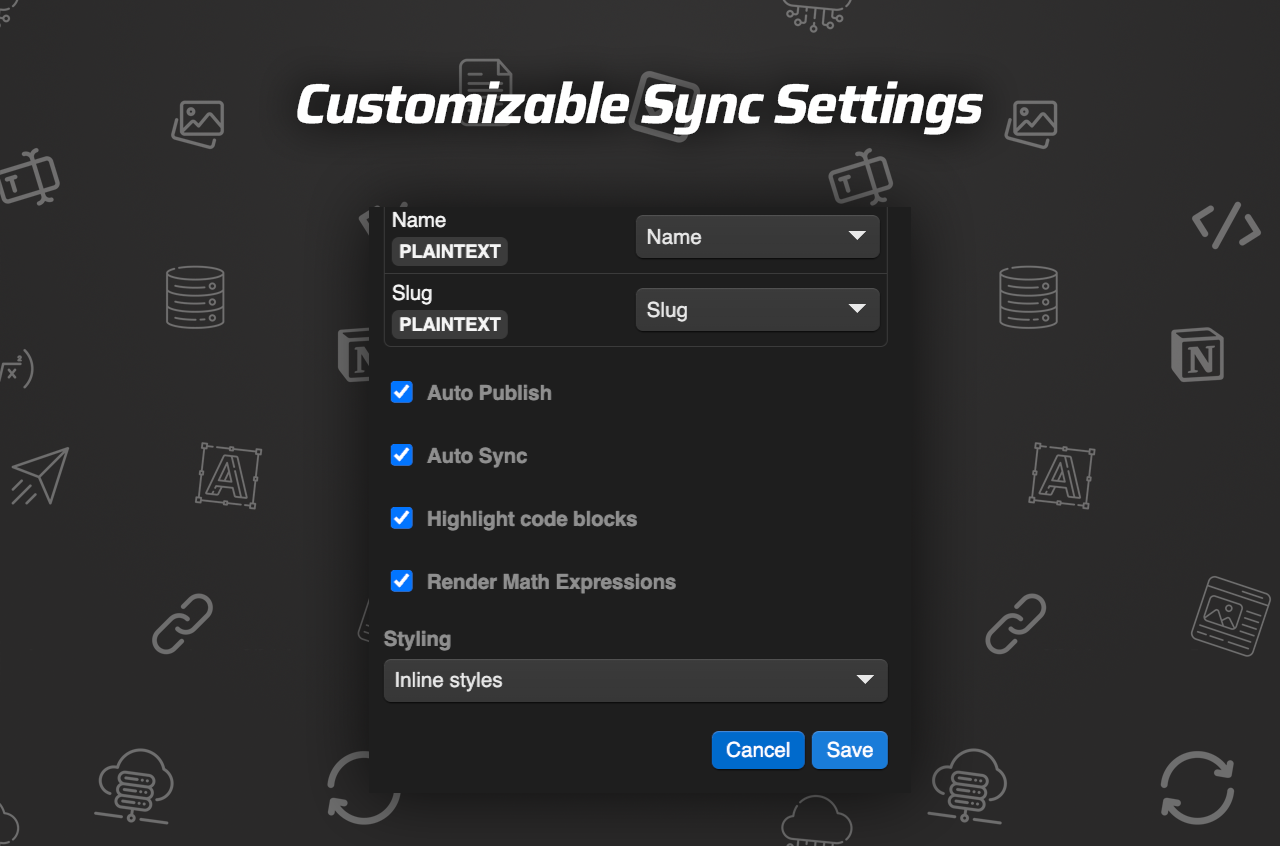
The settings screenshot is the part that keeps the workflow honest. I can decide whether I want the sync to be immediate, whether the post should publish, and how much control I want to keep on the Webflow side. That is the difference between a nice demo and something I would actually trust on a live site.
What I would do on a real site
If I were setting this up from scratch, I would keep the first rollout very small.
- Pick one Notion database.
- Pick one Webflow collection.
- Map only the fields that every post needs.
- Sync one draft.
- Check the title, slug, excerpt, image, and body formatting.
- Only then decide whether auto-sync should publish on its own.
That simple rollout gives you a way to catch the annoying stuff early. If the sync misreads a property, you find out on one post instead of fifty.
If you want the broader Webflow stack around this idea, How to Host a Webflow CMS Site on GitHub Pages with ExFlow is the companion piece I would read next, and How to Export a Webflow CMS Site Without Losing Dynamic Content covers the failure mode I am trying to avoid. If you want the same source-of-truth idea applied to content planning instead of CMS sync, How to Build a Product-Aware Shopify Blog Workflow That Publishes on Schedule is the same operator mindset in a different stack.
Bottom line
I do not want to babysit a CMS when the writing already happened somewhere else. I want one place to write, one map from content fields to CMS fields, and one controlled way to publish.
That is what makes Syncflow useful to me. It keeps Notion as the writing layer and Webflow as the output layer, while still giving me enough control to review the important posts before they go live.
If you want to try that workflow, start with one database, one collection, and one post. Then test the mapping, verify the rendered content, and only flip on auto-sync when the output looks boring in the right way.