
May 23, 2026
How to Export a Webflow CMS Site Without Losing Dynamic Content
A practical checklist for exporting a Webflow CMS site, keeping the content intact, and choosing a static hosting path with ExFlow.
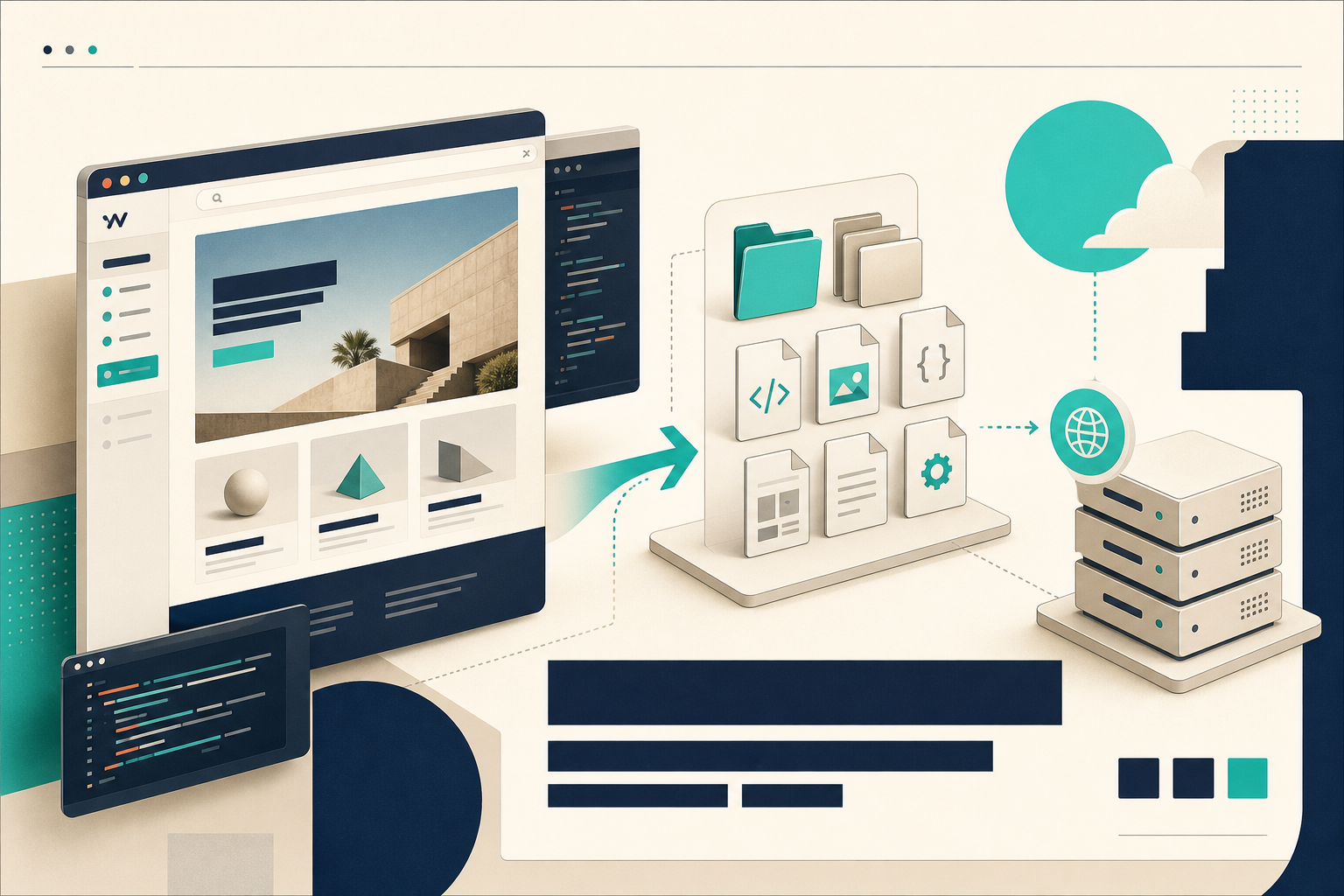
I still like Webflow when the design team wants speed, but I stop trusting the hosted model the moment the site needs to outlive the builder. Exporting a page is easy. Exporting a site with CMS content, a sensible asset bundle, and a hosting plan you can actually maintain is where the work starts. ExFlow is the tool I reach for there: I type the Webflow URL, choose what needs to come along, and get a static export instead of hand-copying files.
This matters most when you want GitHub Pages, S3, FTP, or ExFlow hosting to become the final home. The export needs to be boring: HTML, CSS, JS, images, media, and CMS pages should all end up where you expect. If that bundle is messy, your “simple migration” turns into a cleanup project.
What I check before I export
I decide these before I hit export:
- Which CMS collections need to survive.
- Whether every page should be included.
- If images and media need to be exported.
- Whether custom script.js and style.css files are required.
- Whether I want the “Made with Webflow” badge removed.
- Where the sync credentials will live.
URL: your-webflow-site.com
Export CSS files: on
Export JS files: on
Export images and media: on
Export all pages: on
Remove Made with Webflow badge: on
Custom script.js: optional
Custom style.css: optional
Sync: Git, S3, or FTP

That list looks obvious until you miss one of the pieces that Webflow usually hides in the browser. The most common failure I see is a site that exports cleanly at the page level but loses the real stuff: collection-driven pages, asset references, or the custom code that made the site feel finished in the first place.
What the exported bundle should look like
When ExFlow does its job, the folder should feel boring in the best possible way. I want a static site with HTML pages, CSS, JavaScript, and media assets that can be checked, copied, committed, or deployed without opening Webflow again. I also want CMS-backed content to survive the trip so I am not rebuilding collection pages by hand after the export.
The settings that matter most are the ones that make the bundle complete:
- Export all pages, not just the obvious landing page.
- Include CSS, JS, images, and media files.
- Keep the page extensions as .html.
- Add custom script.js and style.css only when you actually need them.
- Remove the Webflow badge only if that is part of the final presentation.
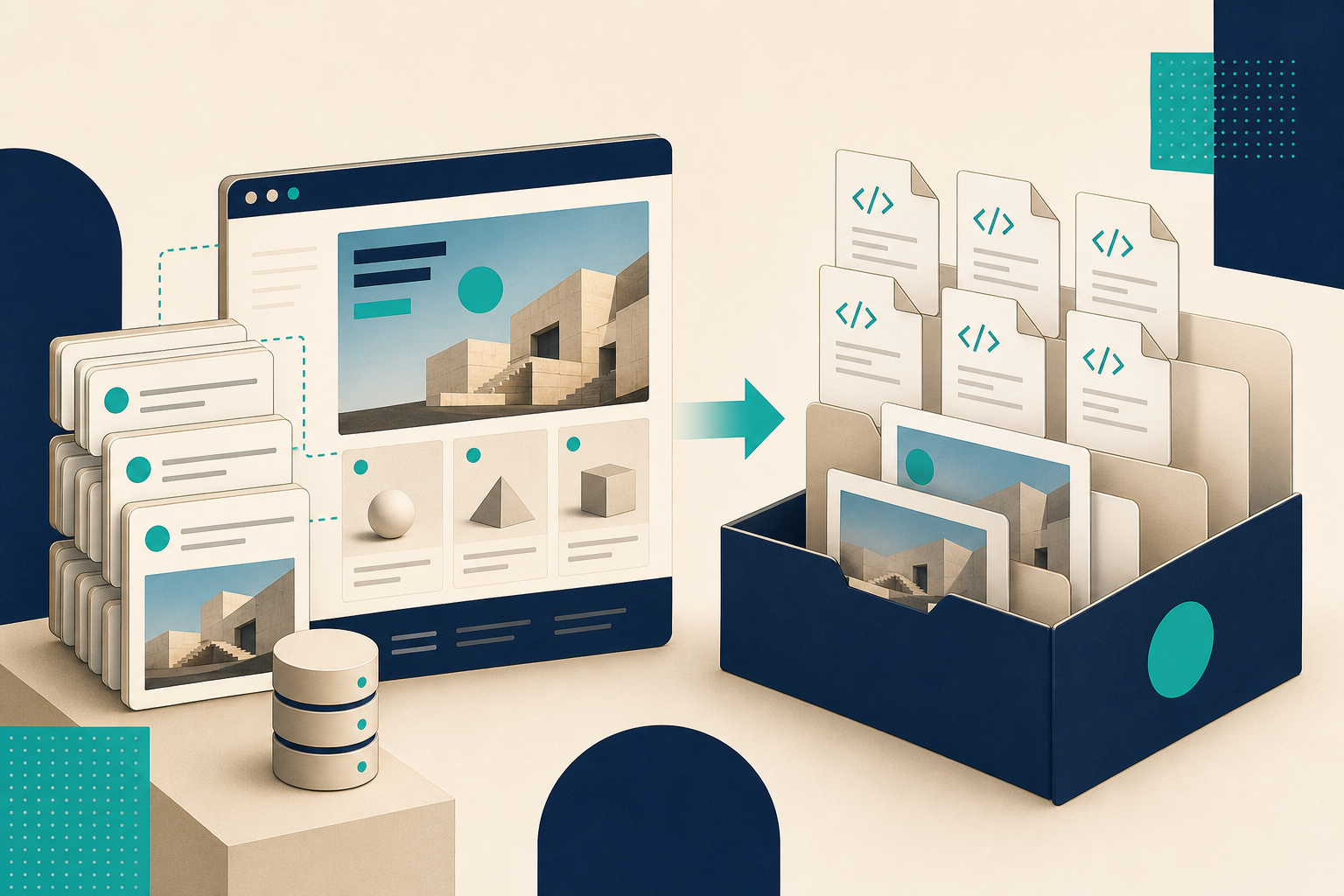
This is also where I stop pretending the export itself is the whole migration. If I want the result to live in Git, I treat the export as the first deploy artifact, not the last one. For the GitHub Pages version of that workflow, I wrote How to Move a Webflow Site to GitHub Pages with ExFlow. If you want the narrower CMS hosting path, How to Host a Webflow CMS Site on GitHub Pages with ExFlow stays focused on that part.
Where I host it after export
I split the hosting decision from the export decision because they solve different problems. ExFlow can export the site, including CMS content, and it can also sync to Git, S3, or FTP. That gives me a few sane options:
- GitHub Pages when I want the site living beside the rest of the code and deploys to feel ordinary.
- S3 when I want cheap static hosting with a straightforward asset bucket.
- FTP when I am dealing with an older server that already exists.
- ExFlow hosting when I want the exported site handled on the same side of the workflow.
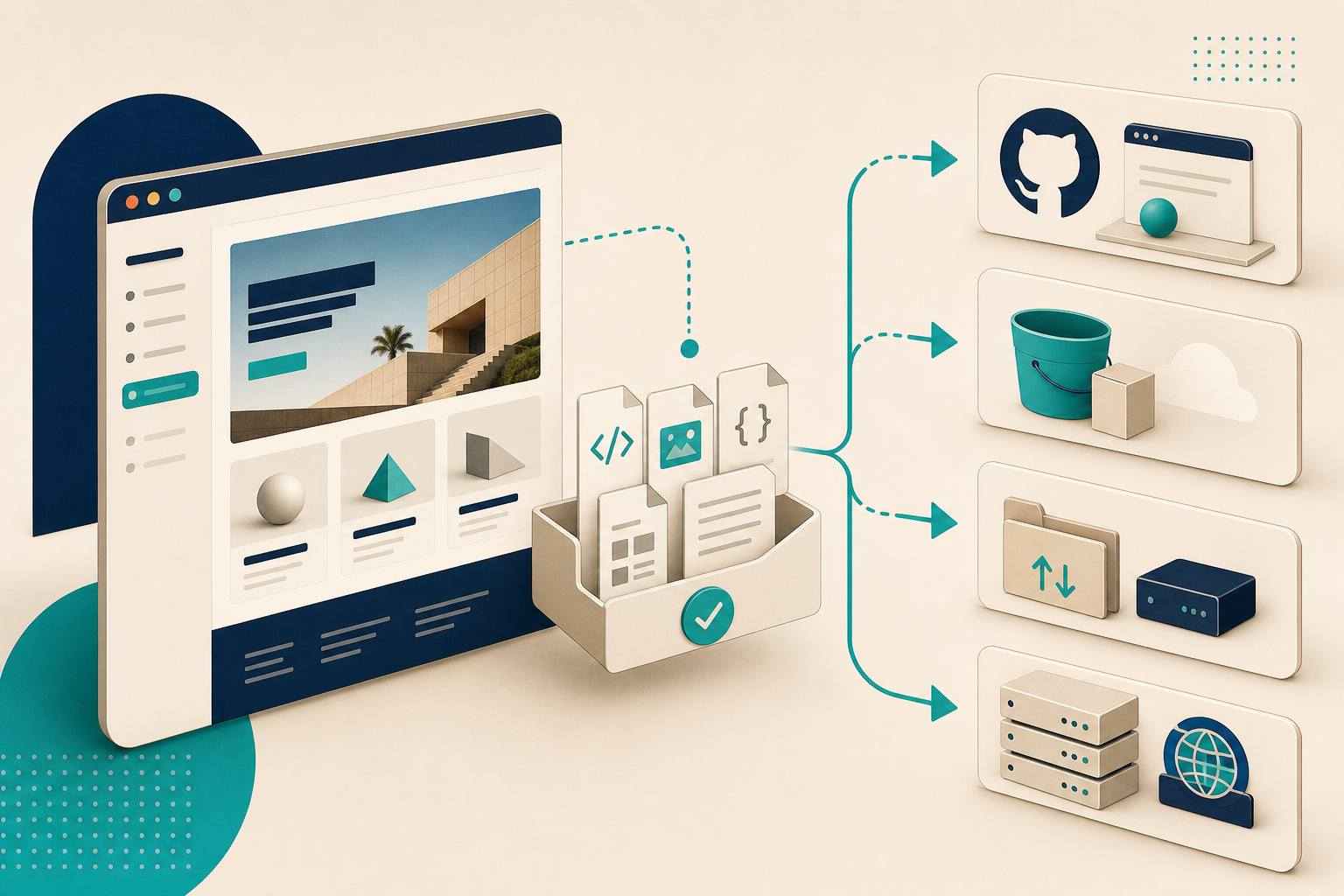
If I am being strict, GitHub Pages is the cleanest answer for a lot of small teams because the exported files behave like any other repo change. But I still check the same things no matter where the files go: links, images, CMS routes, and any custom behavior that depended on Webflow being in the loop.
I also keep the rough edges in view. What Broke When I Tried To Export A Webflow CMS Site is the version of this story that starts from failure, and Webflow CMS to HTML: A Practical Export and Self-Hosting Checklist is the version I would use as a preflight list.
What I do not automate blindly
I do not push sync credentials into a messy setup and hope for the best. FTP, S3, and Git sync all involve real credentials, and those belong in a controlled workflow rather than a throwaway test. I also still review the pages that matter most, because a clean export only matters if the forms, embeds, CMS paths, and navigation still behave the way the site needs them to outside Webflow.
That is the part people miss when they talk about static export as if it were only a file-format conversion. It is not. It is a deployment decision. Once you think about it that way, the questions get simpler: what has to survive, where will it live, and what should I verify before I call it done?
The short version
If you want to keep a Webflow site portable, start with the export bundle, not the hosting provider. Make sure the CMS content, assets, and custom code survive the trip, then choose the simplest destination that fits the team. ExFlow makes that bridge practical by turning a Webflow URL into a static export you can move, host, and version like normal site files.
If you want to try it, start at ExFlow and test one page first. A boring export is usually a good export.