
June 24, 2026
How to Prevent Notion-to-Webflow CMS Drift After Launch
Use Syncflow to keep Notion fields, Webflow CMS collections, and auto-sync settings aligned after your first publish.
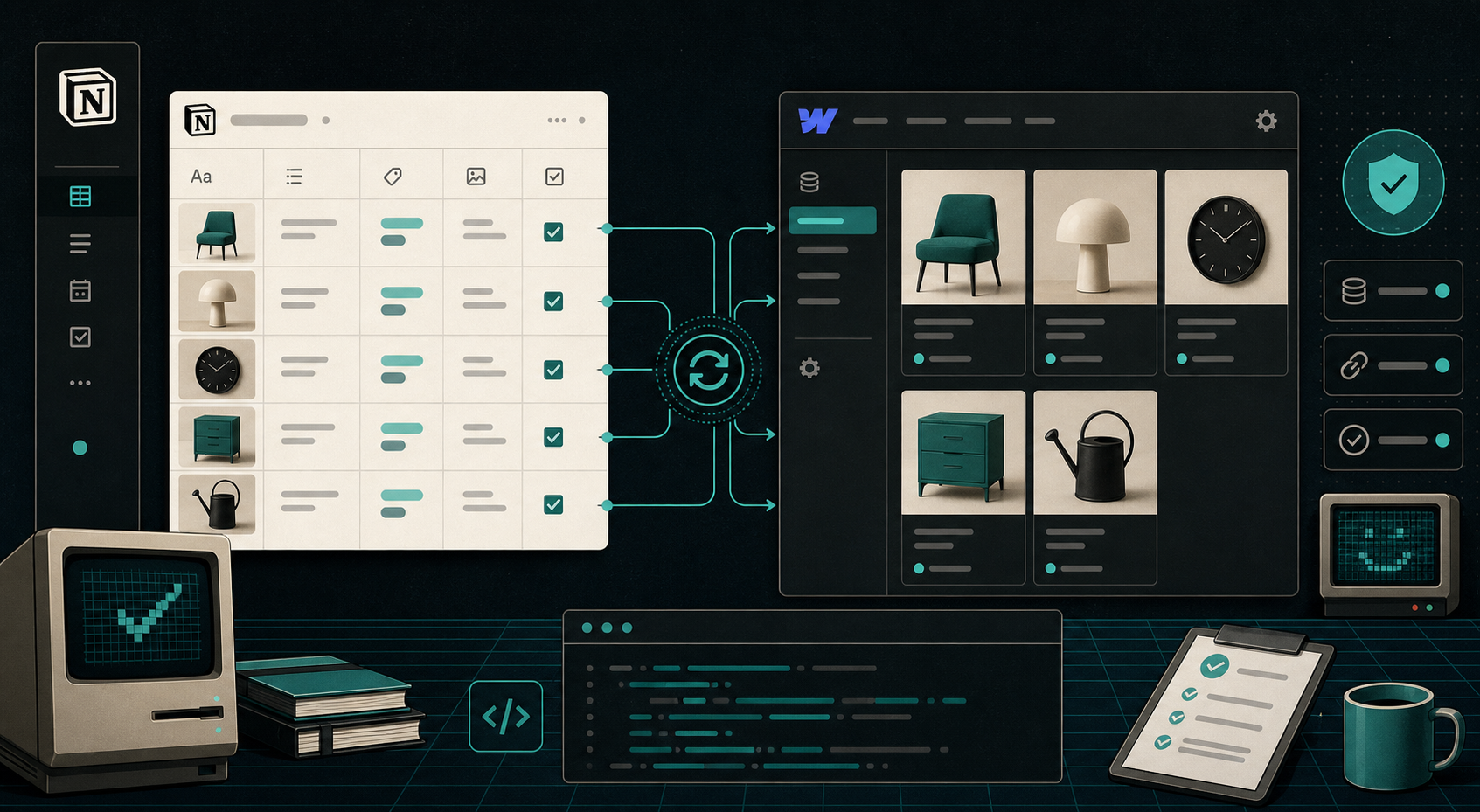
When I wire Syncflow into a site, the part I worry about is not the first publish. It is what happens after the second or third edit. A renamed Notion field, a changed Webflow collection, or a new image property can quietly turn a clean setup into cleanup work.
If you want the wider context, I already wrote about how I decide what should sync from Notion into Webflow, my checklist for syncing Notion articles into Webflow CMS, how I build a clean Notion-to-Webflow publishing pipeline with SyncFlow, and how to set up a Notion-to-Webflow sync without manual cleanup. This post stays one level lower: keeping the mapping itself stable.
1. Give Each Field A Single Owner
Before I map anything, I decide whether Notion owns the content or Webflow owns the presentation. Text, images, dates, URLs, checkboxes, and linked page relationships should have one clear home.
For Syncflow, I keep Notion as the authoring surface and Webflow CMS as the delivery surface. That means the Notion database holds the source data, and Webflow only receives the fields that need to appear on the live site.
Expected result: when a field changes, you know exactly which side to update, and you do not end up editing the same value in two places.
2. Map One Collection At A Time In Syncflow
Open Syncflow at syncflow.ybouane.com and connect one Webflow collection to one Notion database. Start with the obvious pairs first: title, slug, summary, hero image, and publish date. Then add the extras like URLs and checkboxes.
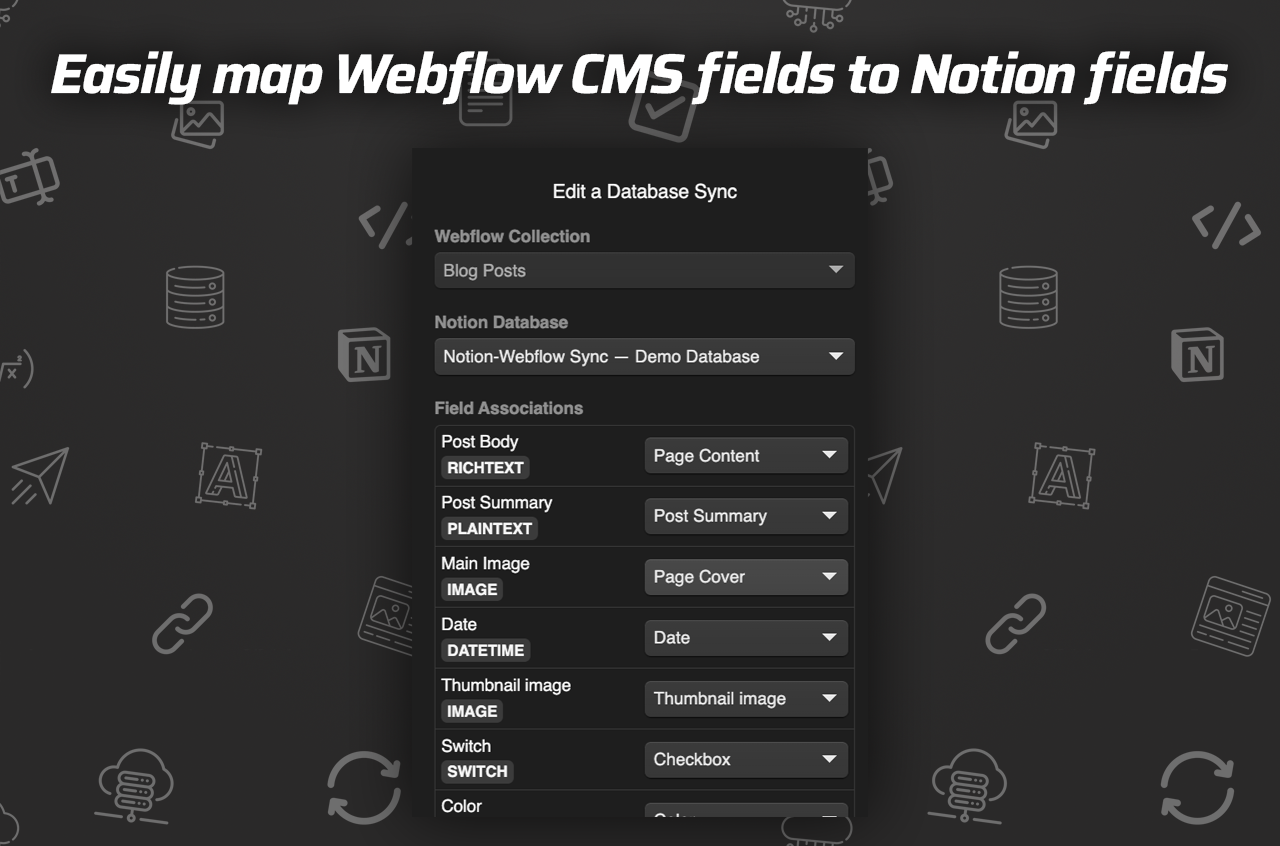
I like the mapping screen because it forces a direct one-to-one decision. That is the part that keeps drift out of the setup later. If a Notion property has no clear Webflow target, I leave it out until I know why it exists.
Expected result: every Notion property has a stable Webflow target, and you are not guessing where content should land.
3. Test The Content Types That Break First
The first things I test are rich text, image URLs, linked pages, code blocks, and TeX. Syncflow says it can preserve inline styling, convert Notion page links into Webflow links, and format code and math, so I check those before I trust the sync.
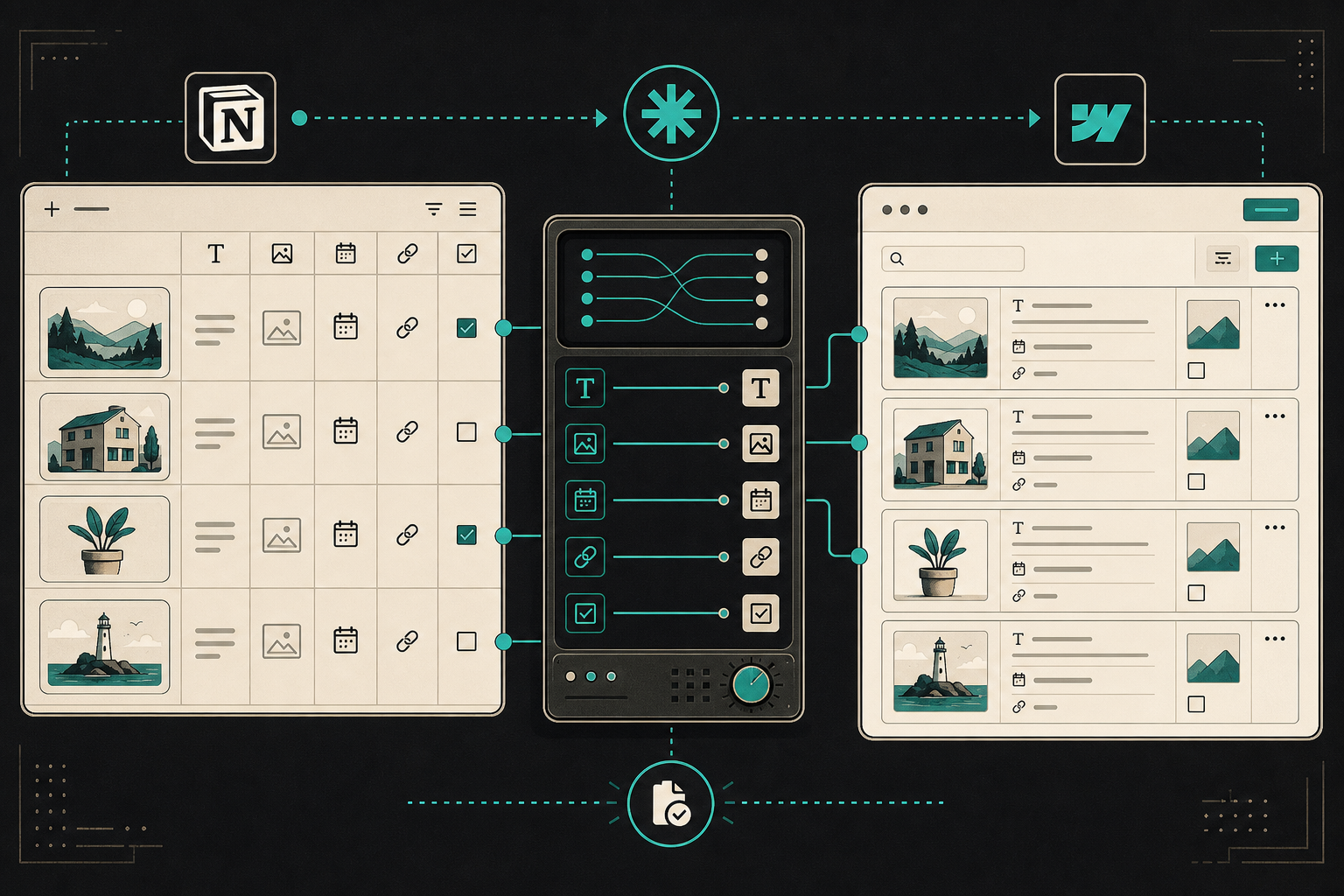
I use one sample article with every tricky field I care about. If that post renders cleanly in Webflow, I know the schema is good enough to expand. If it breaks, I fix the field mapping before I add more content.
The product walkthrough and trailer are useful here too: How to sync Notion with Webflow - Full Tutorial and SyncFlow - Notion-Webflow Sync (Trailer video).
Expected result: a sample post renders in Webflow with the same structure it had in Notion.
4. Keep Auto-Sync Off Until The Schema Settles
I only turn on auto-sync after the schema gets boring. If the collection is still changing, I prefer manual sync until the field names stop moving. That keeps half-finished edits out of production and avoids surprise publishes.
Once the schema is stable, auto-sync becomes the better default because it removes the last copy-paste step. Syncflow supports auto-sync and auto-publish, so the decision is really about timing, not capability.
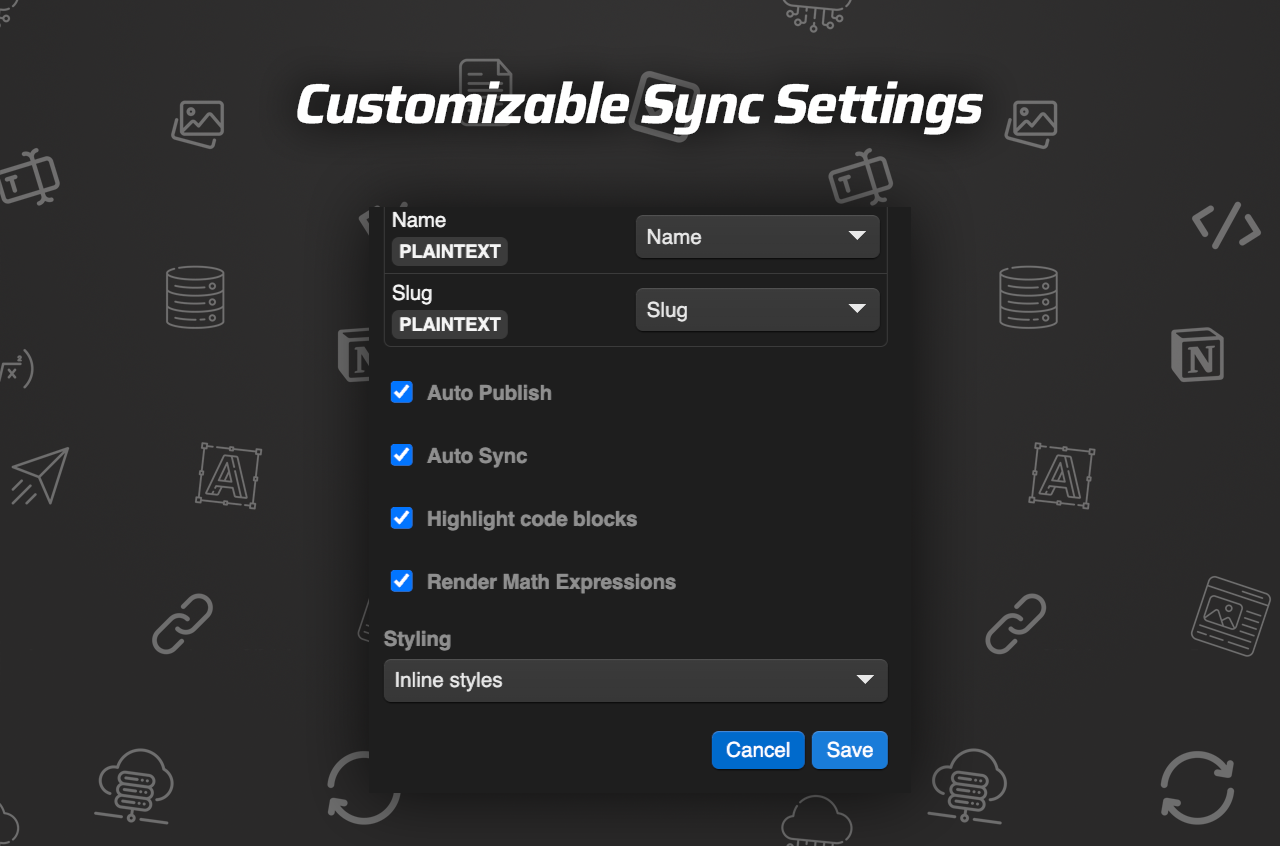
Expected result: stable edits can publish without human intervention, but schema changes still go through review.
5. Troubleshoot Drift Before It Spreads
When something looks off, I check the mapping first, then the field type, then whether the Notion page changed after the last sync. The most common problems are renamed properties, image fields that no longer resolve publicly, and presentation-only fields leaking into the CMS.
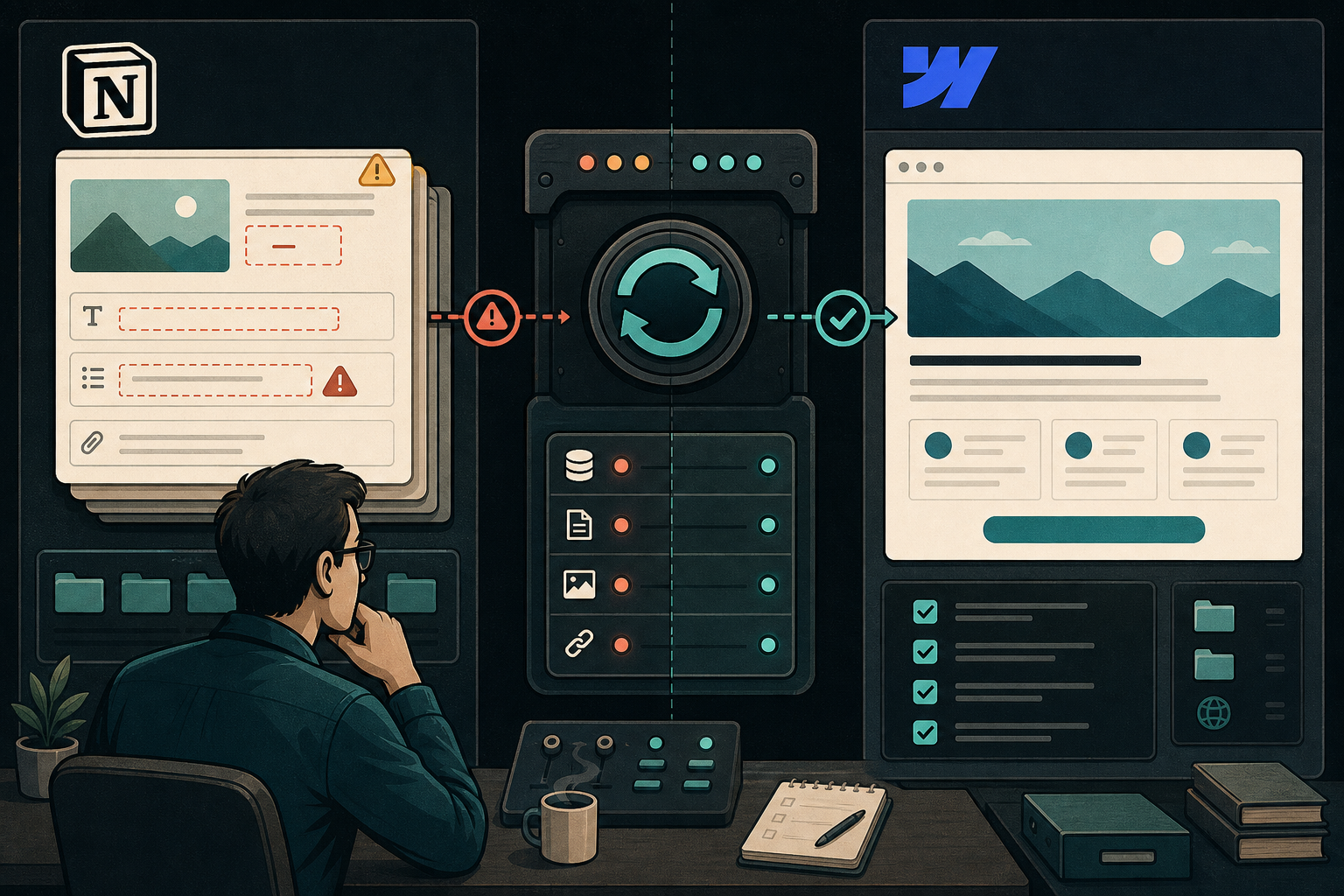
If a field rename is intentional, I update the Webflow mapping the same day. If a content type changes, I test one page before I sync the whole collection again. That keeps a small schema change from turning into a site-wide cleanup session.
Expected result: you can tell whether the break is in content, mapping, or publish settings before it spreads.
Final Check
If I were setting this up today, I would map one collection, verify one sample post, and only then turn on auto-sync after the second successful publish. That sequence is boring, but it keeps Webflow from becoming a cleanup queue.
Start at the Syncflow homepage, watch the tutorial, and test one real article end to end. Once that works, the rest of the workflow gets much easier to trust.