
June 14, 2026
How to Export a Framer Site to GitHub Pages Without Rebuilding It
A practical Framer export workflow: choose the right ExFlow settings, inspect the static build, and host it on GitHub Pages without starting over.


If I already have a working Framer site, I usually do not want to rebuild the thing just to change hosting. I want the layout, animations, and design work to survive the move, then I want the finished site to live somewhere simple and predictable.
That is the workflow ExFlow is built for. It exports a Framer site as static HTML, CSS, JavaScript, and media, and it gives you a few practical ways to ship the result: Git sync, S3 sync, FTP sync, or hosted output on ExFlow’s side. For a lot of sites, GitHub Pages is the cleanest end state because it keeps the published version easy to inspect and easy to version.
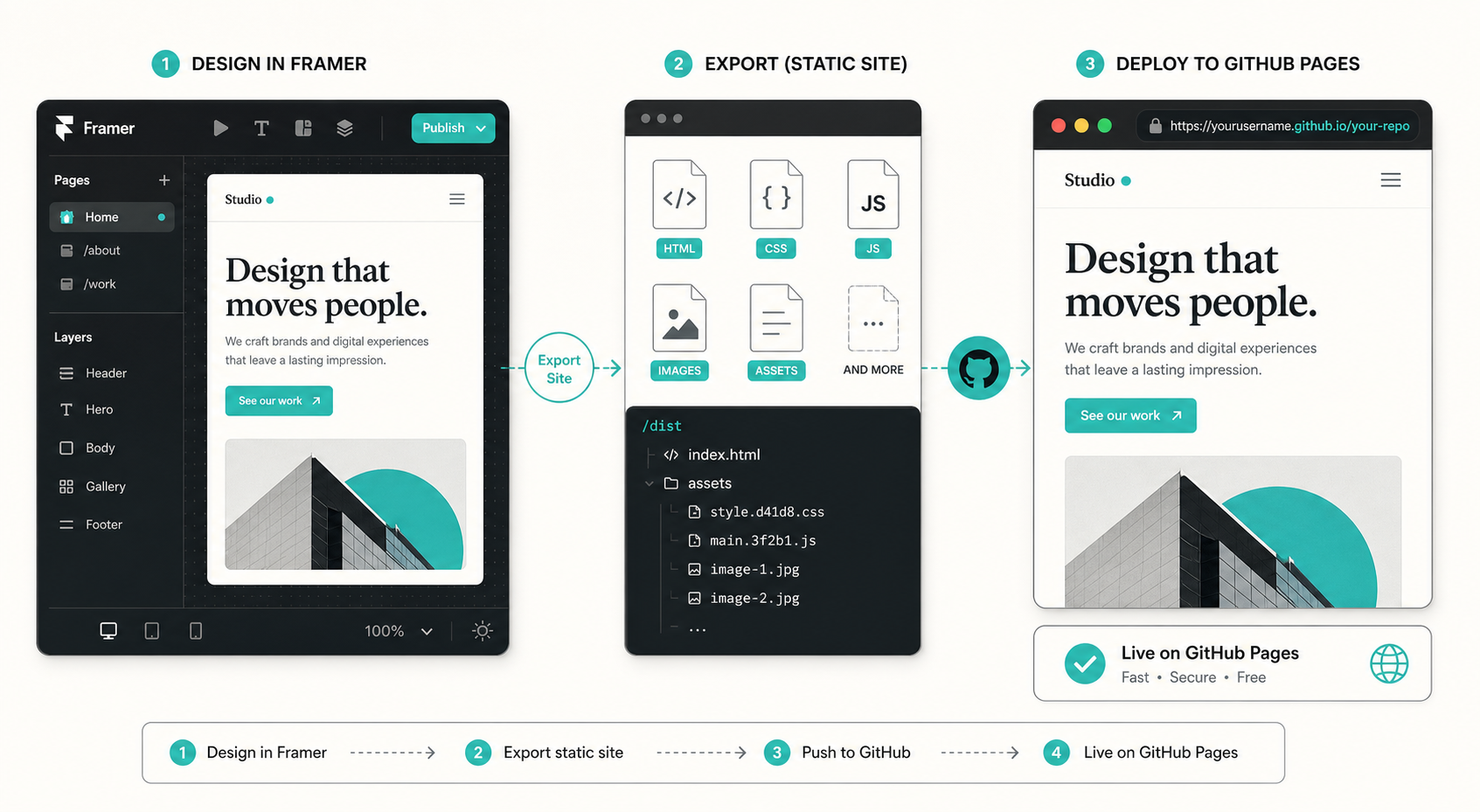
Here is the short version of how I use it:
- Export the Framer site with the settings that matter.
- Inspect the generated files before I publish anything.
- Push the static output to GitHub Pages.
- Check the site for anything that still depends on runtime behavior.
Why I Export Instead of Rebuild
Framer is great when I want to move quickly on the design side. The problem shows up when I am done designing and want lower-friction hosting or a more portable file structure.
Exporting makes sense when:
- The site is mostly a brochure, landing page, portfolio, or marketing site.
- I want the exported files to be readable and versionable.
- I want Git to be the source of truth for the deployed version.
- I would rather adjust a CSS or script file than reassemble the site in another builder.
It is not the right move for every project. If a site depends heavily on runtime data, custom backend calls, or Framer-specific behavior that should stay managed inside Framer, I would slow down and test that first.
1. Pick the ExFlow Settings That Matter
This is the part that saves me the most cleanup later. I do not treat export as a single yes-or-no decision. I decide what I need before I click export.
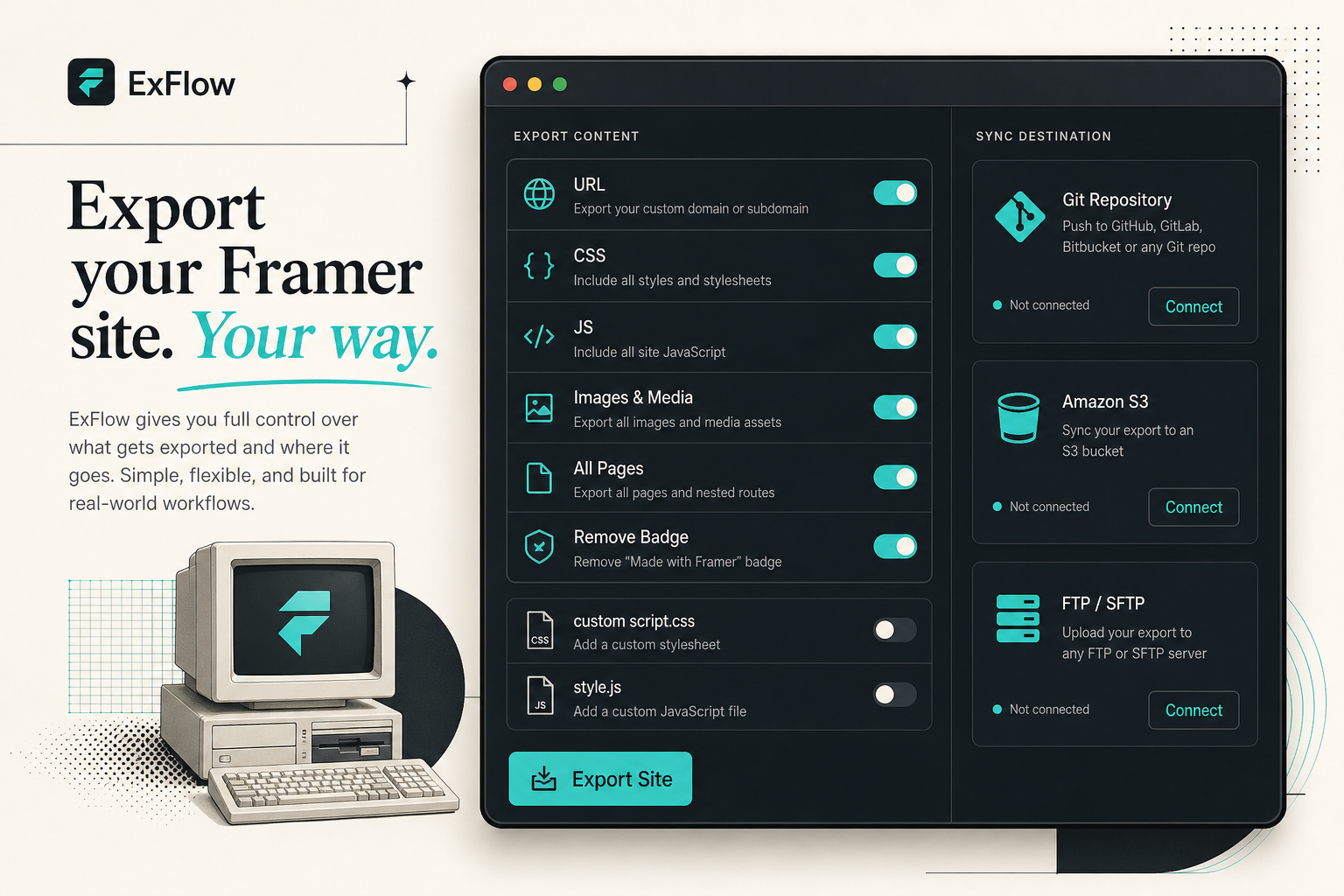
At minimum, I want the exported bundle to include the actual site files, not just a shell of the pages. The useful knobs from ExFlow are the ones that keep the static output practical:
- Export the site URL I actually want to ship.
- Include CSS and JavaScript files.
- Export images and media assets.
- Export all pages, not just the homepage.
- Remove the “Made with Framer” badge when that is part of the plan.
- Add a custom
script.jsorstyle.cssif I need a small post-export fix.
I also pay attention to the sync destination. If I know GitHub Pages is the target, I want the export path to match that reality instead of creating another manual copy step.
2. Inspect the Static Output Before You Publish
I do not trust the export until I have looked at the file tree. Static export is only useful if the output is understandable and complete.
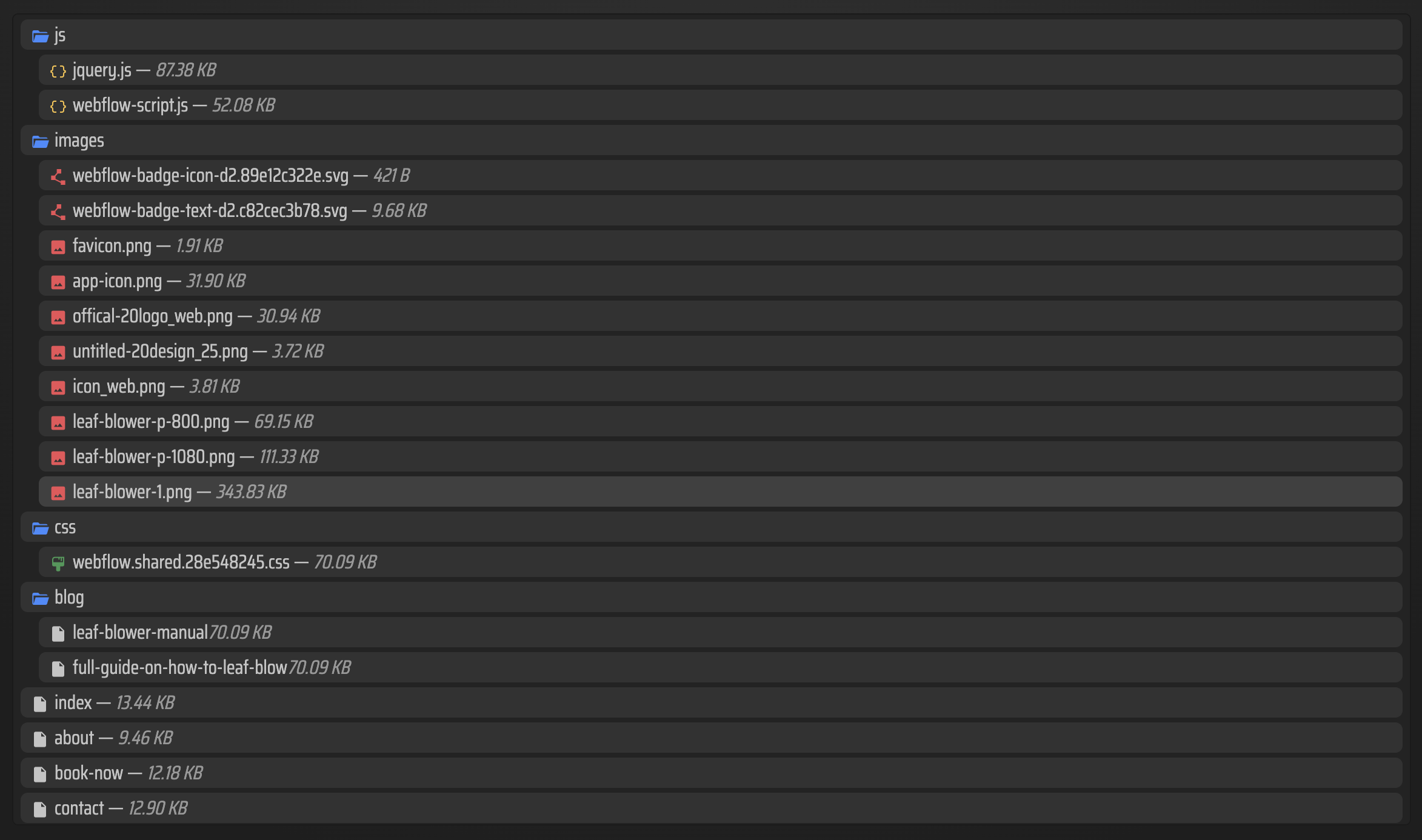
What I check first:
- Every important page exists as an
.htmlfile. - Assets are grouped in a sensible folder structure.
- CSS and JavaScript are present where I expect them.
- Images are copied over, not linked to a temporary source.
- Internal links still resolve to the exported pages.
This is also where I decide whether I need one quick adjustment in a stylesheet or script before publishing. ExFlow supports custom style.css and script.js, which is useful when I need a small correction without going back to the editor for everything.
3. Push the Export to GitHub Pages
Once the export looks right, I treat GitHub Pages as the final delivery surface. The reason I like it is simple: the deployment path stays close to the files.
For this part, I want the exported bundle in a Git repo that I can review like any other code change. That gives me a few advantages:
- I can see exactly what changed in the export.
- I can test the files locally before I publish.
- I can keep a history of the site as it evolves.
- I can roll back more easily if something breaks.
If you are comparing paths, this is the same basic logic I used in how to export a Webflow CMS site to GitHub Pages without rebuilding it, how to replace Webflow hosting with GitHub Pages using ExFlow, how to self-host a Squarespace site on GitHub Pages without rebuilding it, and how to export a Framer site and host it yourself with ExFlow.
The point is not that every site should end up on GitHub Pages. The point is that the export process should leave you with files you can move, inspect, and publish without depending on the original builder forever.
4. Know What Still Needs Manual Review
A static export is not the same thing as a perfect clone of a live Framer project. I still review a few things by hand:
- Navigation and anchor links.
- Any interactive element that depends on script behavior.
- Media files that should load quickly on the public site.
- SEO basics like titles, descriptions, and canonical behavior.
- Pages that may need a final content pass before the site is public.
That is the trade-off I am willing to make. I get portability and cleaner hosting, but I still review the parts that matter before I call the migration done.
When I Would Choose a Different Route
If the project needs S3 or FTP instead of GitHub Pages, ExFlow supports those sync paths too. If I want the hosting handled for me, that is also part of the tool’s model.
So the decision is usually not “Can I export this Framer site?” The real question is “Where do I want the exported files to live after the handoff?”
For a site that should stay readable, versioned, and easy to audit, GitHub Pages is a strong default.
Conclusion
If you want to keep a Framer site portable, export it as static files, inspect the bundle, and publish the result from Git. That gives you a cleaner hosting story without throwing away the design work you already finished.
If you want to try the workflow, start with ExFlow.site and export one site that is already close to launch.