
June 3, 2026
How to Export a Webflow CMS Site to GitHub Pages Without Rebuilding It
Export a Webflow CMS site with ExFlow, check the static bundle, and publish it to GitHub Pages without rebuilding the design.

How to Export a Webflow CMS Site to GitHub Pages Without Rebuilding It
The problem I keep running into with Webflow is not the design work. It is the handoff. Once the site is finished, I want the CMS pages, assets, and custom code to leave cleanly and land somewhere cheap, predictable, and easy to version. For this run I used ExFlow, then treated GitHub Pages as the destination instead of rebuilding the site by hand.
If you want the CMS-specific failure mode, I covered that in How to Export a Webflow CMS Site Without Losing Dynamic Content, and the more general preflight list is in Webflow CMS to HTML: A Practical Export and Self-Hosting Checklist.
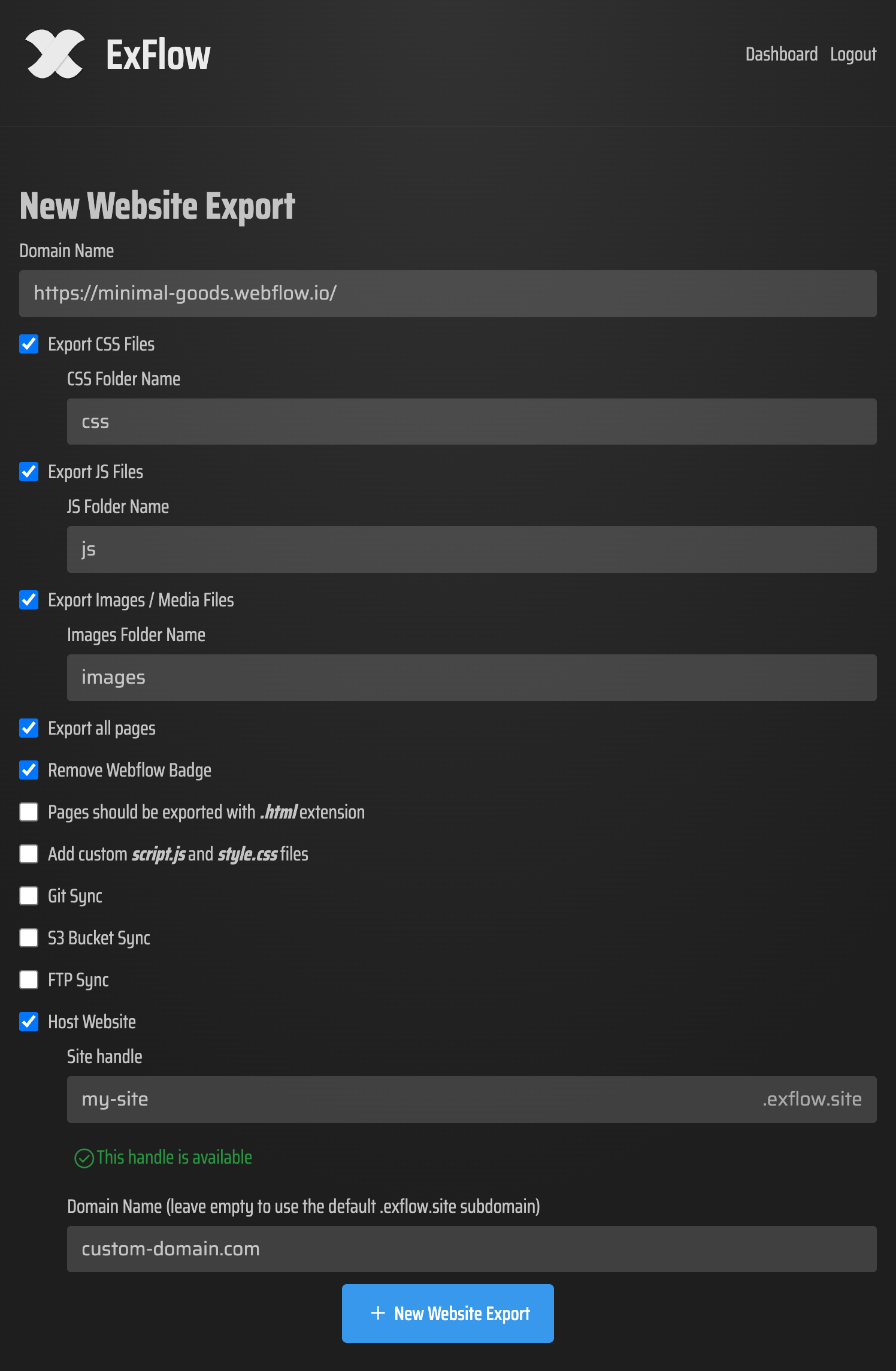
Start with the settings that preserve the site
The export is only useful if it preserves the parts Webflow usually hides behind the editor. The settings I care about are boring on purpose:
URL
Export CSS Files
Export JS Files
Export Images / Media Files
Export All Pages
Remove "Made with Webflow" Badge
Pages as .html
Custom script.js only when needed
Custom style.css only when needed
Git sync, S3 sync, or FTP sync when you actually want automation
That is the point where ExFlow feels different from a one-off download tool. I am not trying to scrape a page. I am trying to move a working site bundle into something I can keep in a repo.
If you turn on Git, FTP, or S3 sync, treat the credentials like deployment secrets. I would not paste them into a casual doc or Slack thread.

What the exported bundle should look like
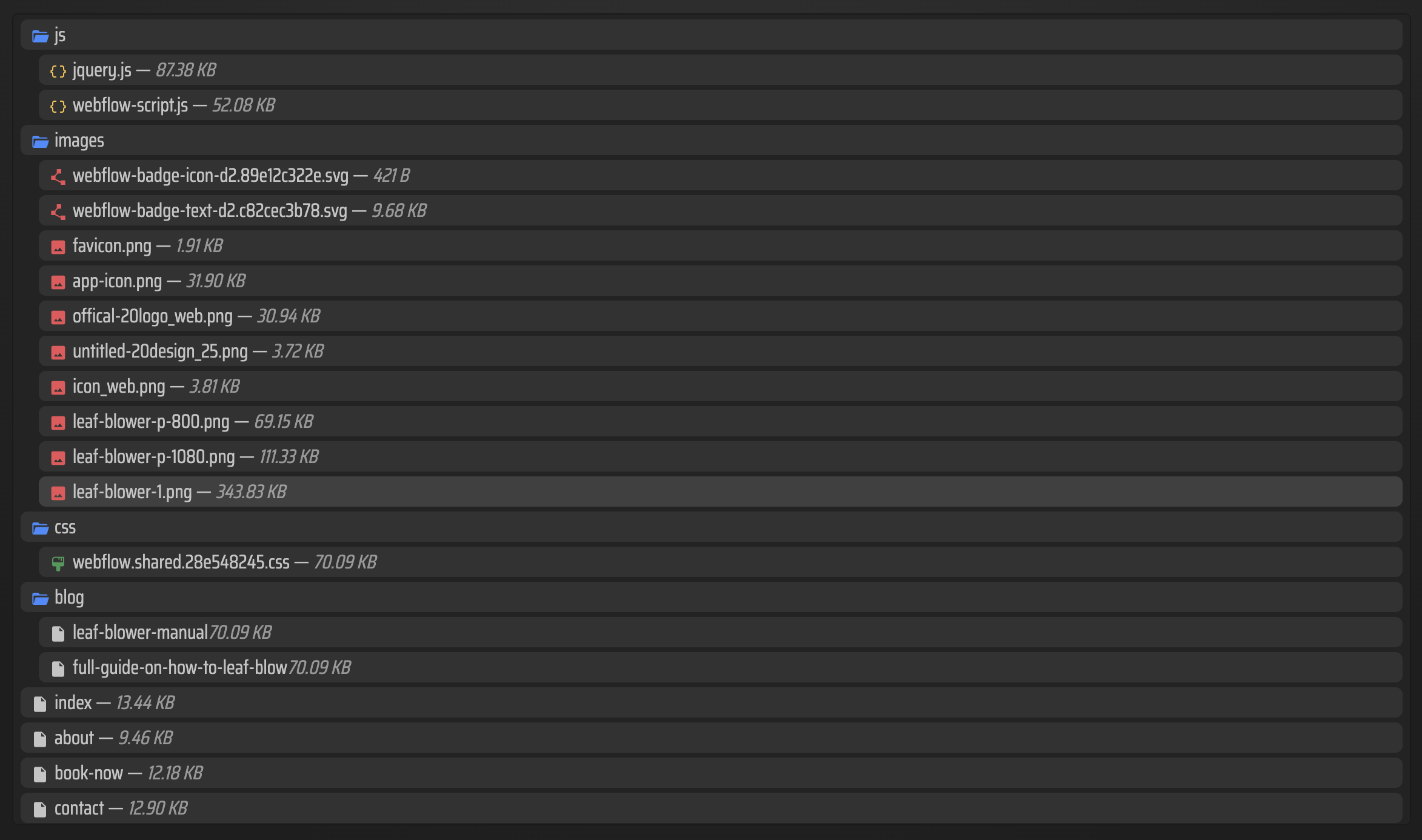
After export, I want a folder that feels boring in the best way. The tree should contain HTML pages, CSS, JavaScript, and media assets, with file names that line up with the public URLs I expect. If the output looks like a mystery pile of local paths, I stop there and fix the export settings before touching GitHub Pages.
This is also where the failure articles are useful. What Broke When I Tried To Export A Webflow CMS Site is the reminder that the export step can fail in ways that only show up after deployment. I also keep Webflow CMS to HTML: A Practical Export and Self-Hosting Checklist nearby when I want the preflight checklist version.
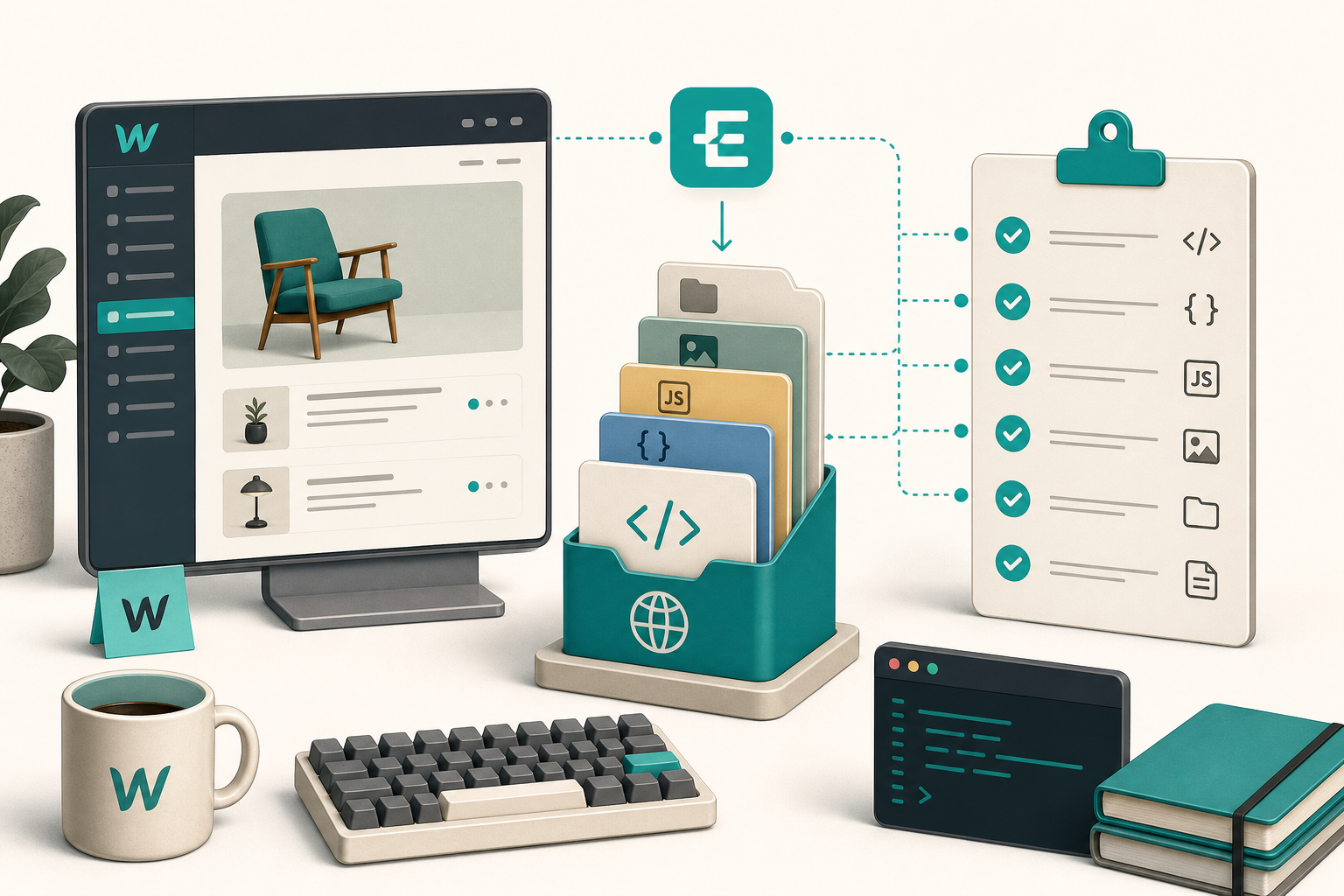
A clean export should give me three things:
- One HTML file per public page.
- CSS and JS that resolve with relative paths.
- Images and media that actually moved with the bundle.
If any of those is missing, the problem is not GitHub Pages. It is the export.
Move the files into the GitHub Pages repo
Once the export looks right, I move it into the repo that GitHub Pages serves. The important part is to keep the generated file structure intact. I do not rename files casually, and I do not “improve” the paths unless I want to change the public URLs on purpose.
The two GitHub Pages guides I wrote on this workflow are still relevant here: How to Move a Webflow Site to GitHub Pages with ExFlow and How to Host a Webflow CMS Site on GitHub Pages with ExFlow. They are slightly different angles on the same basic idea: export first, then deploy the static result like any other site build.
The practical sequence looks like this:
- Export the site with all pages, assets, and CMS output included.
- Copy or sync the bundle into the GitHub Pages repo.
- Commit the files without rewriting the structure.
- Push and let GitHub Pages publish the branch.
- Open the live site and check the same URLs a visitor would use.
If the site depends on custom CSS or JS, I verify those files last, because broken styling often looks like a hosting problem even when the file paths are the real issue.
What I verify before I call it done
Before I call the migration finished, I check the public site in the browser and confirm the basics:
- The homepage loads without 404s.
- Internal navigation follows the deployed URLs, not local file paths.
- CMS collection pages exist and open cleanly.
- Images and media load from the published site.
- Custom CSS and JS still behave the way the design expects.
I also check the export one more time if something feels off. That is usually cheaper than chasing a broken deployed page. If I need a reminder of the edge cases, I go back to How to Export a Webflow CMS Site Without Losing Dynamic Content and What Broke When I Tried To Export A Webflow CMS Site.
Bottom Line
If you want a Webflow site to stop depending on Webflow hosting, the cleanest path is: export the full CMS bundle, keep the file structure intact, and publish the static output to GitHub Pages. ExFlow is useful because it keeps the export conversation and the hosting conversation in one place instead of turning the move into a manual rebuild.
If this is your first pass, do one page first. Start at ExFlow, export the site, inspect the bundle, and only then push the result to GitHub Pages.