
June 9, 2026
How I Exported My Webflow CMS Site to Static Hosting Without Rebuilding It
A practical ExFlow workflow for exporting Webflow CMS pages to static hosting, checking the file tree, and choosing GitHub Pages or other deploy targets.
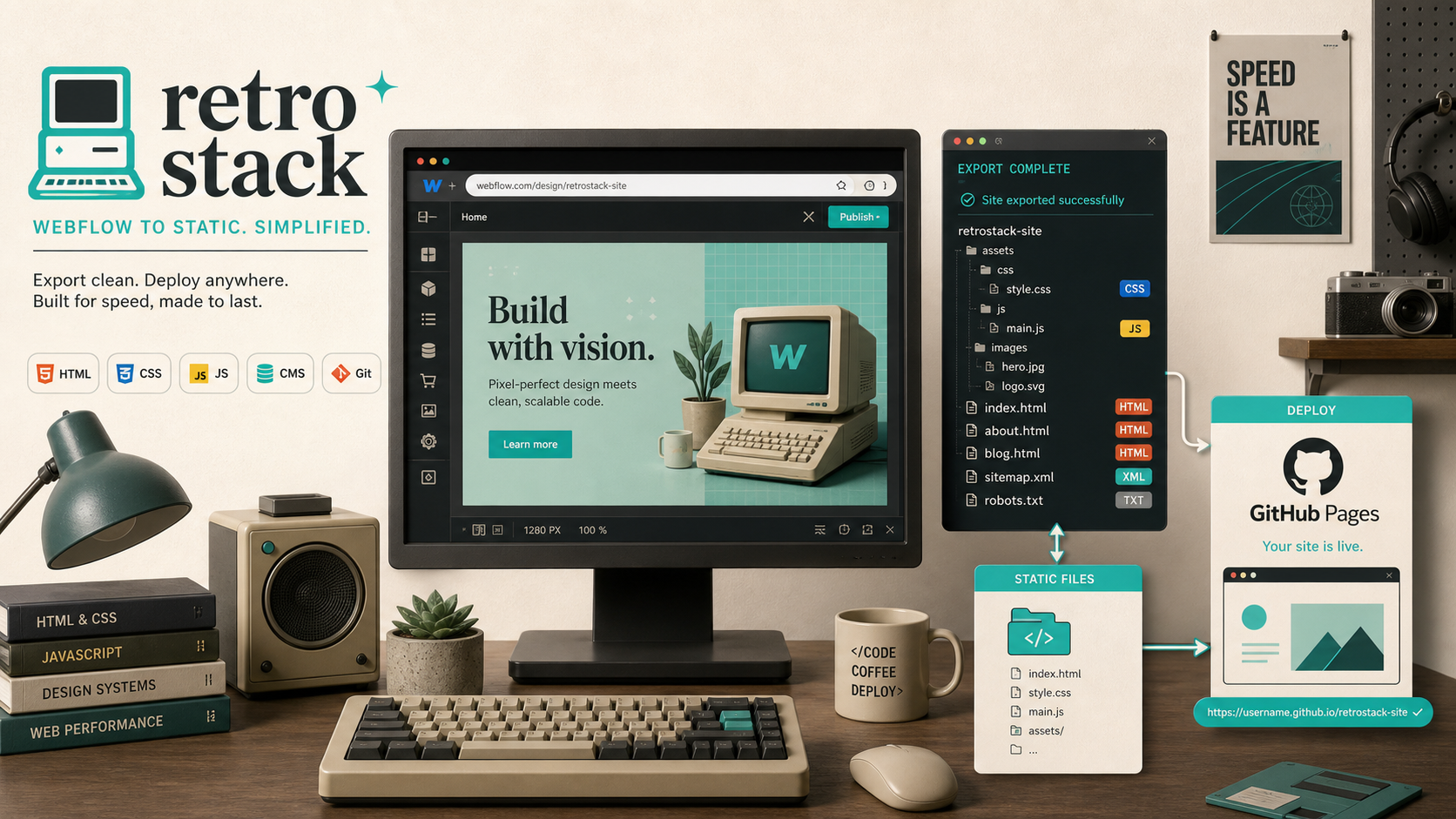
The first time I tried to move a real Webflow build off managed hosting, the problem was not design. The layout was fine. The pain was everything around it: CMS pages, asset paths, deployment, and the feeling that I would have to rebuild the whole thing somewhere else just to get a simpler hosting setup.
That is the gap ExFlow is meant to close. You give it a Webflow URL, choose what to export, and get static files you can host yourself. In practice, that means Webflow stays the design tool, while GitHub Pages, S3, FTP, or ExFlow hosting becomes the delivery layer.
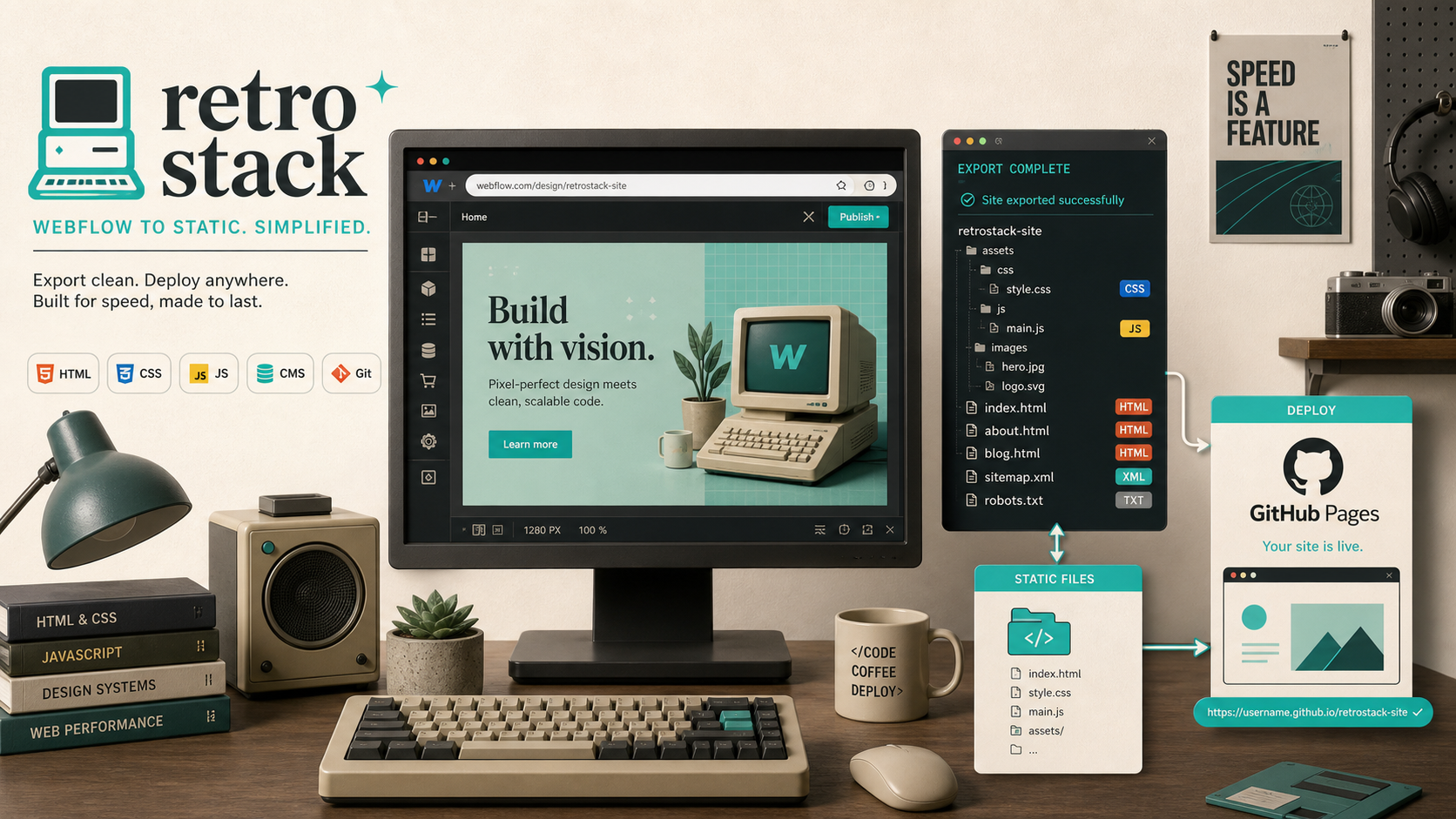
What I wanted from the export
I was not looking for a philosophical migration. I wanted a few concrete things:
- Keep the existing Webflow design intact.
- Export HTML, CSS, JS, images, and media in one pass.
- Preserve CMS pages instead of flattening the site into a few hand-built pages.
- Remove the “Made with Webflow” badge when the plan allowed it.
- End up with a file tree I could push into GitHub Pages without rewiring the whole project.
That is why this workflow is useful. It is not “replace Webflow with a new stack.” It is “take the site you already have and make the output portable.”
The export settings I actually cared about
The first pass through ExFlow is mostly about being intentional. I only wanted the settings that helped me get to a clean static build.
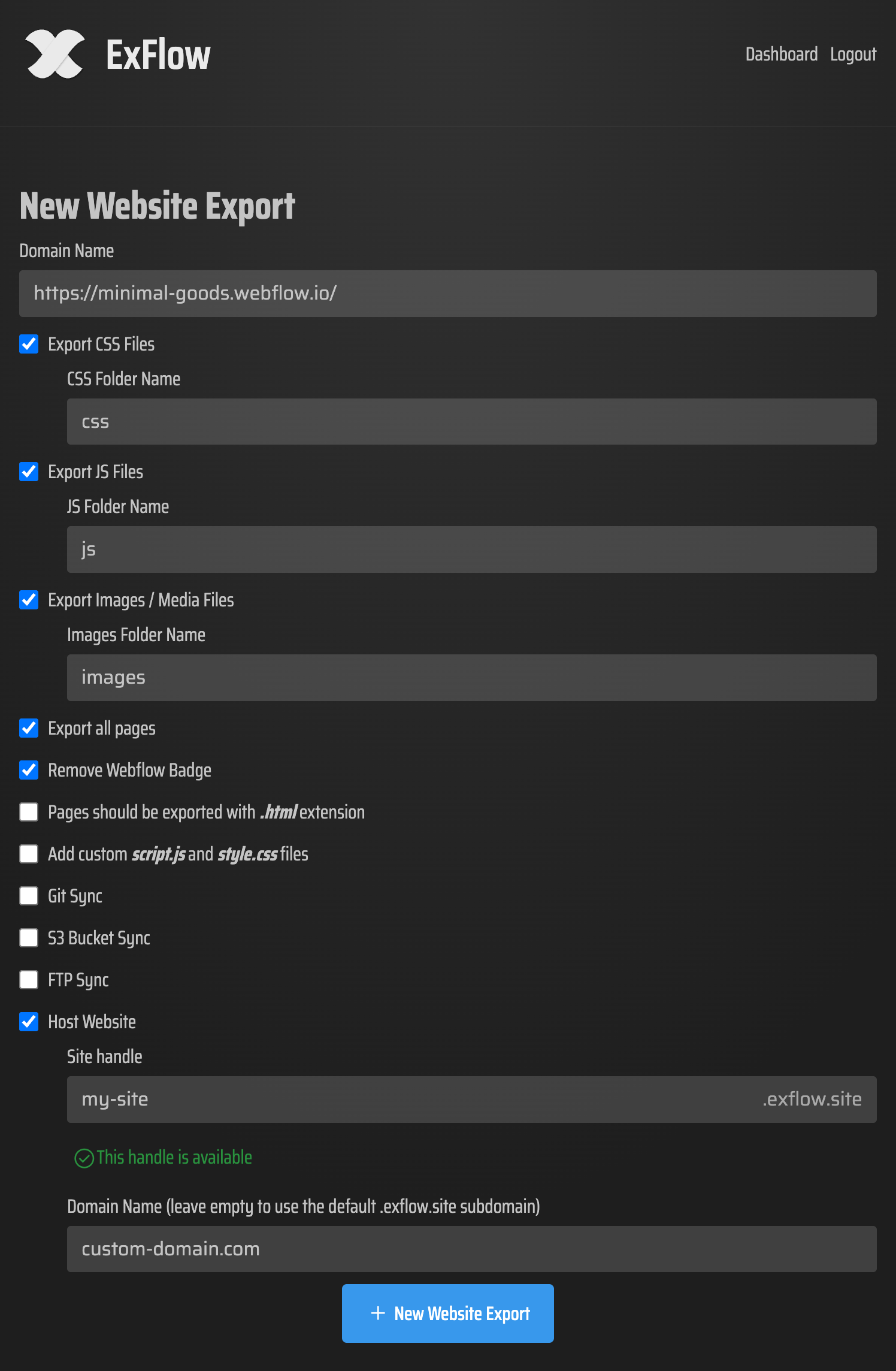
The settings I cared about were:
- URL: the site you want to export.
- Export CSS files and JS files so the page behavior stays intact.
- Export images and media so nothing depends on the live Webflow host later.
- Export all pages so the build is complete.
- Remove the badge if the plan and site setup support it.
- Add
style.cssandscript.jsonly when I needed custom overrides.
If you are using Git sync, S3 sync, or FTP sync, the main rule is simple: treat credentials like credentials. Put them somewhere controlled and do not assume every export should have access to every target.
What the export looked like on disk
The part I usually check first is the file tree. If the export is good, the structure should feel boring in the best way possible.

This is the shape I want to see:
export/
  index.html
  about.html
  blog/
    article-name.html
  assets/
    css/
      style.css
    js/
      main.js
    images/
      hero.png
      card-01.jpg
That layout matters because GitHub Pages, static hosts, and CDN-backed setups all like predictable paths. If the export gives you clean .html pages and keeps assets local, the rest becomes deployment plumbing instead of reconstruction work.
The second check I make is the export output itself. I want to see the generated files grouped clearly, not hidden behind a mystery zip with half the site missing.
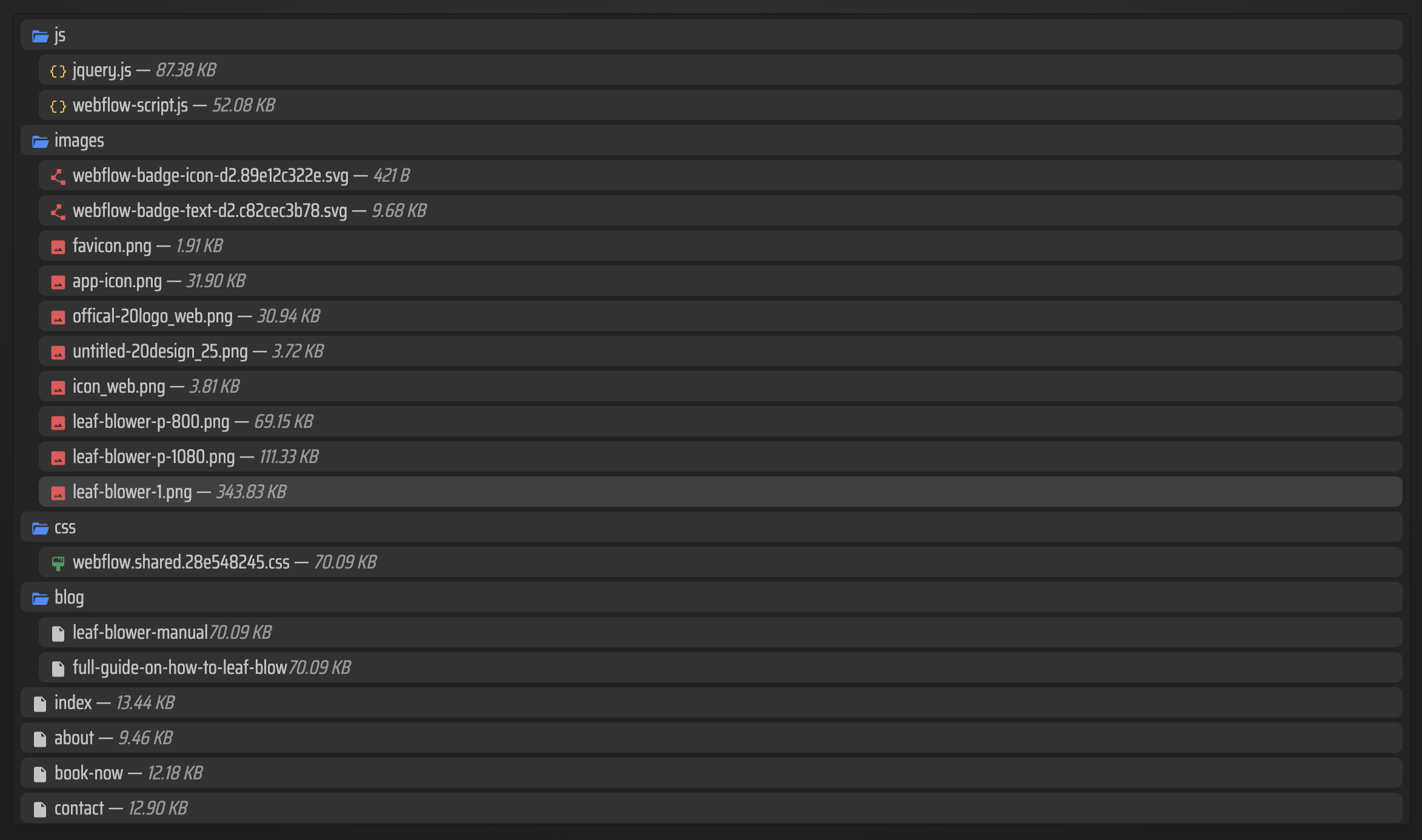
When that list looks complete, I know the export is at least structurally sound before I even open the pages.
Why the CMS export is the real feature
The part that changes the equation is the CMS content. A lot of export tools can handle a landing page. Fewer can deal with the thing that makes a real Webflow build worth keeping: dynamic content that was assembled in the CMS.

For me, the important test was not “does the homepage render.” It was:
- Do collection pages export as actual pages?
- Do the slugs make sense?
- Do the links still point at the right exported files?
- Can I hand the output to a static host without creating manual exceptions for every CMS item?
If you are trying to self-host a Webflow site, that is the difference between a demo and a usable workflow.
Why I would pick GitHub Pages for this
Since this article lives on GitHub Pages, I naturally look at the export through that lens. GitHub Pages is a good fit when the output is already static and the repo can serve as the source of truth.
That gives you a simple chain:
- Export from Webflow with ExFlow.
- Commit the generated files.
- Push the branch.
- Let GitHub Pages publish the result.
That is enough for a lot of brochure sites, lightweight marketing sites, and content projects that do not need server-side rendering or a database.
It is also why I like ExFlow as a Webflow alternative for hosting, not design. The design stays in Webflow. The hosting becomes something cheaper, simpler, or more controlled.
Where I would be careful
Static export is useful, but it is not magic. I still watch for the parts that usually need extra attention:
- Forms that depend on a third-party service.
- Scripts that expect the live Webflow environment.
- Embedded widgets that pull from external domains.
- Asset paths that break when pages move deeper in the tree.
If you are moving a bigger site, I would test one page section at a time, then a CMS template, then the full site. That is safer than exporting everything and hoping the host catches a bad path for you.
Related notes
If you want the export checklist angle first, I wrote about Webflow CMS to HTML: A Practical Export and Self-Hosting Checklist earlier.
If you want the self-hosting version of the same pattern, How to Export a Webflow CMS Site for Self-Hosting with ExFlow is the closest sibling post.
If you want the no-dynamic-content version, How to Export a Webflow CMS Site Without Losing Dynamic Content is the more focused walkthrough.
And if you want the narrowest possible version of this workflow, How to Export a Webflow CMS Site to GitHub Pages Without Rebuilding It is the one to compare against.
My takeaway
I do not think ExFlow replaces Webflow. I think it gives you an exit hatch when Webflow is the right design tool but not the hosting answer you want.
That is the practical win: keep the build, export the files, and choose the host that fits the project instead of paying for a setup you no longer need.
If you want to try it yourself, start at ExFlow.site with one low-risk page and export the site before you move the whole thing.