
September 8, 2026
How I Compare Shopify PDF Proofs Before I Reprint Product Inserts
A practical browser-based workflow for comparing revised Shopify product insert PDFs before a costly reprint.

I do not treat a revised product insert as a harmless file swap. A changed URL, barcode, return address, coupon condition, or safety line can turn a small print run into an expensive box of unusable paper. The worst part is that revisions often arrive as a new PDF with a vague note: only a few copy changes.
My rule now is simple: I compare the approved proof and the revision before I tell the printer to run it. I use PDF Compare from Tiny Online Tools because it gives me both a visual diff and a line-by-line text diff directly in the browser. For an insert that contains internal pricing, a launch URL, or a customer-service phone number, keeping the two proofs local matters as much as finding the difference.
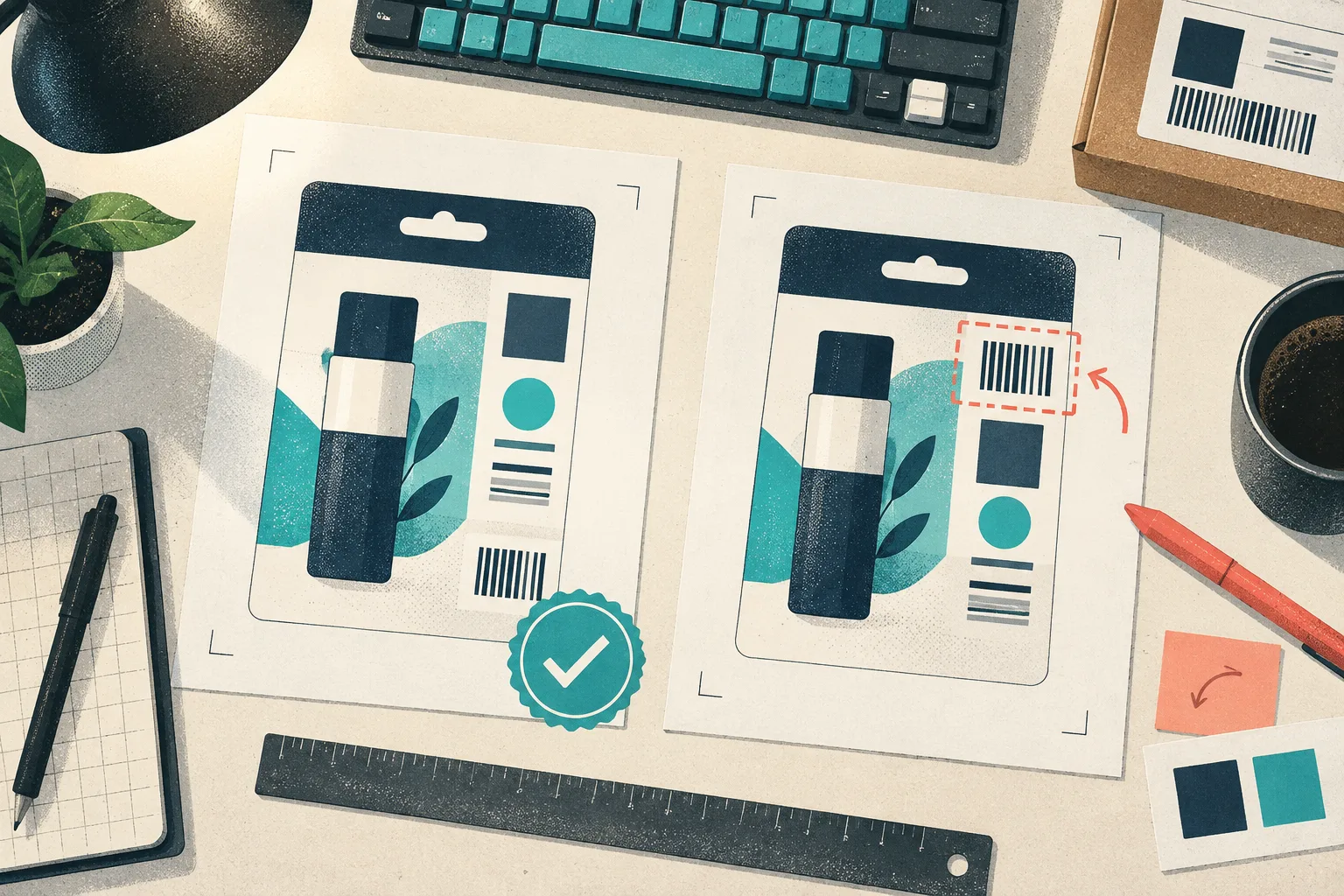
The kind of changes that actually hurt
Product inserts look small, which makes them dangerous. They tend to mix marketing copy with operational details: QR codes, support links, expiry language, product naming, compliance text, and offer rules. A designer may legitimately move a paragraph to make a layout breathe. Meanwhile, the checkout team may have changed the return portal URL. Both edits are visible in a PDF, but they demand different decisions.
I used to open both files, zoom in, and flip between tabs. That works until the layout reflows, a new page is inserted, or I am reviewing a double-sided card at the end of a long day. It also trains you to look only where you expect changes. A comparison report makes the full surface area visible.
My proof-comparison sequence
1. Freeze the reference file
First, I duplicate the PDF that was actually approved and name it clearly: insert-approved-2026-09-08.pdf. The revision gets its own versioned name. Do not compare a revision against a source design file or a PDF someone exported “just in case.” The baseline must be the artifact the printer was cleared to use.
This is the same discipline I use for a safer client PDF handoff: the handoff file needs an identifiable owner and a known final state.
2. Run PDF Compare before inspecting the layout manually
Open PDF Compare, add the approved PDF as Original and the new one as Revision, then start with the default 110 DPI and sensitivity of 24. That setting is a sensible first pass for text-heavy inserts: high enough to find a changed digit, but not so sensitive that antialiasing turns every character edge into a false alarm.
Leave Match pages by content on when the revision could have gained a page. It aligns page sequences by text similarity, so a newly inserted legal page is shown as inserted instead of making every page after it appear rewritten.
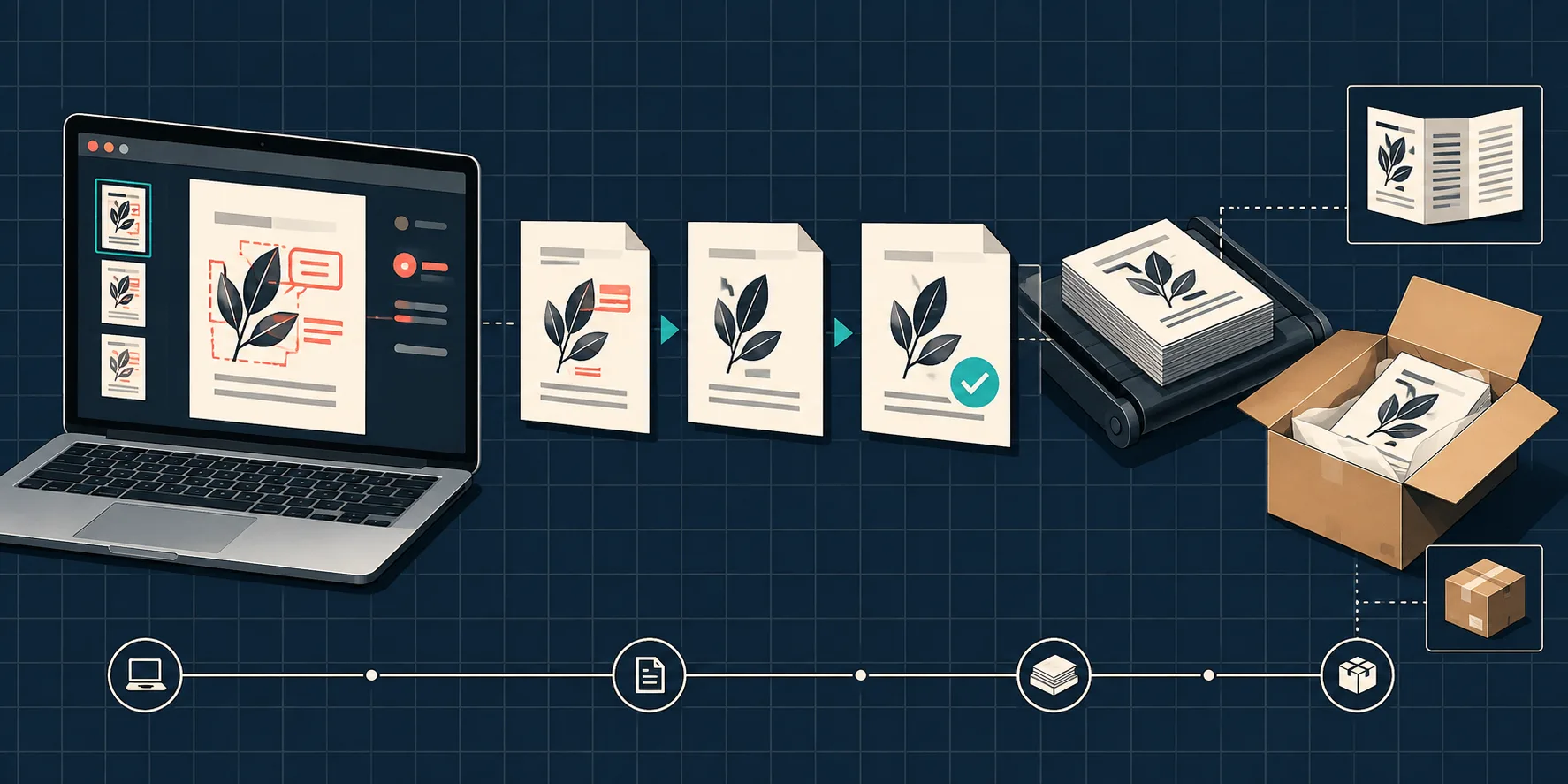
3. Triage the result in two passes
The pixel diff answers where did the page change? The text diff answers what did the words become? I use both, in that order.
For each changed page, I check:
- Customer-facing facts: URL, QR destination, product name, support address, coupon code, expiry date, and any quantity or threshold.
- Fulfilment facts: SKU references, bundle contents, packing instructions, return labels, and localized wording.
- Layout changes: type that moved toward a trim edge, a barcode that shifted, a white-on-white element, or a change that affects the other side of a folded card.
- Unexpected content: a page added or removed, a stale product line, or an outdated campaign claim.
If an area looks unexpectedly noisy, I raise the resolution for that page or nudge sensitivity down in a second run. I do not tune the settings until I get a clean result; I tune them to understand a real difference.
4. Export a review artifact
PDF Compare can export a JSON or CSV report with page status, change ratio, changed-region count, and added or removed lines. I save that beside the revision and, for a meaningful change, send the diff image with the approval request. It turns “looks good” into a reviewable claim.
This is useful even when your printer is not the problem. A marketing lead can approve a changed offer while an operations lead confirms that the support flow is still correct. The actual printer proof remains the authority for press production, but a file diff catches a surprising amount of avoidable churn before that stage.
5. Run a separate print preflight
A visual and text diff cannot tell you whether an embedded photo is too low-resolution, the file has insufficient bleed, or a font is not embedded. Once the content change is approved, I run the final PDF through PDF Print Preflight Checker. It checks fonts, effective image DPI, colour, page boxes, transparency, and ink-related issues in the browser.
The order matters: compare first, preflight second. Otherwise you can spend time fixing a production warning on a revision that still contains the wrong landing-page URL. For a deeper walkthrough, I keep this PDF print preflight guide nearby.
Do not confuse comparison with redaction or release approval
I also inspect any insert that contains partner pricing, internal codes, or customer data before sharing it outside the team. A black rectangle drawn over text is not automatically redaction; the underlying text can remain in the PDF. Tiny Online Tools’ PDF Hidden Data Inspector is useful for checking metadata, layers, attachments, JavaScript, invisible text, and text beneath apparent redactions. The related guide on checking Shopify PDFs for hidden data is a good reminder that a document can carry more than its visible page.
Likewise, comparison is not approval. I still require the owner of the offer, the owner of the product information, and whoever pays for the print run to agree that the changed facts are intentional. The diff simply makes that approval specific.
My release note is deliberately boring
Before I send the final asset, I write one short line in the job thread:
Compared
approved-v3againstrevision-v4; page 2 URL and coupon expiry changed as requested; page 3 was added; final PDF passed print preflight; printer receivesprint-final-v4.pdf.
That note is not bureaucracy. It is how I avoid re-opening a week-old Slack thread when a warehouse asks which insert belongs in the next batch. The same principle applies to storefront assets: I run a quick metadata check on Shopify product images before distribution because a final file should be both correct and safe to share.
The next time a “tiny copy edit” arrives on a product insert, do not rely on your memory of the old design. Put the approved PDF and the revision into PDF Compare, review the changes page by page, then preflight the approved revision. It is a five-minute release gate that is much cheaper than discovering the wrong QR code after 2,000 inserts are printed.