
September 5, 2026
I Let My Shopify AI Agent Read Reports Before It Touched a Task
A practical rollout for Shopify AI automation: start with read-only reporting, add reviewed suggestions, then approve narrow actions.

Every Shopify operator has a list of tasks that looks harmless until it eats a Thursday: scan orders, catch low-stock products, clean up a collection, write the weekly summary, and answer the same support question again. AI agents make that list tempting. The risky version is giving an assistant broad store access and hoping it behaves.
I went the other direction: I started by letting the agent read reports. No catalog edits. No discount changes. No customer-facing messages. Just a useful morning brief, delivered consistently enough that I could decide what it deserved to do next.
That is the rollout I would use for any AI Agent for Shopify. Clawly is built around this idea: create an assistant from a plain-language job description, connect Shopify and the tools it needs, then control exactly which operations it can access. It is a practical OpenClaw-for-Shopify setup, but the value is not in making the agent seem autonomous. The value is putting guardrails around a job that was already too manual.
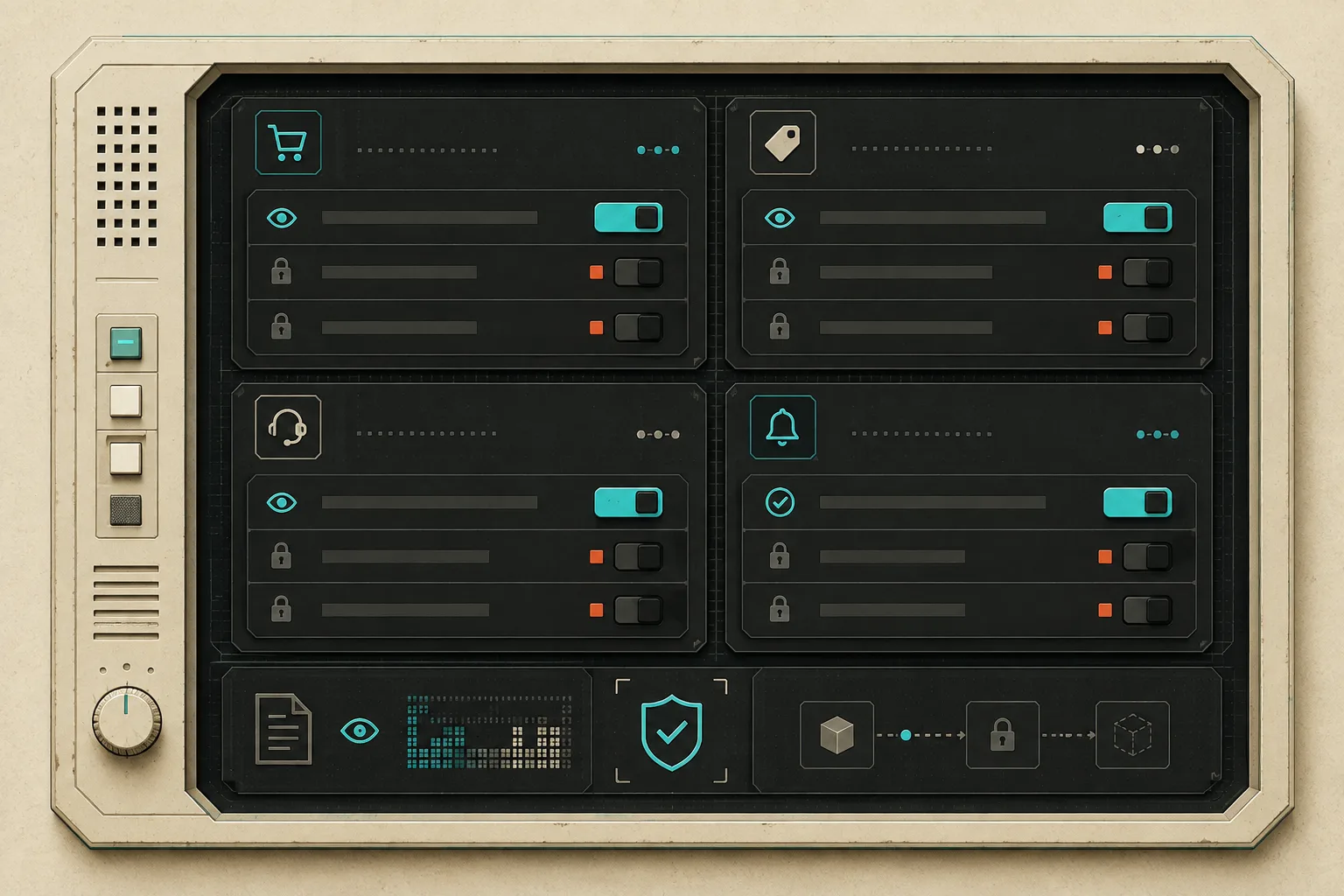
The first job should produce a decision, not make one
My first automation would be a daily operational brief. Give it read access to orders, products, and inventory; let it summarize revenue, top sellers, products approaching a threshold, and unusual order patterns. Then have it send the result to a channel where a person already works.
That choice gives you a clean test. You can compare the brief with Shopify Admin for a week, see which alerts are noisy, and refine the instruction without leaving cleanup work behind. I used the same read-only pattern in this order-exception morning brief, and it is still the best first move when the operational cost of a wrong action is unknown.
A good first prompt is intentionally boring:
Every weekday at 8:30 AM, read yesterday's orders, current inventory,
and product status. Send a concise brief with: revenue, top three sellers,
items below their inventory threshold, unusual order changes, and product
records that need human review. Do not modify Shopify data.
The boring part is the point. You are evaluating whether the brief is accurate, timely, and actionable—not whether the assistant can perform a clever demo.
Scope integrations as tightly as the Shopify permissions
An agent can have a safe Shopify permission set and still create a messy workflow through its integrations. If the job is reporting, it may need Shopify read access plus one notification destination. It probably does not need every available connection.
For example, Clawly can connect store work with services such as Google Sheets, Klaviyo, Slack, Notion, and ad platforms. That is useful once the workflow calls for it. But I would add integrations in this order:
- Shopify read access for the data the brief actually needs.
- One notification destination for the person who owns the next step.
- One reference system only if a decision needs context outside Shopify, such as a planning sheet or a support queue.
- Write access only after the alert or suggestion has proven useful.
This is less dramatic than connecting everything at once, but it makes failure legible. If an inventory alert is wrong, you know whether the issue is the threshold, the source data, or the instruction. If the agent has access to six tools, every bad output becomes a scavenger hunt.

Add suggestions before you add write actions
After the reporting pass is stable, I would ask the agent to draft the next action instead of taking it. That gives you a higher-value workflow without skipping the review gate.
A catalog example: let the agent flag products missing key description details, then draft a proposed title, tag set, and collection suggestion. Review those changes in a queue. Do not let it publish the changes just because the drafts look reasonable. This mirrors the discipline behind safe Shopify bulk updates: isolate the intended change, make it reviewable, and keep a rollback path.
The same logic works for support. Start with reply drafts that include the relevant order context. Track how often a human edits or rejects them. Only a narrow, low-risk category—say, a status lookup with a fixed policy—should ever graduate beyond draft mode.
That draft-first stage is where a Shopify AI assistant earns trust. You will learn whether it understands the business terms your team uses, whether its reporting threshold matches reality, and which jobs still need a person because the exception rate is too high.
Promote one task at a time
Eventually, some work can be safe to automate. The word is some. I would promote a task only when all four of these checks are true:
- The inputs are predictable and available from approved integrations.
- The action is narrow enough to describe in one sentence.
- A wrong action is easy to detect and reverse.
- Someone owns the alert when the workflow sees an exception.
Low-inventory notifications are a good candidate because they tell a person something useful without changing the store. A product-data cleanup task might be a candidate later, but only after you have measured the suggested changes and limited the exact fields it may touch. For inventory work, I prefer a human-approved escalation like the one I outlined in my Shopify inventory escalation workflow. It separates detection from the decision to act.
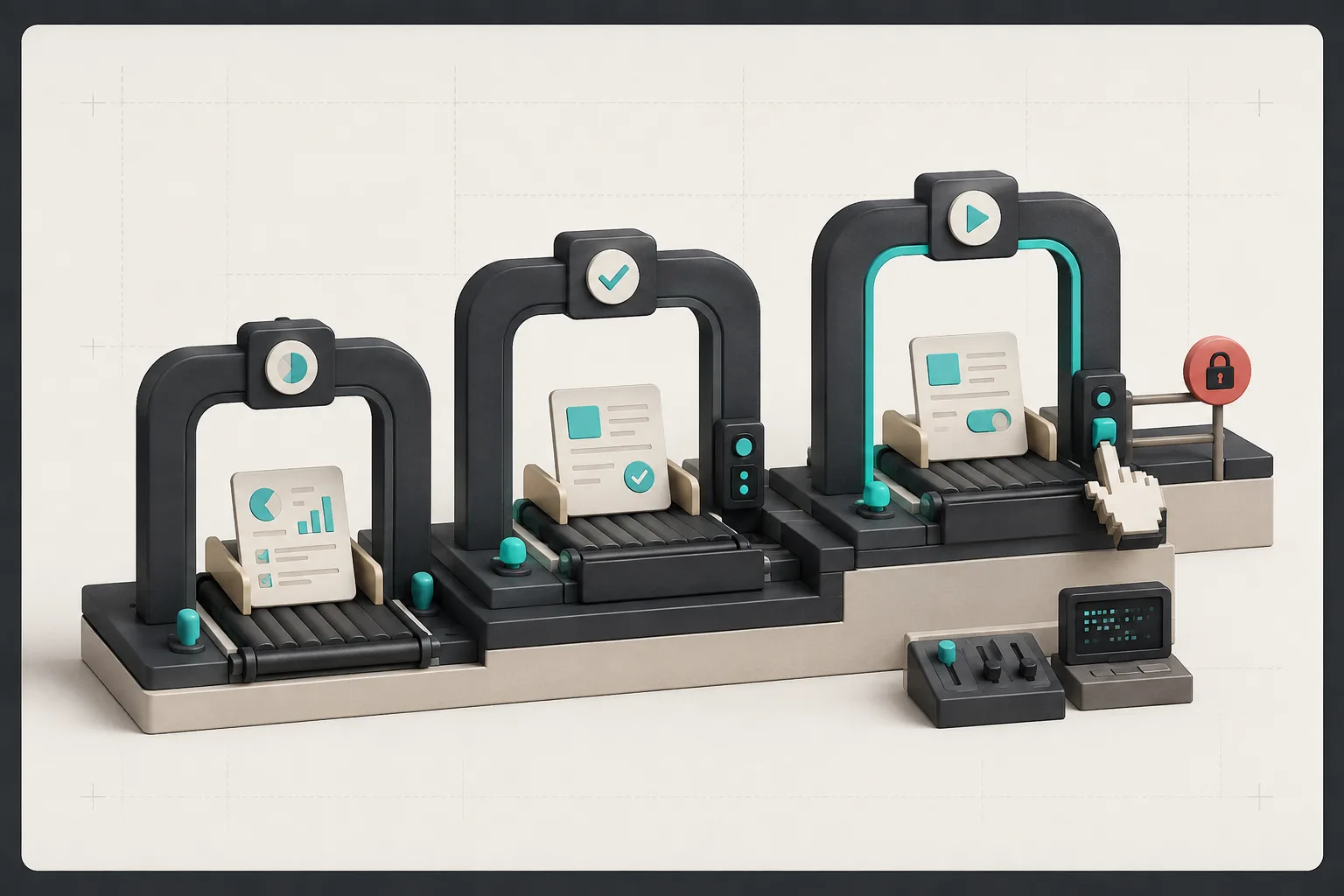
My rollout checklist for Shopify AI automation
Before enabling a new Clawly automation, I would write down:
- Trigger: What specific event or schedule starts the job?
- Inputs: Which Shopify objects and connected tools can it read?
- Output: Is it a brief, a draft, a notification, or a narrow change?
- Permissions: What is explicitly allowed, and what remains blocked?
- Reviewer: Who owns an exception or a bad suggestion?
- Rollback: How do we undo the one action this automation is allowed to make?
If any of those answers are fuzzy, the automation is still in reporting mode. That is not a failure; it is the cheapest place to learn. I wrote more about that operating stance in my read-only Shopify morning-brief setup.
The practical next step is simple: install Clawly from the Shopify App Store, create one read-only assistant for a daily store brief, and review its output for a week. If it consistently finds useful work, expand exactly one permission or one action—not the whole store.