
September 2, 2026
How I Run Safe Shopify Bulk Updates Without Spreadsheet Roulette
A practical Shopify bulk-edit workflow for scoping changes, testing variants, scheduling updates, and keeping catalog data safe.

I used to treat a Shopify price change like a tiny admin task: open a CSV, sort a column, paste values, hope the variant rows stayed aligned, then hit import. That approach works right up until it does not—usually when a sale needs to launch at a specific time or a product family has more variants than anyone remembers.
The fix for me was not a fancier spreadsheet. It was treating catalog edits as a small deployment: scope the target set, define the exact transformation, review the blast radius, then run or schedule it. Ultimator Bulk Editor is the Shopify app I would use for that job because it supports bulk edits across product and variant fields without putting a quota between the work and the catalog.

My bulk-update rule: choose the rows before the operation
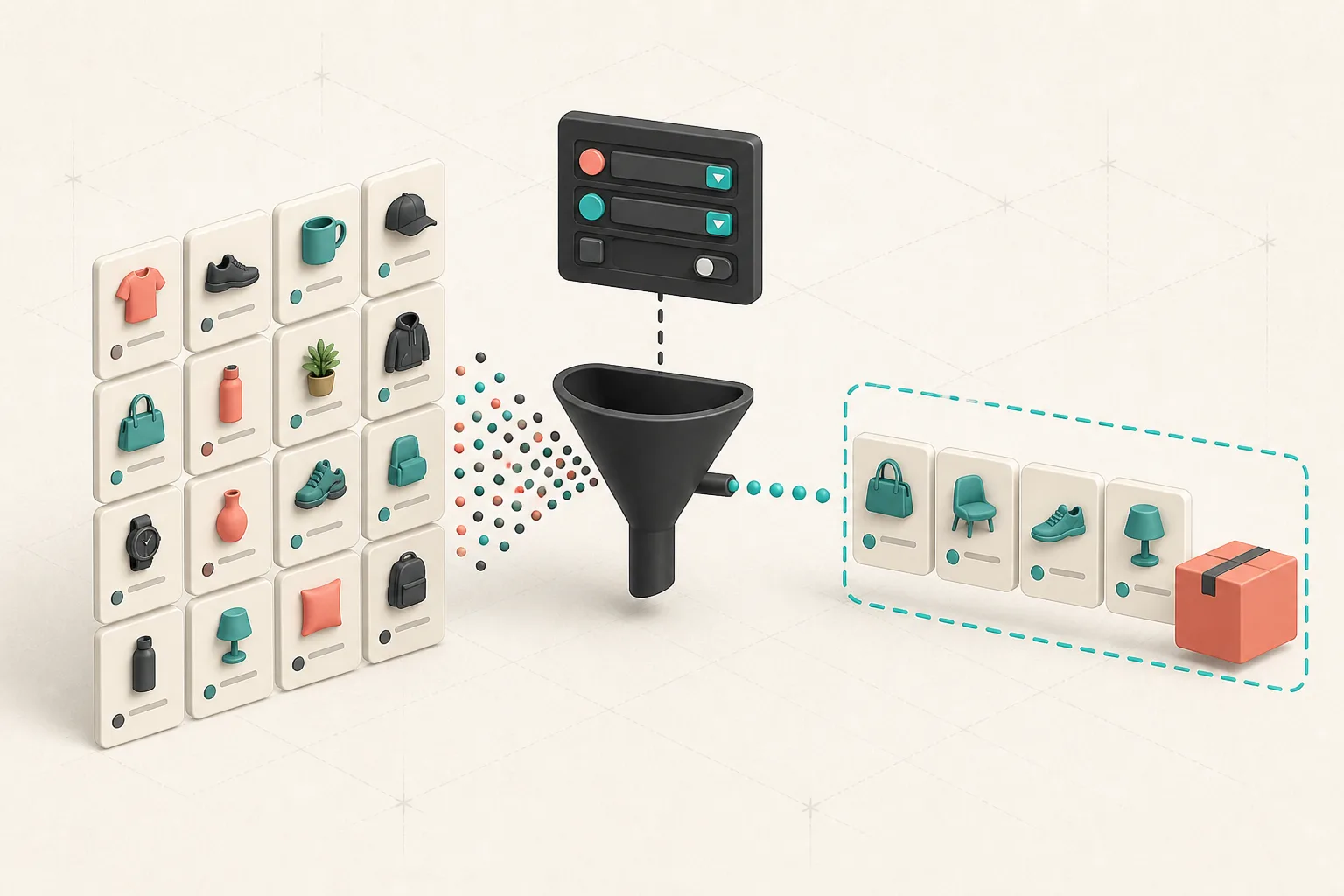
The easiest way to damage a catalog is to start with the change instead of the audience for that change. Before I touch prices, tags, titles, inventory settings, or metadata, I write down the filter in plain English: “all active summer tees with the clearance tag, excluding bundles.” That sentence is the reviewable spec.
Then I turn it into the search criteria for a new bulk-update task. This is where a bulk editor is safer than manually selecting a few pages in Shopify admin: the selection stays attached to the task, so I can inspect it before the update is defined.
For anything with variants, I also decide whether I am targeting product-level fields, variant-level fields, or both. A sale price is often a variant job; a title cleanup is usually a product job. Mixing those two levels casually is how a reasonable change turns into a late-night diff. If you are already doing catalog cleanup through imports, my CSV cleaning checklist is a useful companion before you set the final scope.
Define one transformation at a time
Ultimator Bulk Editor lets you update fields such as titles, HTML descriptions, tags, prices, compare-at prices, inventory, SKU, collections, images, SEO fields, options, and metafields. That range is useful, but it makes restraint more important.
My default is one intent per task. For example:
- append
- Final Saleto the titles of a confirmed clearance set; - increase a defined group of variant prices by a percentage and round cents;
- add a launch tag to a new collection; or
- set a future status or metadata change after a merchandising review.
This keeps the review legible. If the job is a price change, I use the price operation rather than exporting, calculating, and reimporting rows. If the job is a title convention, I use a prepend, append, or search-and-replace operation rather than rebuilding every title. The app supports these field-specific operations, which matters: a title is text, while a price might need an amount or percentage adjustment plus rounding.
That same separation helps when multiple teams touch the store. Marketing can approve a title or tag task while the merchandiser reviews the pricing task. Nobody needs to decipher a single mega-import with five unrelated transformations.
Review the task like a deployment
Before running a task, I do a short preflight:
- Count the selection. Does the number of products or variants look plausible for the campaign?
- Read the field and operation aloud. “Increase variant price by 10%, round cents” is not the same as “set price to 10.”
- Check exclusions. Bundles, gift cards, preorder items, and already-discounted variants are often the surprise group.
- Keep a rollback note. Record the criteria and intended update somewhere the next operator can find it.
That last point is boring but valuable. I use the same release-gate instinct described in my size-chart workflow: a catalog change is customer-facing, so it deserves a clear owner and a final check.
Schedule the change when timing is part of the requirement
For a sale or collection launch, “someone will remember at 9 a.m.” is not a schedule. Ultimator can run bulk-update tasks immediately or schedule them for a future date and time, which lets me review the work while there is still room to correct the scope.

My pattern is simple: build and review the task the day before, schedule it with the campaign brief, then spot-check the store after the update runs. That process is much calmer than editing every variant under a launch deadline. For a more focused price-change walkthrough, see how to schedule a Shopify price change without editing every variant.
Where bulk editing saves the most time
The obvious use case is a sale, but I get more value from recurring hygiene work: normalizing vendors, adding or removing tags, updating product types, fixing SEO titles, applying metafields, or cleaning variant attributes after a supplier update. The app is designed to handle unlimited products and variants with no quotas, so the workflow does not change when a tidy task becomes a large catalog task.
If I am preparing a merchandising change that also affects product presentation, I pair the update with a lightweight visual check. My three-pass image publishing check is the one I use before shipping changes that alter images or description HTML.
The important bit is not bulk editing for its own sake. It is making the change reproducible. A well-scoped task tells the next person what changed, why it changed, and which products were supposed to move.
Start with one reviewable task
Pick a boring, reversible job this week—such as adding a campaign tag to a single collection—and build it as one Ultimator Bulk Editor task. Verify the selection, define one field operation, and run it or schedule it deliberately. Once that habit is in place, sale pricing, metadata maintenance, and variant cleanup stop feeling like spreadsheet roulette and start feeling like normal store operations.