
June 2, 2026
How to Schedule Bulk Shopify Catalog Changes Without Breaking Variants
A practical Shopify bulk-edit workflow for products, variants, and scheduled catalog updates.
How to Schedule Bulk Shopify Catalog Changes Without Breaking Variants
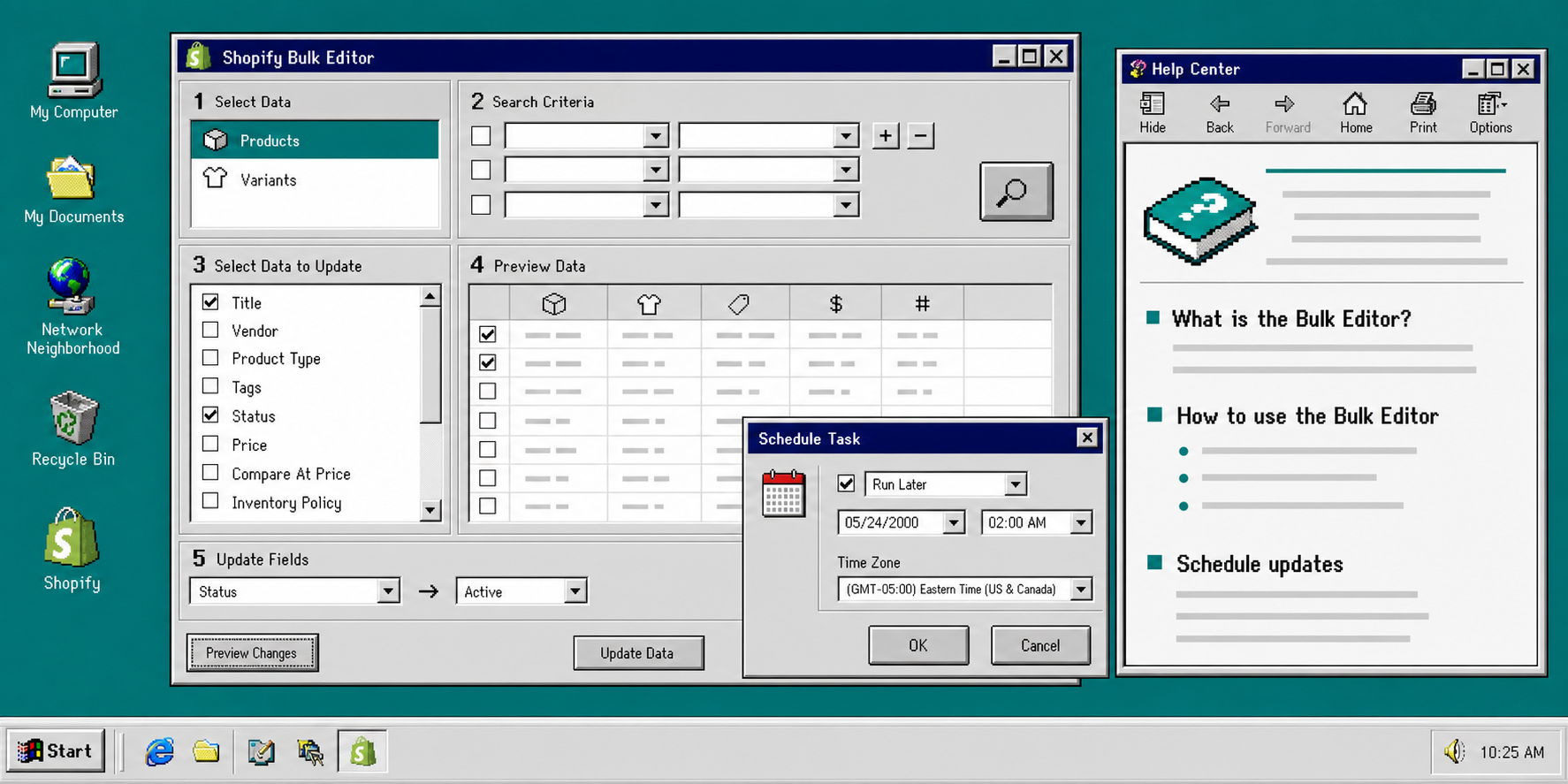
I avoid hand-editing Shopify listings when the change touches more than one product. One title fix is fine. A pricing change across a collection, an inventory correction, or a round of SEO updates is where manual edits start to waste time and introduce mistakes. Ultimator Bulk Editor is the app I reach for when I want one task to find the right products or variants, apply a set of edits, and either run now or schedule later. It supports unlimited products, no quotas, and fields across both products and variants, including title, handle, description HTML, tags, price, compare at price, inventory, SKU, vendor, collections, images, metafields, SEO title, and SEO description.
If your problem is variant presentation rather than catalog maintenance, I covered that in How to Build a Shopify Swatch System for Variants and Linked Products.
1. Start With A Narrow Search Criteria Set
When I use a bulk editor, I start by reducing the blast radius. The search criteria should select only the products or variants you actually want to touch. If the update is meant for one collection, one vendor, one product family, or one seasonal campaign, keep the task that small.
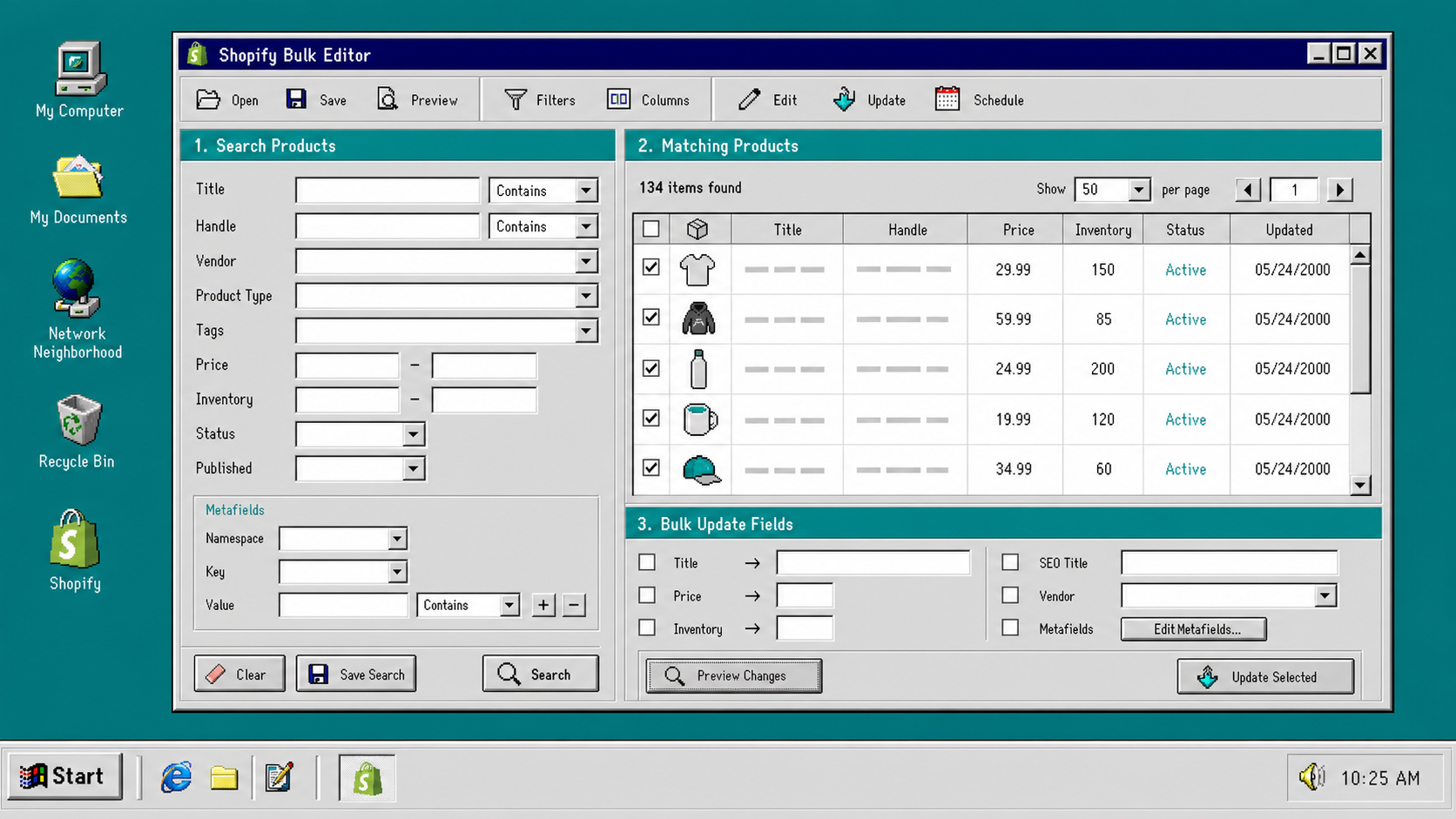
What I want to see before I change anything:
- the right product family
- the right variant group
- no extra items from unrelated collections
- a task name that tells me why the edit exists
That is the part people skip when they try to update listings one by one. A careful filter takes a few extra seconds and saves a lot of cleanup later.
If you want a deeper example of the same problem from the variant side, How I Bulk Edit Shopify Products Without Breaking Variants shows the safety mindset I use before any larger catalog change.
2. Map The Fields Before You Run The Task
The reason Ultimator Bulk Editor is useful is not just speed. It lets you edit a long list of fields without jumping through separate admin screens. On products, that includes title, handle, description HTML, tags, price, compare at price, inventory, product type, SKU, vendor, status, theme template, collections, images, options, metafields, SEO title, and SEO description. On variants, it covers price, compare at price, inventory, track inventory, SKU, weight, barcode, tax code, taxable, requires shipping, option values, metafields, and even delete variant.
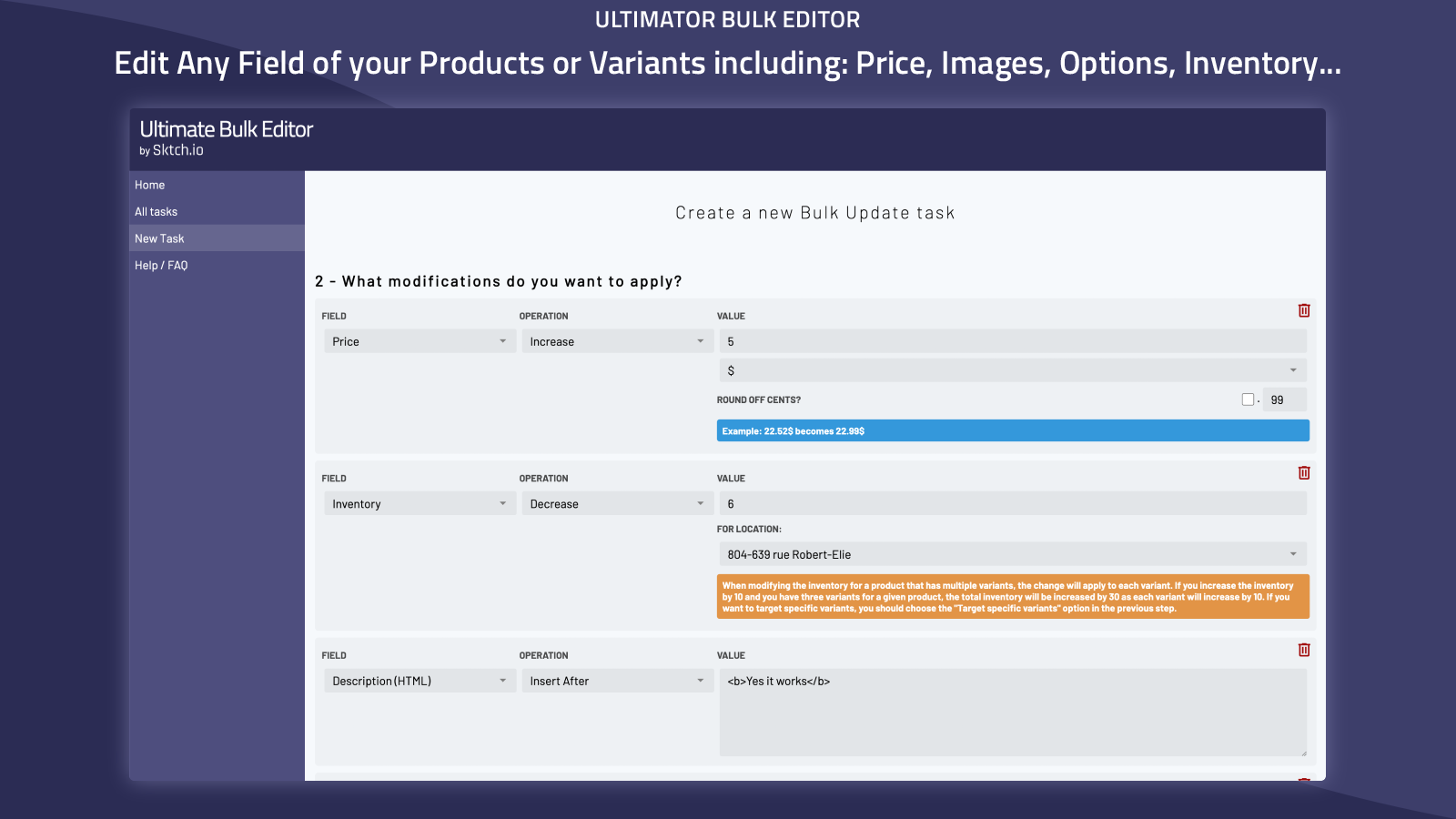
The important part is choosing the right update operation for the field:
- text fields can be set, prepended, appended, or searched and replaced
- price fields can be set, increased, decreased by amount or percentage, and rounded to cents
- inventory and variant fields can be adjusted without changing the rest of the listing structure
- SEO fields can be updated as part of the same batch instead of opening each product page separately
That is the difference between a safe bulk edit and a risky one. The task should describe the exact change, not just the area you want to improve.
If you are mainly cleaning up product metadata, How to Bulk Edit Shopify Products, Variants, and SEO Fields Without Mistakes is the closest companion post.
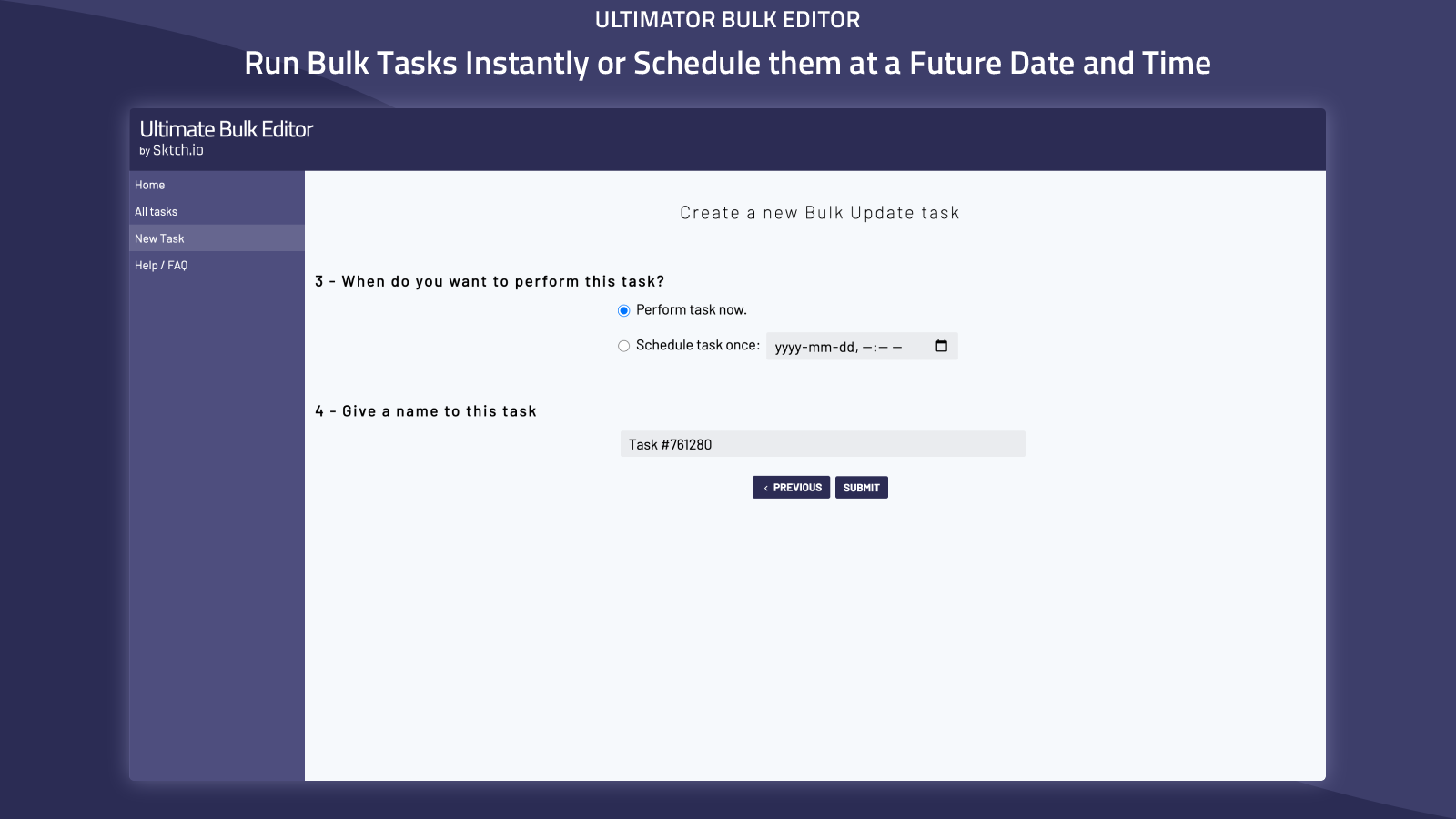
3. Decide Whether The Change Should Run Now Or Later
Some catalog changes should happen immediately. Others should be scheduled. I treat that as an operational choice, not a cosmetic one.
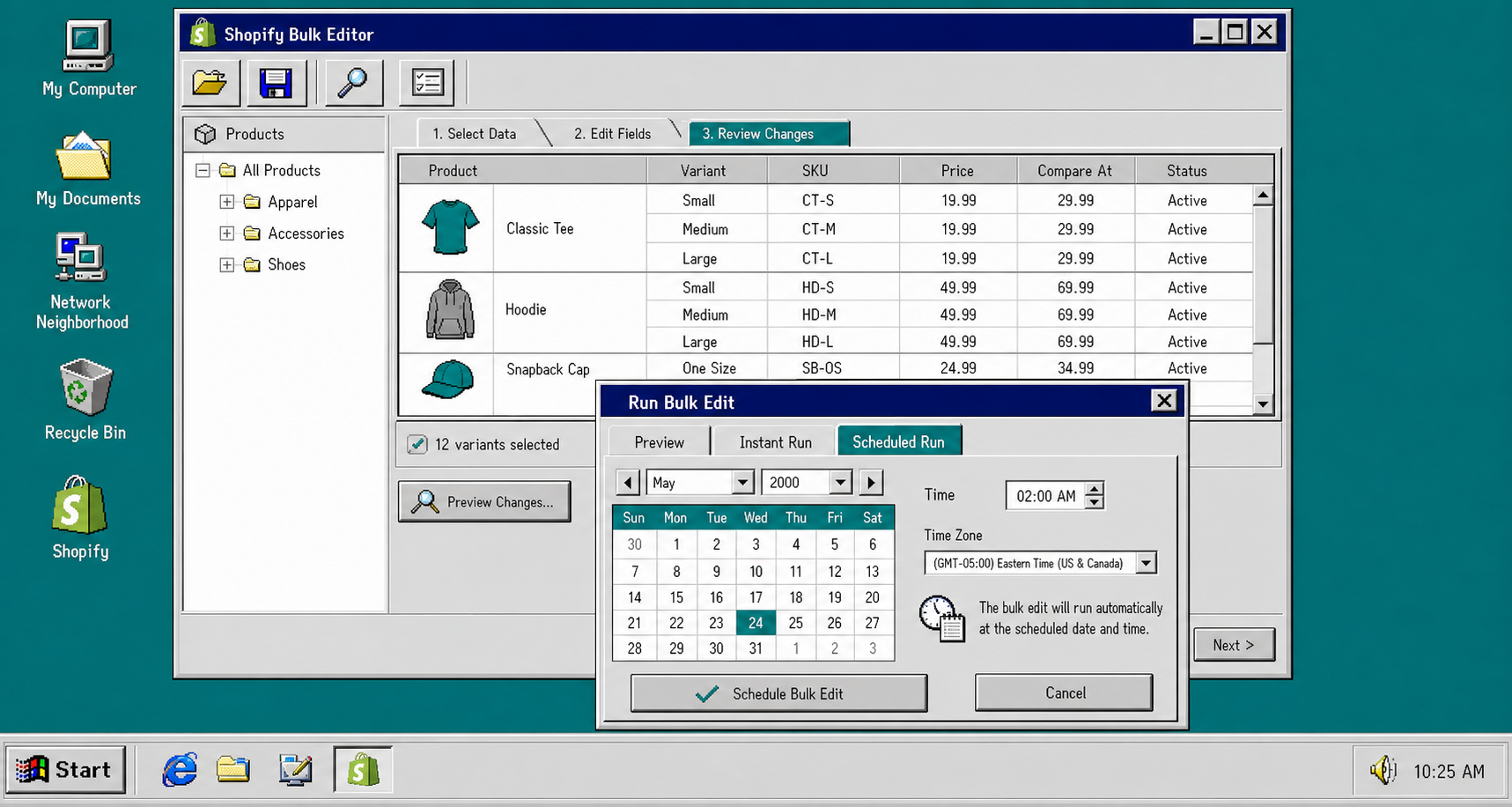
I schedule when I am:
- preparing a sale
- coordinating a launch window
- waiting for another store change to land first
- batching inventory or pricing updates for a known future time
I run immediately when:
- the correction is already approved
- the change is small and specific
- I want the catalog fixed right now
- I am testing the first batch before rolling the same pattern across the rest of the store
That is the part I like most about this workflow: the same task structure works for both use cases. You are not rebuilding the process just because the timing changed.
For a broader walkthrough of the same editing model, How to Bulk Edit Shopify Products and Variants With Filters, Preview, and Scheduling is a good follow-up.
4. Check The First Batch Before You Scale Up
I would never start with the whole catalog. Even with unlimited products and no quotas, the smart move is to test a small slice first and confirm the result in Shopify.
After the first run, verify:
- the right products changed
- variant fields landed where you expected
- price adjustments are rounded correctly
- tags, collections, and SEO fields still make sense
- nothing outside the intended filter moved
If the task looks off, stop and tighten the search criteria instead of brute-forcing a rerun. Bulk editing is only safe when the filter and the field mapping are both boring.
5. What I Would Do For A Real Store
If I were cleaning up a live Shopify catalog today, I would keep the process simple:
- Pick one product family or one collection.
- Write the task name so it describes the business reason.
- Set the search criteria as narrowly as possible.
- Choose one update operation per field.
- Schedule the task if timing matters, otherwise run it immediately.
- Recheck the first batch before expanding the same task to the rest of the catalog.
That is enough structure to keep most catalog changes from turning into a spreadsheet project.
Troubleshooting
A few mistakes come up repeatedly:
- If the task hits too many items, the filter is too broad.
- If the wrong field changes, you mapped a product field when you meant a variant field, or vice versa.
- If a price change looks wrong, check whether the task used a percentage change, an amount change, or a direct replacement.
- If you are updating SEO, make sure the change is really meant for title and description rather than the visible product copy.
- If the real problem is how variants are presented on the storefront, not the catalog data itself, the swatch posts are the better read: How to Build a Shopify Swatch System for Variants and Linked Products and How I Replaced Dropdown Variants With Shopify Swatches That Load Instantly.
Where To Start
If you want the shortest path to a working setup, start with the Shopify App Store listing and keep the product site open while you build your first task.
The practical win here is simple: define the exact products or variants you want, describe the exact change you want, then choose whether it should happen now or on a schedule. That is enough to keep bulk catalog edits fast without making them reckless.