
November 28, 2026
A Transparent-Pixel QA Gate Before I Reuse Product Cutouts in Shopify
Check alpha-channel edges, transparency coverage, and contrast before reusing product cutouts in Shopify product media.

A Transparent-Pixel QA Gate Before I Reuse Product Cutouts in Shopify
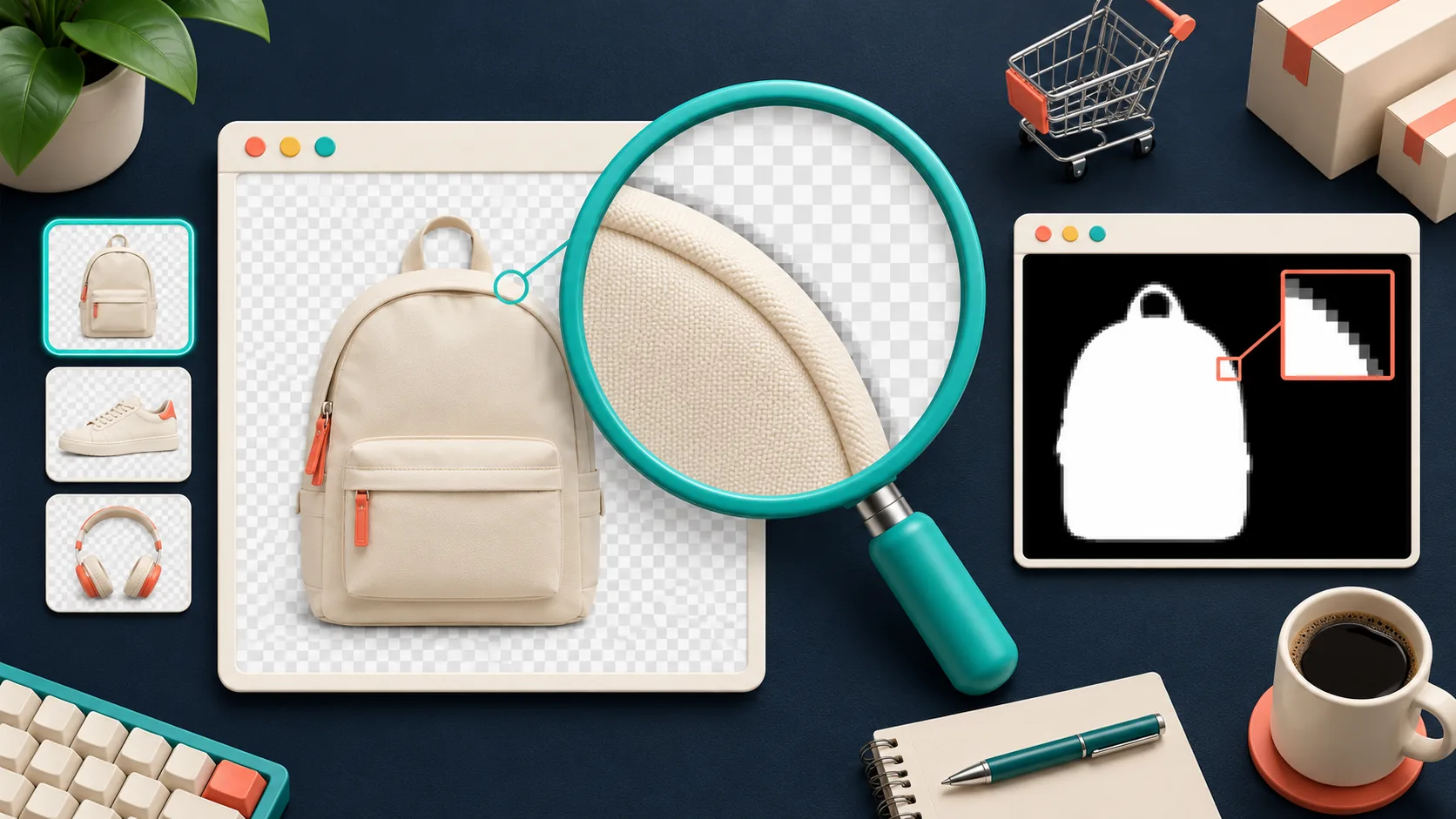
A product cutout can look finished on the designer’s checkerboard and still fail on a real Shopify product page. My practical answer is to inspect the alpha channel first, then view the same asset on both light and dark cards before it joins the catalog. Tiny Online Tools’ Image Alpha Viewer makes the first check quick: it renders the transparency as a grayscale mask in the browser, so opaque pixels, transparent background, and soft edge pixels are visible separately.
This is not a replacement for a good source file or a real storefront preview. It is a small release gate for the PNG or WebP cutout you already intend to reuse. It has saved me from treating “transparent” as a binary property when the actual question is whether the edge behaves on the backgrounds shoppers will see.
The decision I am making
I use this gate when a product image has been removed from its background, retouched, exported from a design tool, or supplied by a vendor. The input is one candidate image; the output is either an approved derivative for Shopify or a note back to the person who owns the master. Keep that separation explicit: as in my product-image handoff approach, the master remains the source of truth and the storefront file is a controlled derivative.
| What I see in the alpha mask | Meaning | Decision |
|---|---|---|
| Solid white product, solid black background | Expected opaque product and empty background | Continue to storefront contrast check |
| Gray pixels only along naturally soft edges | Anti-aliasing or intentional soft material edge | Compare on light and dark cards |
| Gray haze well outside the object | Likely halo, leftover background, or feathering | Hold and request a cleaner cutout |
| Black holes inside a product that should be solid | Missing pixels or an unintended mask | Hold and fix before upload |
The viewer reports transparent-pixel count and percentage as well as a downloadable mask. Those numbers are not a universal pass/fail threshold—the percentage changes with product shape and canvas padding—but they are useful when a new export is unexpectedly different from its previous approved version.
My three-step alpha check
1. Inspect the export, not the working file
Open the exact JPG, PNG, or WebP that will go into the product-media workflow in Image Alpha Viewer. The tool runs locally in the browser and displays white as fully opaque, black as fully transparent, and intermediate gray as semi-transparent. That matters because a pristine layer inside a design file says very little about the exported artifact.
I check the silhouette at 100% zoom around handles, hair-like fibers, glass, seams, and any shadow that was meant to remain. I also look through open areas—a tote handle, sandal straps, a chair back—where accidental transparent holes are easy to miss in the original color image.
2. Test contrast before you call it reusable
An alpha mask tells me where the edge is; it does not tell me whether that edge looks intentional against a merchandising surface. I place the candidate on one pale and one dark product-card background. A pale fringe usually appears on the dark card; a dark fringe shows up on the light card. If either version makes the product look sticker-like, I do not try to hide it with Shopify theme CSS. I return the derivative for a corrected selection or a deliberate, consistent shadow treatment.

This contrast pass is especially helpful when the same item will serve as a collection tile, product-page media, and a promotional card. If you are planning a wider asset set, use the product image role matrix before generating extra variants; it makes the background and crop requirements explicit per role.
3. Record the decision with the derivative
For a batch, I keep a tiny receipt beside the export folder:
SKU: LUNA-TOTE-TEAL
source: luna-tote-v4.psd
derivative: luna-tote-shopify-v2.webp
alpha: clean silhouette; soft edge retained at handle
contrast: approved on #f7f3ed and #132532
next: upload + assign alt text
This is deliberately small. The point is to keep a future image refresh from silently replacing an approved cutout with a near-match. Before import, I run that file through the same URL and alt-text checks described in this Shopify image import guide.

Where this gate stops
Alpha inspection will not tell you whether a product photo is honest, the crop is commercially useful, or the image matches the selected variant. It also cannot repair a rough extraction. Use it to find a transparency problem, then correct the master or regenerate a proper derivative. For 3D product media, the equivalent question is whether shoppers have a dependable fallback; I use a separate 3D media fallback check for that release path.
Make the gate part of the handoff
Tiny Online Tools is useful here because it keeps a narrow, privacy-friendly inspection task out of a heavyweight editor: open the exported asset, read the mask, make the decision, and move on. Start with one existing cutout that has bothered you on a dark collection card. Inspect its alpha channel, compare it on two backgrounds, and attach a four-line receipt to the approved derivative. That is enough process to prevent a surprising number of storefront-edge bugs.