
October 25, 2026
I Rebuilt My Shopify Product Page Around Shopper Questions
A practical product-page information architecture workflow for Shopify: choose clearer sections, reuse content safely, and adapt tabs for mobile.

I did not set out to rebuild a product page. I was trying to answer a boring support question: where exactly do I put the care instructions when the description already carries sizing, shipping, compatibility notes, and the actual reason someone should buy the thing?
The usual answer—add another paragraph—works once. Across a catalog, it turns every product page into a long scroll where the useful detail is technically present but hard to find. I now start with a smaller job: map the questions shoppers arrive with, then give each question a predictable home.
That is where Supra Tabs & Accordions fits. It is a free Shopify app with no trial, tiers, or card requirement. It changes how existing content is presented and organized; it does not replace the underlying product content. I use it when I want a product page to stay honest, scannable, and maintainable without making a theme edit for every SKU.

Start with the questions, not the tab labels
Before I create a tab set, I pull up five or six representative products: the simple bestseller, the configurable product, the one with awkward compatibility requirements, and the seasonal outlier. I write down the questions a shopper needs answered before checkout. The list is usually more useful than the existing description structure.
For a typical apparel or home-goods catalog, I end up with something close to this:
- What is it, and why does it matter?
- Which size, material, finish, or compatibility detail changes the decision?
- How do I use or care for it?
- What are the delivery, return, or warranty expectations?
That does not mean every product gets four visible tabs. A tab is a promise that there is useful content inside it. If a product has no care guidance, the care tab should not become an empty shell. Supra Tabs & Accordions can hide empty tabs automatically when the source content is missing, which makes one structure workable across uneven catalogs.
This question-first pass is also why I like a collection swatch audit before touching a product template. Product-page presentation looks like a UI task until you uncover the catalog rules underneath it.
Give each answer a durable Shopify source
My next move is deciding where each kind of answer should live. The rule is simple: keep information close to the system that owns it.
| Shopper question | Content source I prefer | Why |
|---|---|---|
| Product story or differentiator | Product description | It remains specific to that SKU. |
| Dimensions, ingredients, compatibility | Product metafield | It is structured and easy to maintain per product. |
| Shared care, shipping, or warranty copy | Shopify page content | One update can serve many products. |
| Repeated technical specification groups | Metaobject field | It keeps reusable details consistent. |
Supra Tabs & Accordions lets a tab pull from those sources, as well as written app content, an image, or a downloadable file. The important part is that the product page becomes the presentation layer, not the only place the information exists. I do not copy a warranty paragraph into fifty product descriptions just to make a tab look complete.
If you are still getting the fundamentals in place, adding a default Shopify size chart for new products is the same kind of system decision: identify what should be reusable before the catalog makes it expensive.
Build for the product column, not an imagined desktop
Tabs are great when the product-page column is wide enough to scan a short row of labels. On a narrow column, those same labels can wrap into a row that looks more like a navigation bug than product information. That is why I treat tabs and accordions as two views of the same content, not competing approaches.

The app responds to the actual product-page column rather than only the viewport width. I still review it inside the real theme, especially when the product gallery or a sticky cart changes the available width. For overflow, choose deliberately: horizontal scrolling, a More control, wrapped rows, or stacked sections all communicate something slightly different.
My baseline check is practical: can someone reach every section with a keyboard, identify the active section, and open the important detail on a phone without a precision tap? Supra includes keyboard support, appropriate roles, comfortable tap targets, and reduced-motion behavior. It also keeps real headed content in the page for screen readers and search engines, which is the part I care about before I start admiring the layout.
Apply rules broadly, then test the exceptions
The payoff shows up once the tab set moves beyond one product. In the app, I can apply a set by collection, tag, vendor, product type, or selected products. A collection or tag rule can cover future matching products too, which keeps a content system from becoming a launch-day checklist.
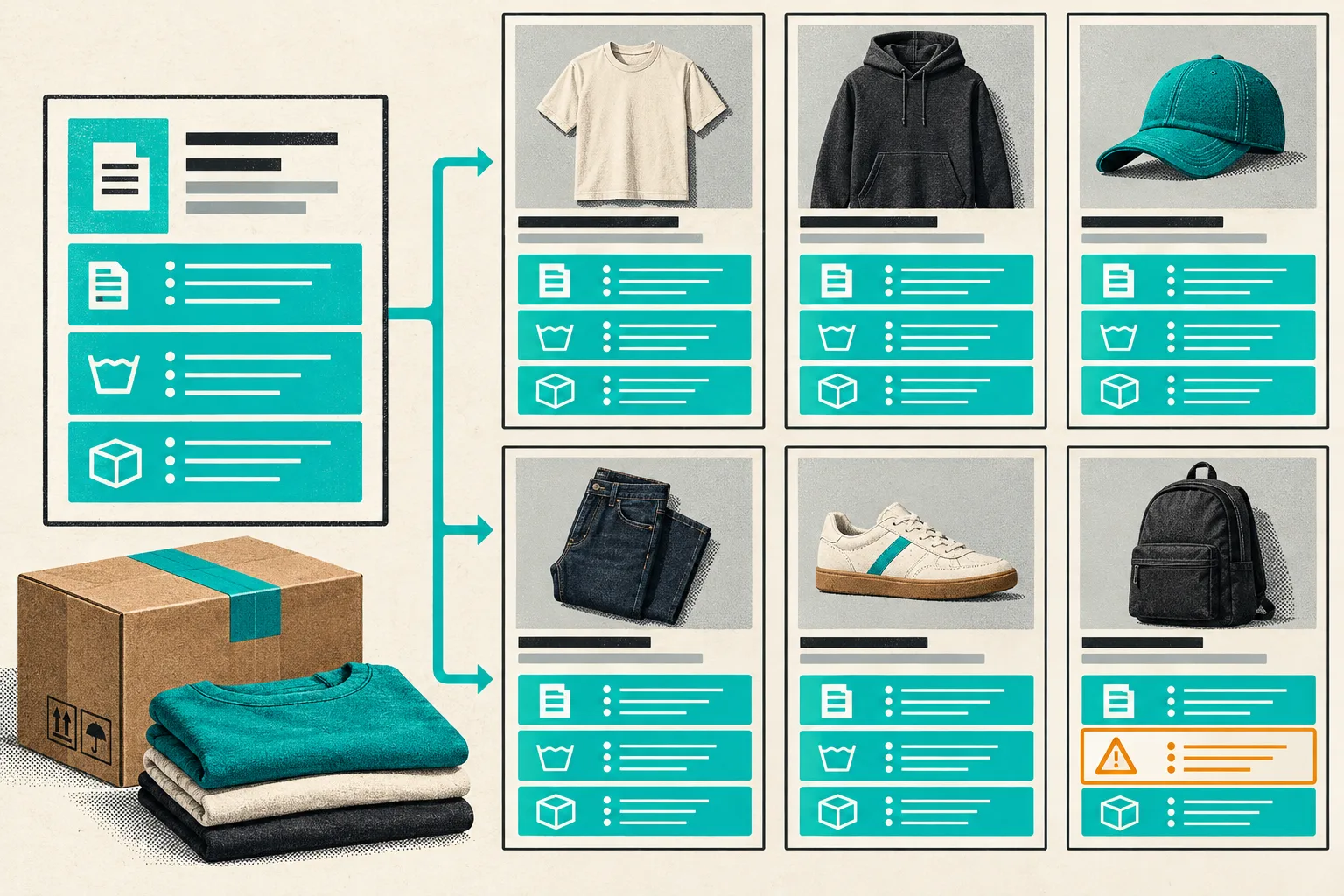
My rollout sequence looks like this:
- Build the tab set with clear, shopper-facing labels.
- Assign the right source to each section.
- Target a small pilot collection first.
- Use the live preview, match count, and overlap warnings to find accidental coverage.
- Add the theme app block once to the product template.
- Test a representative product on desktop, a narrow laptop window, and a phone.
Overlap warnings deserve attention. A product that matches two rules still needs a predictable winner. I want to know which set wins before a merchant calls me because the care instructions disappeared on one product type. For launch work, I apply the same caution as a safe Shopify bulk-product update: scope first, preview the blast radius, then ship.
The tab labels I now avoid
I used to default to labels like “More Info” and “Details.” They are harmless until someone is trying to find a washing instruction, a device model, or a return condition in a hurry. Labels should tell a shopper what they will get. “Materials & Care,” “Fit & Sizing,” “Compatibility,” and “Shipping & Returns” make better promises because they reduce interpretation.
I also resist building a tab for every internal content category. Merchants may have separate fields for compliance, supplier notes, regional caveats, and merchandising copy. Shoppers do not need to see the CMS taxonomy. Combine only information that helps one decision; keep a tab short enough to scan; and use a direct link to a particular tab when support or documentation needs to point at a precise answer.
My pre-publish check
Before I call this finished, I check these points:
- Every tab answers a question that matters before checkout.
- Empty or irrelevant sections disappear instead of advertising missing content.
- Reusable material comes from a reusable source.
- Rule matches and overlaps make sense for future products, not only today’s catalog.
- Labels are specific enough to scan.
- Keyboard, phone, and reduced-motion behavior hold up in the actual theme.
That last review is what keeps an information architecture cleanup from becoming a prettier version of the same mess. If your product pages are still carrying every detail in one description block, start with a single collection: list the shopper questions, map each to a durable Shopify source, and build one tab set around them. Then install Supra Tabs & Accordions and add the app block to your product template. You will have a structure you can reuse instead of another paragraph to maintain.