
October 20, 2026
I Run a Shopify Color Contrast Check Before Publishing
A practical storefront preflight for checking readable Shopify buttons, product cards, banners, and sale states before they ship.

I used to treat a color choice as finished once it looked right in Figma. Then I started checking the actual Shopify theme on a phone, in daylight, with a product image behind it. A pale sale badge that looked elegant on my desktop was almost invisible in a product grid. A dark green button passed the vibe check but made its white label work harder than it should.
That is why I now run a tiny color-contrast pass before I publish a storefront change. It is not a grand accessibility audit. It is a ten-minute release check that catches the easy misses where a shopper needs to read, decide, or tap. For the numbers, I use Tiny Online Tools’ Color Contrast Checker. It shows the ratio for a foreground/background pair and marks the common WCAG 2.1 thresholds for normal and large text.
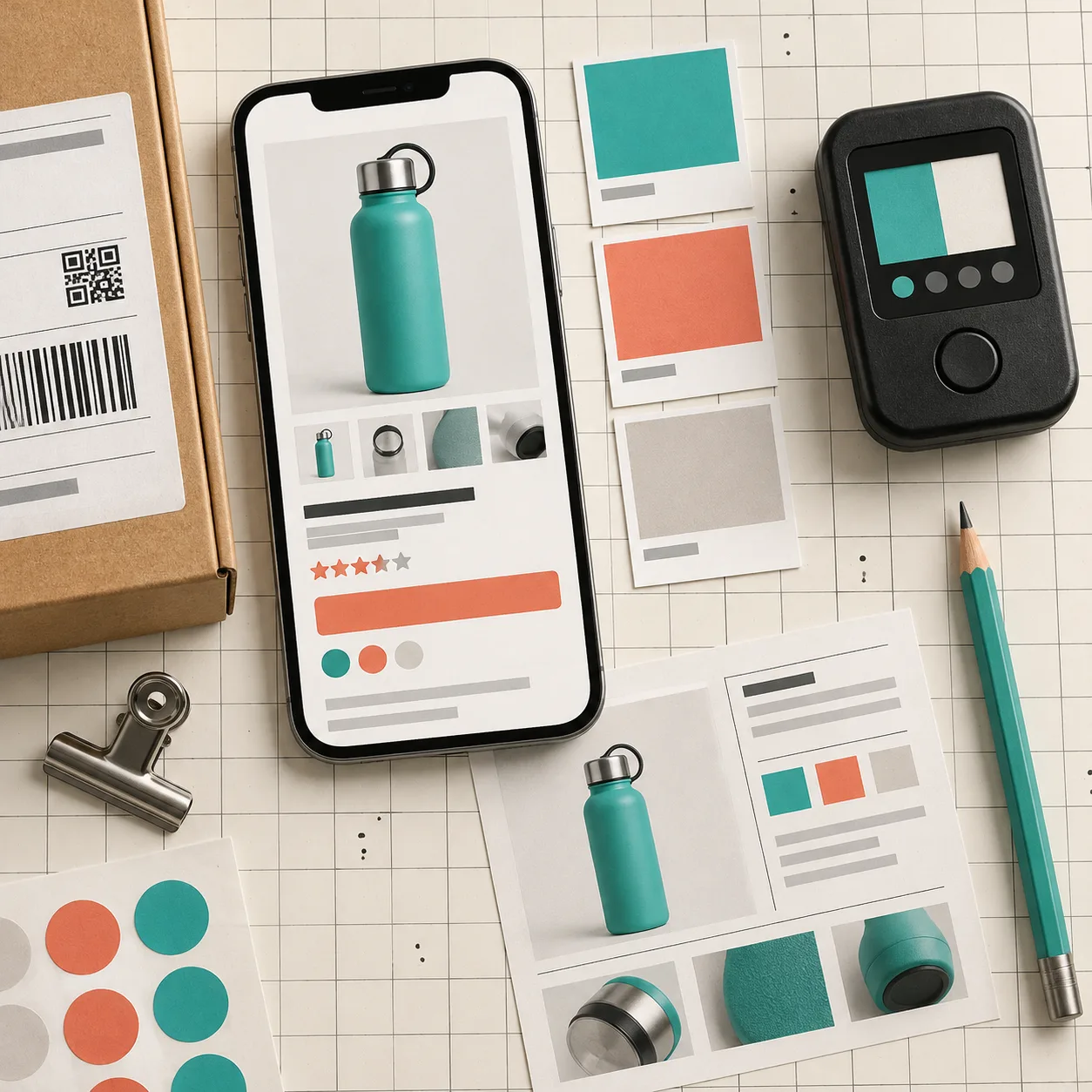
Start With the Places That Carry a Decision
I do not begin by checking every decorative color token. I begin with the things that either carry meaning or invite an action:
- the primary Add to Cart or Buy Now button
- price, sale price, and discount badge
- variant labels and selected swatches
- announcement-bar links and email signup fields
- product-card titles over a promotional image
- error, out-of-stock, and low-inventory states
That ordering matters. A low-contrast divider is worth fixing, but a low-contrast size label can make a product feel unavailable or confusing. The useful question is: can someone quickly tell what this control says and what will happen next?
For an existing store, I take a screenshot of the real surface first. If I need an exact color from an old theme rule or a baked-in image, Tiny Online Tools’ Image Color Picker lets me sample the hex, RGB, or HSL value from the screenshot instead of guessing. That small step prevents a common mistake: testing the tidy design-system token while the storefront is actually using a slightly different legacy value.
Check the Actual Pair, Not Just the Brand Color
Contrast is a relationship, not a property of one color. A brand teal can be excellent as a dark button with white copy and poor as small teal copy on a cream card. The checker makes that visible quickly: enter the foreground color, enter the background color, and record the ratio. For normal body text and UI text, I use the AA 4.5:1 threshold as the practical release floor. Large text has a lower AA threshold, but I avoid using “large enough” as an excuse for a key checkout or product-page instruction.
I keep a tiny release note beside the theme change:
component: product-card sale badge
foreground: #FFFFFF
background: #1F5F58
result: AA normal text passes
where checked: collection grid + product page
It is deliberately boring. The value is that the next person can retest the exact pair instead of reinterpreting a screenshot. This is the same reason I prefer a small, repeatable Shopify swatch-rule workflow over assuming every color chip communicates the same thing.

Test Text Over Product Media Separately
The most deceptive combinations are text overlays. A hero heading may be readable over one crop and disappear when the merchandising team swaps in a brighter photo. For those, I test the intended copy against the brightest and busiest part of the image, not only the image currently in the theme editor.
If the result is marginal, I change the layout rather than try to rescue it with a barely visible shadow. A solid or translucent panel, a more consistent image crop, or moving the copy below the image is usually more durable. It also makes future asset changes less risky. I use the same source-versus-delivery discipline when I prepare a product image once and keep an unedited original for the next campaign, as in this reusable-image workflow. If you are producing alternate crops or channels from that master, this guide to visual variants is a useful companion.
Do the mobile pass here too. A title can wrap from two lines to four, a promotional overlay can cover a different part of the photo, and a small font can turn a technically acceptable pairing into tiring reading. I check one narrow screen and one wide screen before calling a component done.
Do Not Use Color as the Only Status Signal
Contrast testing will not solve every clarity problem. A selected size, an invalid field, or an unavailable variant should have more than a color change. Add a visible label, icon, border treatment, or state description that survives when someone does not distinguish the hue you chose.
This is especially important when a visual system grows organically. I have seen stores where “teal means available” on one template, “teal means selected” on another, and “teal means informational” in the cart. A quick state inventory is often more valuable than a heroic recolor. If the catalog team is updating many records at once, test a sample before rolling the treatment everywhere—the same principle behind a safe bulk tag-cleanup pilot.
A Small Pre-Publish Routine I Can Actually Keep
My final pass is short:
- Open the collection page, a product page, cart, and the most prominent campaign landing page.
- Check the primary action, price/sale treatment, selected state, form error, and any text laid over imagery.
- Sample uncertain colors from a screenshot rather than eyeballing them.
- Run the pairs through the Color Contrast Checker.
- View the changed page on a narrow viewport and ask whether the next action is obvious without relying on color alone.

This is not glamorous work, but it is one of the highest-leverage bits of release hygiene I know. It protects the decisions customers need to make when they are tired, rushed, on a small screen, or looking at a product in less-than-perfect light.
If you have a storefront change waiting to ship, start with one real product card. Grab its actual foreground and background values, test them in the free browser-based checker, then fix the first weak pair you find. Ten minutes is enough to make the next storefront release easier to read and easier to trust.