
June 23, 2026
How I Bulk Edit Shopify Products Without Breaking Variants
A practical Shopify bulk-edit workflow for safe catalog cleanup, variant updates, price changes, and scheduled store operations.
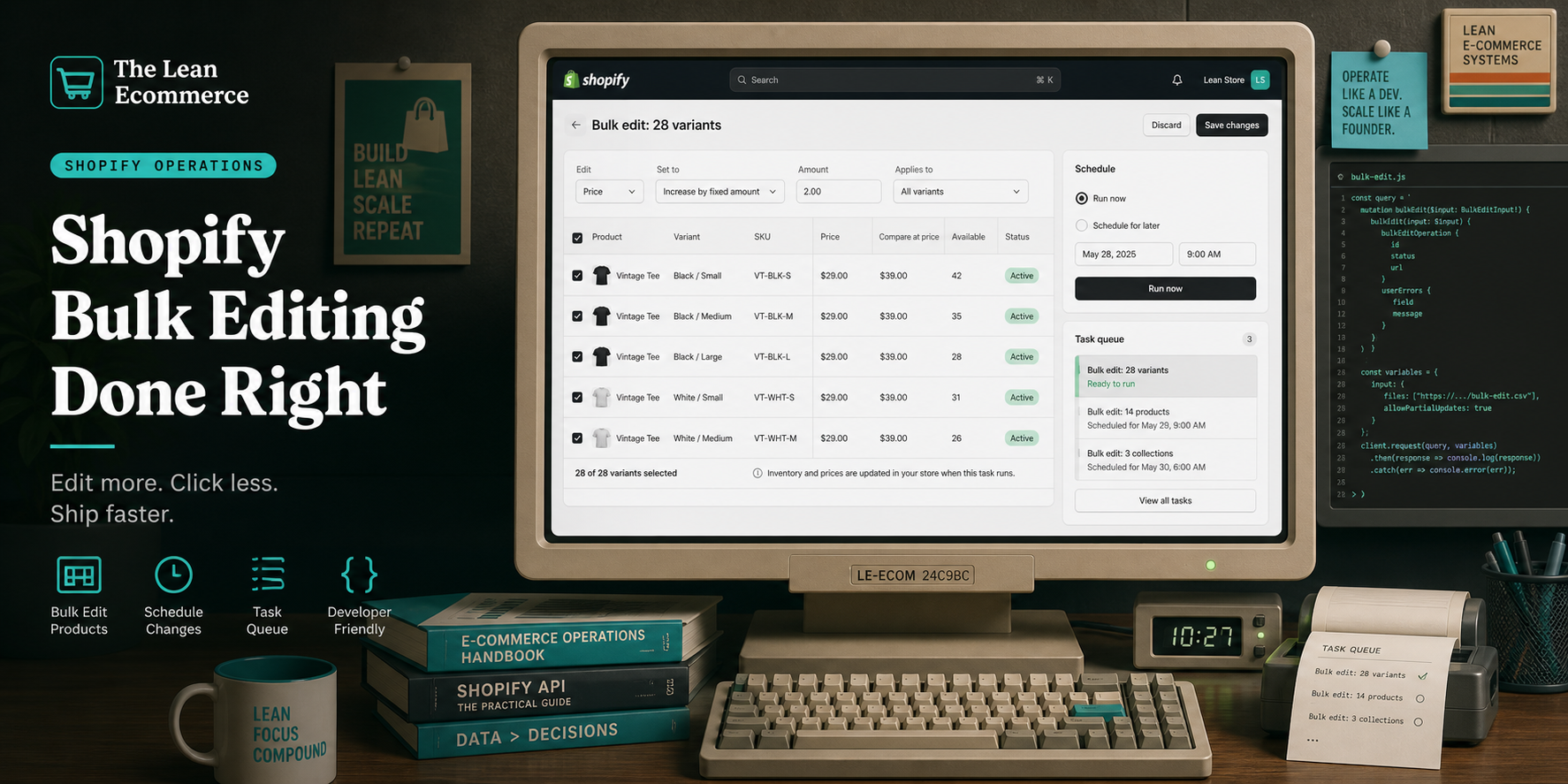
I keep bulk edits in Ultimator Bulk Editor when I know the change belongs in store data, not in a dozen manual admin clicks.
If I need to clean up a sale, normalize variant data, or update product fields across a large catalog, this is the workflow I reach for. The Shopify App Store listing is the fastest place to start: Ultimator Bulk Editor. The product site is also useful if you want the vendor view of the workflow: ultimate-bulk-editor.sktch.io.
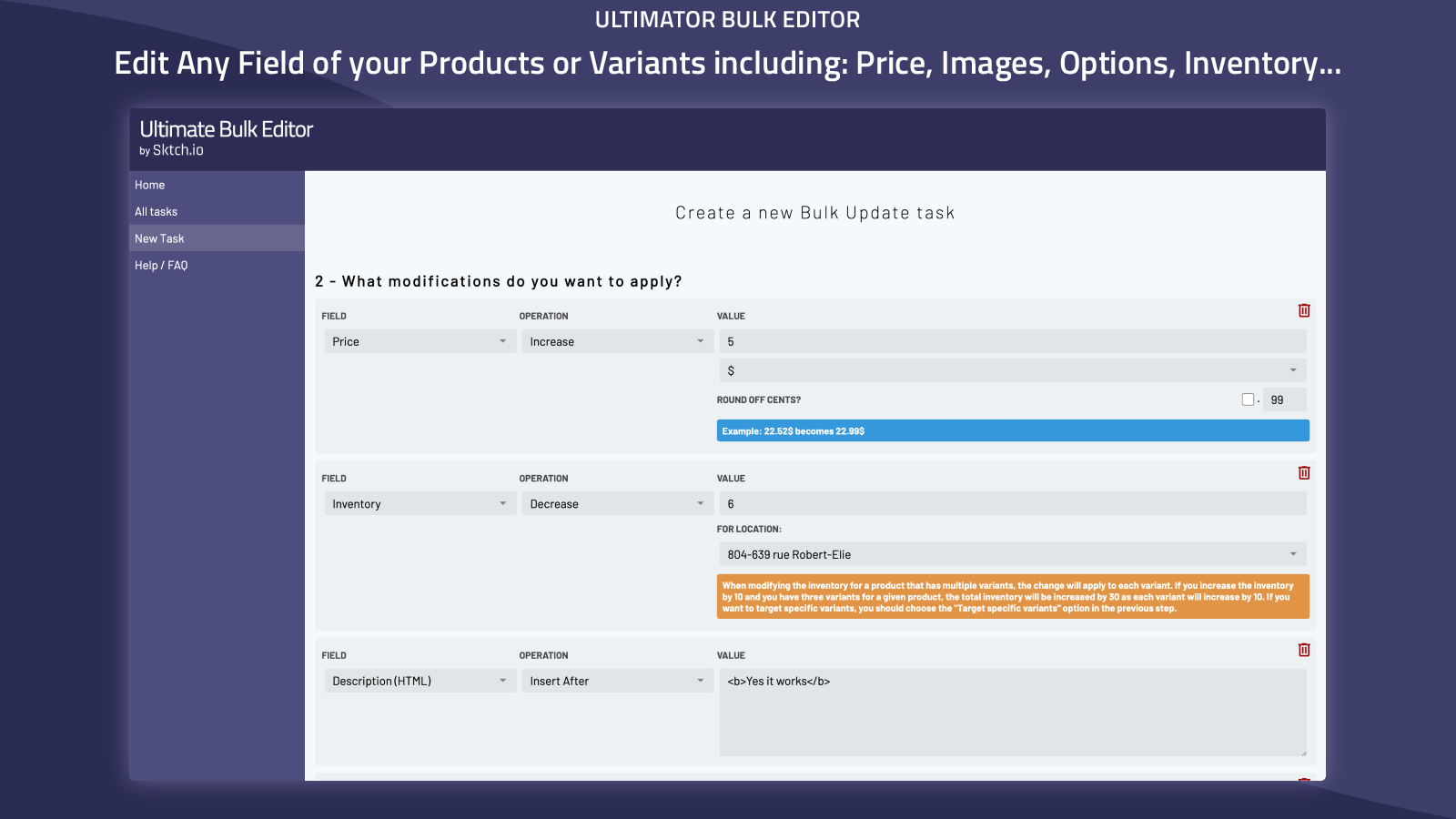
Start With The Filter
I do not start by changing values. I start by scoping the task. A bulk update is only useful if the selection is narrow enough to be safe.
My default rule is simple:
- filter by product set first
- then verify the variant set
- only then define the change
That is the difference between a deliberate bulk task and a disaster disguised as efficiency. In practice, that means I isolate a collection, sale subset, vendor bucket, or whatever segment actually needs the update before I touch title, price, inventory, tags, SEO fields, or metafields.
Change One Thing, Not Five
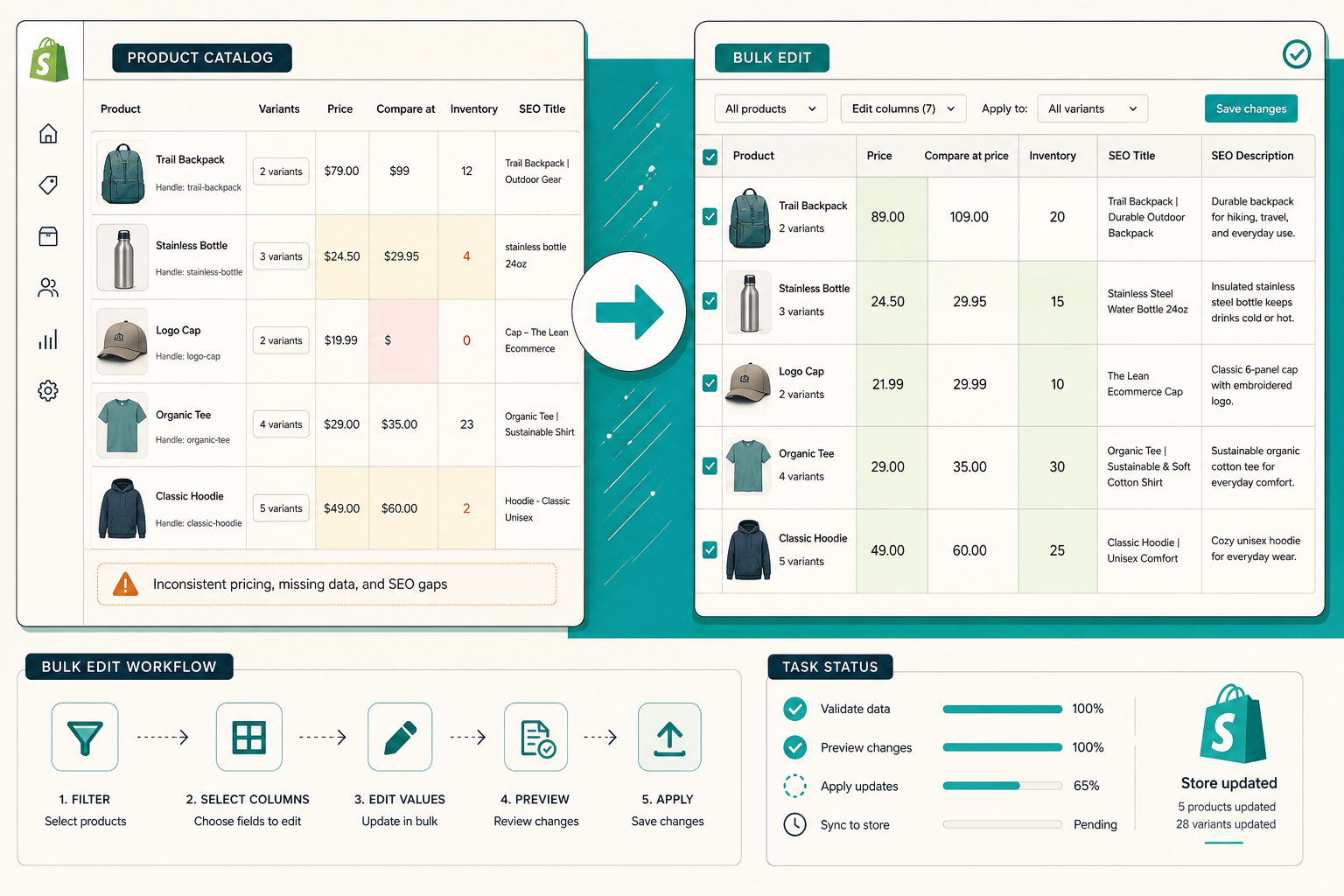
Ultimator Bulk Editor supports product fields like title, handle, description HTML, tags, price, compare at price, inventory, product type, SKU, vendor, status, theme template, collections, images, options, metafields, SEO title, and SEO description. It also covers variant fields like price, compare at price, inventory, track inventory, SKU, weight, barcode, tax code, taxable, requires shipping, options, metafields, and even variant deletion.
That matters because I do not want three different tools for three related updates.
If I need a title rewrite, I can use the title operations the app provides: set a new value, prepend, append, or search and replace. If I need a pricing move, I can change the value directly or adjust it by a fixed amount or percentage and round the cents. If I need to refresh SEO metadata, I can do it in the same task instead of rebuilding the page logic manually.
Use Scheduling When The Clock Matters
The most useful moment for a bulk editor is not always right now. Sometimes it is 2 a.m. before a sale starts, or right after a launch window, or when you want inventory changes to land in a controlled order.
That is where I lean on the schedule option instead of running the task immediately.
I use that for:
- sale prep
- seasonal price updates
- inventory changes that need a clean cutover
- cleanup passes I want to queue after I finish the rest of the catalog work
The main benefit is control. I can write the bulk update once, check that it targets the right items, and then decide whether it should run now or on a schedule.

Why I Still Keep Screenshots In The Process
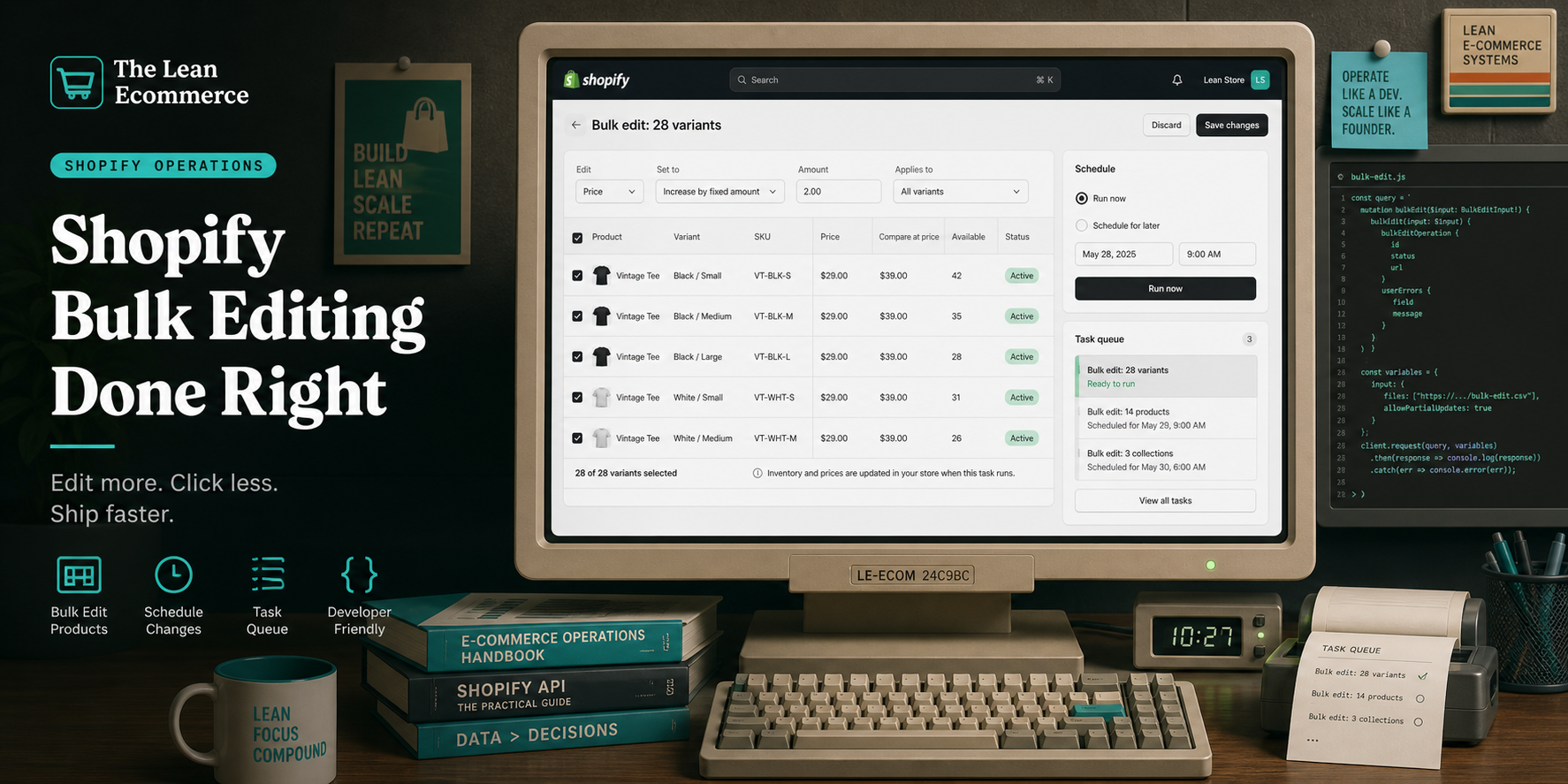
The app store screenshots are useful because they show the actual admin pattern instead of a polished marketing promise. The first thing I look for is whether the task still feels like a normal operational workflow, not a black box.
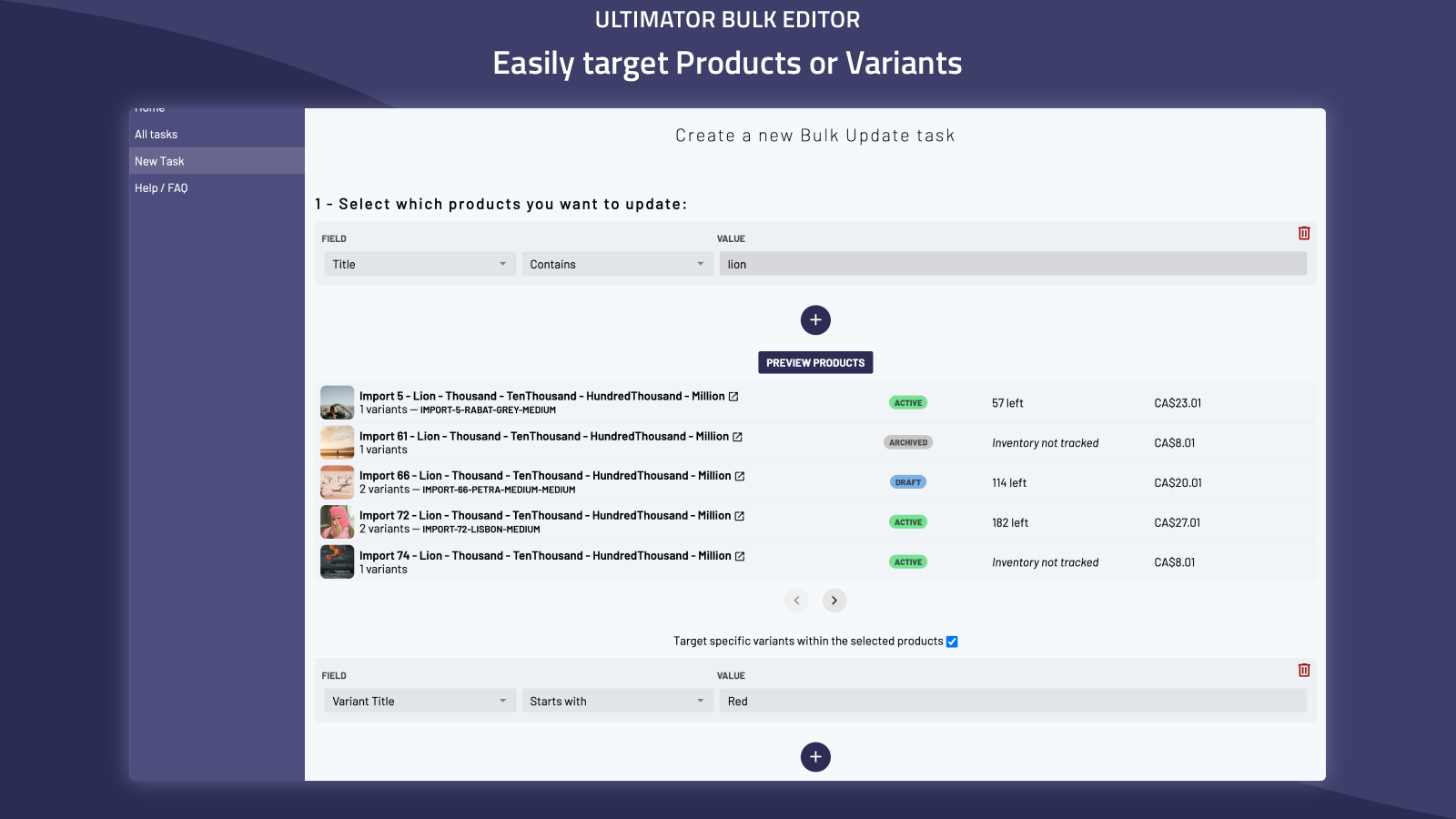
A good bulk editor should feel like a constrained admin tool:
- the rows are visible
- the change is explicit
- the scope is obvious
- I can inspect the task before I let it run
That is why I prefer this workflow over ad hoc admin edits for catalog hygiene. Once the task is defined, the actual change is repeatable.
The Safety Checklist I Use
Before I save a task, I ask the same questions every time:
- Did I scope the right products or variants?
- Am I changing the correct field?
- Does the update make sense for every selected item?
- Is this a field I would be comfortable changing in bulk?
- If this is a price move, did I check the amount or percentage twice?
- If this is an SEO update, did I keep the language specific to the products involved?
- If this is a variant change, did I verify I am not touching the wrong option set?
If the answer to any of those is fuzzy, I stop and fix the task definition instead of trusting my first pass.
Where This Saves The Most Time
The biggest wins are boring but valuable:
- sale prep across a filtered product set
- vendor or tag cleanup on a large catalog
- variant price corrections after a policy change
- SEO title and description updates on a segment of products
- inventory adjustments when the input data is already trustworthy
That is also why I keep coming back to the same workflow in related posts like The Shopify Bulk Edit Workflow I Use for Sale Prep and How to Bulk Edit Shopify Products and Variants Safely. The same decision tree shows up in other stores too, which is why I also wrote When to Bulk Edit Etsy Listings and When to Edit Manually and How to Bulk Edit Etsy Titles, Tags, and Variations Safely for the Etsy side of the house.
The Part That Matters
Ultimator Bulk Editor is not interesting because it lets me edit more fields. It is interesting because it lets me turn a risky store-wide change into a scoped task with a clear target and a clear execution mode.
That is enough for me to trust it when the catalog work is repetitive, the field changes are straightforward, and I want to spend my attention on the decision instead of the clicking.
If you are doing catalog cleanup, sale prep, or variant maintenance by hand, start with the Shopify App Store listing and build one small task first: Ultimator Bulk Editor. If the workflow feels better than your current admin process, the app has already paid for itself.